# TABLE OF CONTENTS 1. Overview 2. Maps API (Bkoi GL JS) 3. Android SDK 4. Flutter SDK 5. NPM Package (TypeScript/JavaScript) 6. Python SDK 7. Laravel Package 8. API Reference 9. Migration Guides 10. Examples 11. Best Practices =============================================================================== 1. OVERVIEW =============================================================================== Barikoi provides developer-friendly tools to integrate maps, search, and location intelligence into applications. The platform is optimized for Bangladesh with comprehensive geospatial data, geocoding services, and mapping solutions. Key Features: - Interactive maps with markers, routes, custom styles - Geolocation features - Bangladesh-optimized mapping data - OSM-based tiles with custom styling - Native SDKs for Android and Flutter - JavaScript libraries and NPM packages - Laravel integration - Comprehensive geocoding services - Address validation and normalization - Administrative boundary queries - Proximity and nearby place searches - Route planning and optimization - Reverse geocoding with detailed administrative data - Geofencing capabilities - Point-in-polygon analysis - Administrative hierarchy queries (division, district, thana, union) Main Documentation URL: https://docs.barikoi.com Developer Portal: https://developer.barikoi.com ============================================================================== 2. MAPS API (Bkoi GL JS) ============================================================================== ## Autocomplete Tutorial # Autocomplete Tutorial Autocomplete demo using OpenStreetMap. # Source code: ```html ​ ​ ​

Barikoi Autocomplete Demo

​ ​ ​ ​ ​ ``` [Get the full tutorial link](https://medium.com/@barikoibd/how-to-add-location-search-autocomplete-functionality-to-your-website-in-2-minutes-using-barikoi-js-f99b351ba997) --- ## Barikoi Maps # Barikoi Maps Build beautiful, interactive maps with Barikoi GL JS - a powerful JavaScript library for creating custom maps with accurate location data. --- ## What is Barikoi Maps? **Barikoi GL JS** is a JavaScript library for interactive, customizable vector maps on the web. It takes map styles and data from the Barikoi Maps API and renders them using WebGL for smooth performance on any device. ### Key Features - **Vector Maps** - Smooth, scalable maps that look sharp on any display - **Fully Customizable** - Complete control over map styling and appearance - **High Performance** - Hardware-accelerated rendering with WebGL - **Global Coverage** - Accurate local data with comprehensive coverage - **Rich API** - Extensive methods for markers, layers, popups, and interactions - **Responsive** - Works seamlessly across desktop, tablet, and mobile ### Use Cases - **Location-based Applications** - Build ride-sharing, delivery, or field service apps - **Real Estate Platforms** - Display property locations with custom markers - **Business Intelligence** - Visualize data with heat maps and clusters - **Logistics & Tracking** - Track vehicles and shipments in real-time - **Store Locators** - Help customers find your business locations --- ## Why Choose Barikoi? ### Accurate Local Data Barikoi provides: - Detailed street-level data with regional specialization - Accurate Points of Interest (POIs) - Multi-language support - Regular data updates ### Developer-Friendly - Simple, intuitive API - Comprehensive documentation - Live code examples - Active support ### Cost-Effective Competitive pricing with transparent plans tailored for businesses of all sizes. --- ## How to Get Started ### 1. Get Your API Key Sign up for a free account and get your API key: 👉 **[Get API Key](https://developer.barikoi.com/register)** ### 2. Choose Your Installation Method **📦 CDN (Recommended for beginners)** Add these lines to your HTML ``: ```html ``` Use a specific version in production Replace `@latest` with a fixed version like `@2.0.4` to avoid unexpected breaking changes. ::: **📦 NPM (For React, Vue, Angular, etc.)** Install via npm: ```bash npm install bkoi-gl ``` Import in your JavaScript: ```javascript ``` 👉 **[View framework guides](/npm/Barikoi%20GL%20JS/bkoi-gl-installation)** ### 3. Create Your First Map Add a map container to your HTML: ```html
``` Initialize the map with JavaScript: ```javascript const map = new bkoigl.Map({ container: "map", style: "https://map.barikoi.com/styles/barikoi-light/style.json", center: [90.4071, 23.7925], // Dhaka coordinates [longitude, latitude] zoom: 11, accessToken: "YOUR_BARIKOI_API_KEY", // ← Replace this! }); ``` **🎉 That's it!** You now have a working map. --- ## Quick Example Here's a complete working example: ```html
``` --- ## Core Concepts ### Map Initialization Every Barikoi map requires: 1. **Container** - HTML element ID to hold the map 2. **Style** - URL to the map style JSON 3. **Center** - Initial map position `[longitude, latitude]` 4. **Zoom** - Initial zoom level (0-22) 5. **API Key** - Your authentication token ```javascript const map = new bkoigl.Map({ container: "map", // HTML element ID style: "https://map.barikoi.com/styles/barikoi-light/style.json", // Map style URL center: [90.4071, 23.7925], // [lng, lat] zoom: 11, // Zoom level accessToken: "YOUR_BARIKOI_API_KEY", // Your API key }); ``` #### Configuration Options Explained | Option | Type | Description | | ------------- | ------------ | -------------------------------------------------------------------------------- | | `container` | `string` | The `id` of the HTML element where the map will render | | `style` | `string` | URL to a Barikoi map style JSON (defines colors, fonts, layers, etc.) | | `center` | `[lng, lat]` | Initial map center coordinates — **longitude first!** | | `zoom` | `number` | Initial zoom level: `0` = world view, `22` = building level | | `accessToken` | `string` | Your Barikoi API key from [developer.barikoi.com](https://developer.barikoi.com) | ### Coordinate System Barikoi uses **longitude, latitude** order (same as GeoJSON): ```javascript // ✅ Correct [90.4071, 23.7925][ // [longitude, latitude] // ❌ Wrong (23.7925, 90.4071) ]; // This is backwards! ``` Common Mistake: Coordinate Order Barikoi GL uses **`[longitude, latitude]`** (like GeoJSON), not `[latitude, longitude]` (like Google Maps). Dhaka is `[90.4071, 23.7925]`, not `[23.7925, 90.4071]`. ::: ### Map Styles Choose from pre-built styles or create your own: ```javascript // Light style (default) style: "https://map.barikoi.com/styles/barikoi-light/style.json"; // Dark mode style: "https://map.barikoi.com/styles/barikoi-dark-mode/style.json"; // Planet Style style: "https://map.barikoi.com/styles/planet_map/style.json"; ``` ### Zoom Levels Reference | Zoom Level | What You See | | ---------- | ---------------------- | | `0-3` | Continents / Countries | | `4-6` | Large regions | | `7-10` | Cities | | `11-14` | Neighborhoods | | `15-18` | Streets | | `19-22` | Buildings | --- ## What's Next? ### Learn More - **[API Reference](/docs/API%20Reference/bkoi-map)** - Complete API documentation - **[Interactive Examples](/examples)** - Live code examples you can copy - **[Framework Guides](/npm/Barikoi%20GL%20JS/bkoi-gl-installation)** - React, Vue, Angular integration ### Add Features - **[Markers & Popups](/examples/markers-and-popups/add-marker)** - Add points of interest - **[Layers & Styling](/examples/layers-and-styling/add-geojson-line)** - Visualize custom data - **[Advanced Features](/examples/advanced-features/live-real-time-data)** - Real-time tracking & animations ### Use Barikoi APIs - **[Geocoding](/docs/Barikoi%20JS/geocoding-js)** - Convert addresses to coordinates - **[Reverse Geocoding](/docs/Barikoi%20JS/rev-geo-js)** - Get address from coordinates - **[Search](/docs/Barikoi%20JS/search-js)** - Find locations and places - **[Nearby](/docs/Barikoi%20JS/nearby-js)** - Discover nearby POIs --- ## Migration Guides Already using another mapping solution? We make it easy to switch: - **[Migrate from Mapbox](/docs/migration/mapbox-to-barikoi)** - Step-by-step migration guide - **[Migrate from Google](/docs/migration/google-to-barikoi)** - Step-by-step migration guide --- ## Need Help? - **[Documentation](/docs/maps-api)** - You're reading it! - **[Contact Support](https://barikoi.com/contact)** - We're here to help - **[Examples](/examples)** - Learn by doing - **[Pricing](/pricing/pricing-call)** - View plans and pricing Pro Tip Start with our **[Interactive Examples](/examples)** to see live demos and copy working code. It's the fastest way to learn! ::: --- ## Browser Support Barikoi GL JS works in all modern browsers that support WebGL: - ✅ Chrome (latest) - ✅ Firefox (latest) - ✅ Safari (latest) - ✅ Edge (latest) - ✅ Mobile browsers (iOS Safari, Chrome for Android) --- **Ready to build something amazing?** [Get your API key](https://developer.barikoi.com/register) and start mapping! 🚀 --- ## Example: Add a layer ### Introduction This example demonstrates how to `add a custom layer` to a map using the `bkoi-gl` library. In this tutorial, we will walk through the steps to initialize a map, load a GeoJSON source, and add a new fill layer that represents the boundary of Dhaka city `(you can customize as needed)`. The layer will be added on top of the map, with the ability to customize its appearance and placement relative to other layers. ### Example ```js "use client"; const MainMap = () => { // References to map container and map instance const mapContainer = useRef(null); const map = useRef(null); // State to track if the map has been initialized const [mapInitialized, setMapInitialized] = useState(false); useEffect(() => { // Prevent re-initializing the map if it already exists if (map.current) return; // Initialize the map map.current = new Map({ container: mapContainer.current, // HTML element to contain the map center: [90.39017821904588, 23.719800220780733], // Initial map center (longitude, latitude) zoom: 10, // Initial map zoom level doubleClickZoom: false, // Disable zoom on double-click accessToken: "YOUR_BARIKOI_API_KEY_HERE", // Access token for bkoi-gl }); // Set mapInitialized to true when the map is initialized setMapInitialized(true); // Add Fullscreen control to the map map.current.addControl(new FullscreenControl()); // Listen for the 'style.load' event to ensure the style is fully loaded map.current.on("style.load", () => { // Re-set mapInitialized to true (ensures the style is loaded) setMapInitialized(true); // Access the layers in the map style const layers = map.current.getStyle().layers; let firstSymbolId; // Find the first 'symbol' layer in the map style for (let i = 0; i < layers.length; i++) { if (layers[i].type === "symbol") { firstSymbolId = layers[i].id; break; } } // Add a new GeoJSON source for Dhaka boundary map.current.addSource("dhaka-boundary", { type: "geojson", data: "https://raw.githubusercontent.com/faiazhossain/dhaka-geojson/main/dhaka-geojson.geojson", }); // Add a new fill layer for Dhaka boundary and insert it below the first symbol layer map.current.addLayer( { id: "dhaka-boundary-fill", type: "fill", // Layer type: 'fill' for polygons source: "dhaka-boundary", // Source of GeoJSON data layout: {}, paint: { "fill-color": "#f08", // Fill color of the Dhaka boundary "fill-opacity": 0.4, // Opacity of the fill color }, }, firstSymbolId // Place the new layer beneath the first symbol layer ); }); }, []); // Empty dependency array ensures this effect runs only once // Render the map container with full width and height return
; }; // Define styles for the map container const containerStyles = { width: "100%", height: "100vh", minHeight: "400px", overflow: "hidden", // Ensure the map container does not show scrollbars }; export default MainMap; ``` --- ## Example: Add a linestring layer ### Introduction In this example, you will learn how to add a `LineString` layer to a map using the `bkoi-gl` library. A LineString represents a series of connected points, which is useful for visualizing routes or paths on a map. The example uses GeoJSON data to define a custom route and displays it as a line on the map with styling options like line width, color, and join types. ### Example ```js "use client"; const MainMap = () => { // References to map container and map instance const mapContainer = useRef(null); const map = useRef(null); // State to track if the map has been initialized const [mapInitialized, setMapInitialized] = useState(false); useEffect(() => { // Prevent re-initializing the map if it already exists if (map.current) return; // Initialize the map map.current = new Map({ container: mapContainer.current, // HTML element to contain the map center: [90.39017821904588, 23.719800220780733], // Initial map center (longitude, latitude) zoom: 10, // Initial map zoom level doubleClickZoom: false, // Disable zoom on double-click accessToken: "YOUR_BARIKOI_API_KEY_HERE", // Access token for bkoi-gl }); // Set mapInitialized to true when the map is initialized setMapInitialized(true); // Add Fullscreen control to the map map.current.addControl(new FullscreenControl()); // Listen for the 'style.load' event to ensure the style is fully loaded map.current.on("style.load", () => { // Re-set mapInitialized to true (ensures the style is loaded) setMapInitialized(true); // Access the layers in the map style const layers = map.current.getStyle().layers; // Add a new GeoJSON source for Dhaka boundary map.current.addSource("route", { type: "geojson", data: { type: "Feature", properties: {}, geometry: { type: "LineString", coordinates: [ [90.39592977568441, 23.73819466254021], [90.3884381455731, 23.739079495318904], [90.38360476257503, 23.739079504888963], [90.38215469683195, 23.744388720000913], [90.37852968658598, 23.750803712875054], [90.3739378305936, 23.758988095243794], [90.36716887736895, 23.77314691763415], [90.35967464842929, 23.77934226128079], [90.35483773339735, 23.779566575347957], [90.35096875523459, 23.782001262987862], [90.35435594458619, 23.786864015173265], [90.35387598554115, 23.796368929814676], [90.35339373496487, 23.799020710977217], [90.35992109156467, 23.8029969084906], [90.36668705362558, 23.80609505292402], [90.36910298772528, 23.806098265925556], [90.37868166683086, 23.78419024025885], [90.38085730053507, 23.77644734596072], [90.38279123521215, 23.76671248707426], [90.38303314260423, 23.75896902301504], [90.38907534943587, 23.75963375234933], [90.39004239268218, 23.774455816768167], [90.39753615372246, 23.778660709098645], [90.39850260723358, 23.781313843102453], [90.4258181375858, 23.780872861090273], ], }, }, }); // Add a new fill layer for Dhaka boundary and insert it below the first symbol layer map.current.addLayer({ id: "route", type: "line", // Layer type: 'fill' for polygons source: "route", // Source of GeoJSON data layout: { "line-join": "round", "line-cap": "round", }, paint: { "line-color": "#888", "line-width": 8, }, }); }); }, []); // Empty dependency array ensures this effect runs only once // Render the map container with full width and height return
; }; // Define styles for the map container const containerStyles = { width: "100%", height: "100vh", minHeight: "400px", overflow: "hidden", // Ensure the map container does not show scrollbars }; export default MainMap; ``` --- ## Example: Controls ### FullscreenControl The `FullscreenControl` is the component provided by the `bkoi-gl` package that allows users to toggle fullscreen mode for the map. This can enhance the user experience by providing a more immersive view of the map. ### NavigationControl The `NavigationControl` component in the `bkoi-gl` package provides users with convenient map navigation tools, including zoom in/out controls and a reset-to-north feature. These controls improve user interaction by offering an easy way to adjust the map view, allowing users to zoom in for detailed exploration or zoom out for a broader perspective. Additionally, the reset-to-north functionality helps reorient the map to its default position, ensuring a more seamless and intuitive mapping experience. ### GeolocateControl The `GeolocateControl` component in the `bkoi-gl` package allows users to center the map on their current location. By leveraging the device's GPS capabilities, it provides a seamless way for users to quickly view their position on the map. This feature is particularly useful for location-based services, navigation, and enhancing user experience in applications where finding one's location is crucial. The control ensures users can easily orient themselves within the map, improving engagement and interactivity. ### ScaleControl The `ScaleControl` component in the `bkoi-gl` package displays a scale bar on the map, helping users understand distances between points on the map. This visual guide dynamically adjusts as users zoom in or out, offering a clear representation of scale relative to the map’s current zoom level. It enhances map usability by providing a quick reference for measuring distances, making it especially useful in mapping, navigation, and geographic analysis applications. The ScaleControl ensures users can easily gauge real-world distances, improving the overall user experience. ### Example ```js "use client"; Map, FullscreenControl, GeolocateControl, NavigationControl, } from "bkoi-gl"; // MainMap component const MainMap = () => { // Reference to the map container DOM element const mapContainer = useRef(null); // Reference to the map instance const map = useRef(null); useEffect(() => { // Check if the map is already initialized if (map.current) return; // Initialize the map map.current = new Map({ container: mapContainer.current, // Reference to the map container element center: [90.39017821904588, 23.719800220780733], // Coordinates for center of the map (Dhaka) zoom: 10, // Initial zoom level doubleClickZoom: false, // Disable zooming on double-click accessToken: "YOUR_BARIKOI_API_KEY_HERE", // Your Barikoi API key }); // Add fullscreen control to the map map.current.addControl(new FullscreenControl()); map.current.addControl(new NavigationControl()); map.current.addControl(new GeolocateControl()); }, []); // Empty dependency array ensures this effect runs only once on component mount return
; }; // Styles for the map container const containerStyles = { width: "100%", // Full width of the container height: "100vh", // Full viewport height minHeight: "400px", // Minimum height of 400px overflow: "hidden", // Hide overflow to prevent scrollbars }; export default MainMap; ``` --- ## Example: Controls ### FullscreenControl The `FullscreenControl` is the component provided by the `react-bkoi-gl` package that allows users to toggle fullscreen mode for the map. This can enhance the user experience by providing a more immersive view of the map. ### NavigationControl The `NavigationControl` component in the `react-bkoi-gl` package provides users with convenient map navigation tools, including zoom in/out controls and a reset-to-north feature. These controls improve user interaction by offering an easy way to adjust the map view, allowing users to zoom in for detailed exploration or zoom out for a broader perspective. Additionally, the reset-to-north functionality helps reorient the map to its default position, ensuring a more seamless and intuitive mapping experience. ### GeolocateControl The `GeolocateControl` component in the `react-bkoi-gl` package allows users to center the map on their current location. By leveraging the device's GPS capabilities, it provides a seamless way for users to quickly view their position on the map. This feature is particularly useful for location-based services, navigation, and enhancing user experience in applications where finding one's location is crucial. The control ensures users can easily orient themselves within the map, improving engagement and interactivity. ### ScaleControl The `ScaleControl` component in the `react-bkoi-gl` package displays a scale bar on the map, helping users understand distances between points on the map. This visual guide dynamically adjusts as users zoom in or out, offering a clear representation of scale relative to the map’s current zoom level. It enhances map usability by providing a quick reference for measuring distances, making it especially useful in mapping, navigation, and geographic analysis applications. The ScaleControl ensures users can easily gauge real-world distances, improving the overall user experience. ### Example ```js "use client"; Map, FullscreenControl, NavigationControl, GeolocateControl, ScaleControl, } from "react-bkoi-gl"; // Import the Barikoi React GL package const App = () => { const BARIKOI_API_KEY = "YOUR_BARIKOI_API_KEY_HERE"; const mapStyle = `https://map.barikoi.com/styles/osm-liberty/style.json?key=${BARIKOI_API_KEY}`; const mapContainer = useRef(null); const mapRef = useRef(null); const initialViewState = { longitude: 90.36402, latitude: 23.823731, minZoom: 4, maxZoom: 30, zoom: 13, bearing: 0, pitch: 0, antialias: true, }; return (
); }; // JSX Styles const containerStyles = { width: "100%", height: "100vh", minHeight: "400px", overflow: "hidden", }; export default App; ``` --- ## Example: Displaying a Deck GL Layer with Barikoi React GL The `GeoJsonLayer` in this example demonstrates how to integrate Deck GL with the `react-bkoi-gl` package, providing a powerful way to visualize geographic data on a map. The `GeoJsonLayer` is designed to render GeoJSON data on top of a Barikoi map using the `MapboxOverlay` from Deck GL, allowing for highly customizable map layers. By leveraging `react-bkoi-gl` alongside Deck GL, this example highlights the capability to create rich, layered maps with custom geo-referenced data, enhancing mapping and geospatial applications for diverse use cases such as urban planning, transportation, and location analysis. ### Example ```js // Create DeckGL Overlay const DeckGLOverlay = (props) => { const overlay = useControl(() => new MapboxOverlay(props)); overlay.setProps(props); return null; }; const App = () => { const BARIKOI_API_KEY = "YOUR_BARIKOI_API_KEY_HERE"; const mapStyle = `https://map.barikoi.com/styles/osm-liberty/style.json?key=${BARIKOI_API_KEY}`; const mapContainer = useRef(null); const mapRef = useRef(null); const [data, setData] = useState(null); const initialViewState = { longitude: 90.36402, latitude: 23.823731, minZoom: 4, maxZoom: 30, zoom: 6, bearing: 0, pitch: 0, antialias: true, }; useEffect(() => { // Fetching GeoJSON data fetch("/data.json") .then((response) => response.json()) .then((jsonData) => setData(jsonData)) .catch((error) => console.error("Error loading GeoJSON data:", error)); }, []); const layers = new GeoJsonLayer({ id: "GeoJsonLayer", data, stroked: false, filled: true, pointType: "circle+text", pickable: true, lineWidthScale: 3, lineWidthMaxPixels: 5, lineWidthMinPixels: 1, getFillColor: [160, 160, 180, 200], wireframe: true, }); return (
); }; // JSX Styles const containerStyles = { width: "100%", height: "100vh", minHeight: "400px", overflow: "hidden", }; export default App; ``` --- ## Example: Displaying a Map with Barikoi React GL Here’s an example of how to use the `react-bkoi-gl` package in a React or Next.js component. ### Example ```js "use client"; const App = () => { const BARIKOI_API_KEY = "YOUR_BARIKOI_API_KEY_HERE"; const mapStyle = `https://map.barikoi.com/styles/osm-liberty/style.json?key=${BARIKOI_API_KEY}`; const mapContainer = useRef(null); const mapRef = useRef(null); const initialViewState = { longitude: 90.36402, latitude: 23.823731, minZoom: 4, maxZoom: 30, zoom: 13, bearing: 0, pitch: 0, antialias: true, }; return (
); }; // JSX Styles const containerStyles = { width: "100%", height: "100vh", minHeight: "400px", overflow: "hidden", }; export default App; ``` --- ## Example: Draw polygon with bkoi-gl ### Introduction This project demonstrates how to integrate a map using the `bkoi-gl` library and allows users to add, update, and delete `polygon layers` interactively. Before using this project, ensure the following: 1. **Node.js**: Installed on your system. 2. **API Key**: Obtain a valid Barikoi API key from [Barikoi](https://developer.barikoi.com/). 3. **Bkoi-gl package**: The polygon drawing tool works only with version 2.0.2 or later. Please ensure using latest version. ### Example ```js 'use client'; const MainMap = () => { const mapContainer = useRef(null); const map = useRef(null); useEffect(() => { if (map.current) return; // Ensures map initializes only once // Initialize the map map.current = new Map({ container: mapContainer.current, center: [90.39017821904588, 23.719800220780733], // Dhaka coordinates zoom: 10, doubleClickZoom: false, accessToken: '< Barikoi API key >', // Replace with your // Barikoi API key polygon: true, //Enable Polygon Drawing }); // Listen to events map.current.on('draw.create', (e) => { console.log('Polygon created:', e.features); }); map.current.on('draw.update', (e) => { console.log('Polygon updated:', e.features); }); map.current.on('draw.delete', (e) => { console.log('Polygon deleted:', e.features); }); }, []); return
; }; // JSX Styles const containerStyles = { width: '100%', height: '100vh', minHeight: '400px', overflow: 'hidden', }; export default MainMap; ``` ### How it will look after implementation ![Draw Polygon Example](../../static/img/draw-polygon.webp) ### Enable Polygon Drawing The polygon property in the map configuration enables polygon drawing functionality. When enabled, users can draw polygons directly on the map interface. ## Listen to Polygon Events The map listens for three main events related to polygons: - draw.create: Triggered when a new polygon is created. Example: ```javascript map.current.on('draw.create', (e) => { console.log('Polygon created:', e.features); }); ``` - draw.update: Triggered when an existing polygon is updated. Example: ```javascript map.current.on('draw.update', (e) => { console.log('Polygon updated:', e.features); }); ``` - draw.delete: Triggered when a polygon is deleted. Example: ```javascript map.current.on('draw.delete', (e) => { console.log('Polygon deleted:', e.features); }); ``` --- ## Example: Drawing a Polygon with Barikoi React GL using Mapbox Draw Tool The `Draw Polygon` feature in the `react-bkoi-gl` package, powered by the Mapbox Draw tool, allows users to create and manipulate polygons directly on a Barikoi map. By integrating the `DrawControl` component, users can draw custom shapes by selecting the polygon tool, and they can easily update or delete them as needed. This feature is ideal for use cases like defining custom regions, creating geofences, or marking specific boundaries on a map. With real-time feedback, users can interactively create precise polygonal areas, offering a hands-on, flexible approach for mapping and geospatial applications. The combination of `react-bkoi-gl` and `Mapbox Draw` makes it simple to implement advanced drawing functionality within a seamless mapping experience. ### Example ```js const App = () => { const BARIKOI_API_KEY = "YOUR_BARIKOI_API_KEY_HERE"; const mapStyle = `https://map.barikoi.com/styles/osm-liberty/style.json?key=${BARIKOI_API_KEY}`; const mapContainer = useRef(null); const mapRef = useRef(null); const initialViewState = { longitude: 90.36402, latitude: 23.823731, minZoom: 4, maxZoom: 30, zoom: 11, bearing: 0, pitch: 0, antialias: true, }; // Stores all the drawn features const [features, setFeatures] = useState({}); // On Update const onUpdate = useCallback((e) => { setFeatures((currFeatures) => { const newFeatures = { ...currFeatures }; for (const f of e.features) { newFeatures[f.id] = f; } return newFeatures; }); }, []); // On Delete const onDelete = useCallback((e) => { setFeatures((currFeatures) => { const newFeatures = { ...currFeatures }; for (const f of e.features) { delete newFeatures[f.id]; } return newFeatures; }); }, []); return (
); }; // JSX Styles const containerStyles = { width: "100%", height: "100vh", minHeight: "400px", overflow: "hidden", }; export default App; ``` ```js export default function DrawControl(props) { useControl( () => new MapboxDraw(props), ({ map }) => { map.on("draw.create", props.onCreate); map.on("draw.update", props.onUpdate); map.on("draw.delete", props.onDelete); }, ({ map }) => { map.off("draw.create", props.onCreate); map.off("draw.update", props.onUpdate); map.off("draw.delete", props.onDelete); }, { position: props.position, } ); return null; } DrawControl.defaultProps = { onCreate: () => {}, onUpdate: () => {}, onDelete: () => {}, }; ``` --- ## Example: Fly to a certain point ### Introduction This guide demonstrates how to use the `flyTo` function with the `bkoi-gl` package to animate the map to a specific location when a button is clicked. ### Example ```js "use client"; const MainMap = () => { // Refs for map container and map instance const mapContainer = useRef(null); const map = useRef(null); // State to manage the button click const [mapInitialized, setMapInitialized] = useState(false); useEffect(() => { if (map.current) return; // Ensures map initializes only once // Initialize the map map.current = new Map({ container: mapContainer.current, center: [90.39017821904588, 23.719800220780733], // Dhaka coordinates zoom: 10, doubleClickZoom: false, accessToken: "YOUR_BARIKOI_API_KEY_HERE", // Replace with your Barikoi API key }); // Set mapInitialized to true when the map is ready setMapInitialized(true); }, []); // Function to handle flyTo on button click const handleFlyTo = () => { if (map.current) { map.current.flyTo({ center: [90.4, 23.8], // New coordinates to fly to zoom: 12, // New zoom level speed: 1, // Speed of the animation (0 to 1) curve: 1, // The curve of the flyTo animation (0 to 1) easing: (t) => t, // Easing function for the animation }); } }; return (
{mapInitialized && ( )}
); }; // JSX Styles const containerStyles = { width: "100%", height: "100vh", minHeight: "400px", overflow: "hidden", }; const buttonStyles = { position: "absolute", top: "10px", left: "10px", padding: "10px 20px", backgroundColor: "#007bff", color: "#fff", border: "none", borderRadius: "5px", cursor: "pointer", zIndex: 1, // Ensure the button is above the map }; export default MainMap; ``` --- ## Example: Implementing Style Change in Barikoi GL Maps ### Introduction This guide demonstrates how to implement and manage multiple map styles using the Barikoi GL package. You'll learn how to define custom styles, initialize the map with those styles, and create a toggle to switch between them. ### Step 1: Define Map Styles Create an array of styles to be used in your map. Each style contains the style URL, a preview image, and a name. ```js const styles = [ { style: `https://map.barikoi.com/styles/osm-bright/style.json?key=${Barikoi_API_key}`, image: "https://docs.barikoi.com/img/barikoi-light.png", name: "Light Style", }, { style: `https://map.barikoi.com/styles/barkoi_green/style.json?key=${Barikoi_API_key}`, image: "https://docs.barikoi.com/img/barikoi-green.png", name: "Green Style", }, { style: `https://map.barikoi.com/styles/barikoi-dark-mode/style.json?key=${Barikoi_API_key}`, image: "https://docs.barikoi.com/img/barikoi-planet.png", name: "Dark Style", }, ]; ``` #### Explanation: - style: The URL for the style's JSON file, which contains the map's appearance settings. - image: A thumbnail image to preview the style. - name: A user-friendly name for the style. ### Step 2: Initialize the Map Use the useEffect hook to initialize the map. Ensure the map is created only once. ```js useEffect(() => { if (map.current) return; // Prevent re-initialization map.current = new Map({ container: mapContainer.current, center: [90.39017821904588, 23.719800220780733], zoom: 10, doubleClickZoom: false, styles: styles, // This is where you are passing your desired styles accessToken: Barikoi_API_key, }); }, []); ``` ### Step 3: Add CSS for Style Drawer Add custom CSS for the drawer that will allow users to toggle between different map styles. The drawer will display the available styles and their preview images. ```css /* External CSS for customizing the drawer and toggle button */ /* Style for the drawer container */ .style-drawer { position: absolute; bottom: 50px; right: 10px; width: 80px; background-color: #fff; /* border: 1px solid #ccc; */ border-radius: 8px; box-shadow: 0 2px 6px rgba(0, 0, 0, 0.2); overflow: hidden; transition: max-height 0.3s ease; max-height: 0; /* Initially collapsed */ z-index: 999; } /* Style for the toggle button */ .style-drawer-toggle-button { position: absolute; right: 10px; bottom: 20px; padding: 8px 12px; height: 40px; width: 80px; background-color: #007bff; color: #fff; font-size: 14px; border: none; border-radius: 8px; cursor: pointer; box-shadow: 0 2px 6px rgba(0, 0, 0, 0.2); z-index: 1000; } /* Style for each style item in the drawer */ .style-item { display: flex; align-items: center; padding: 4px; cursor: pointer; border-bottom: 1px solid #eee; } /* Style for the thumbnail image */ .style-item-thumbnail { width: 70px; height: 30px; } /* Style for the style name */ .style-item-name { font-size: 14px; color: #333; } ``` ` Notes:` - This CSS controls the appearance of the style selection drawer and toggle button. - The drawer will be initially collapsed, expanding when the user clicks the toggle button. ### Full Working Example Here’s the complete example of how to integrate these steps into a React component. This includes the map initialization and the style drawer. ```mdx-code-block React Js/Next JS } > ``` ```js //@ts-nocheck "use client"; const MainMap = () => { // Refs for the map container and map instance const mapContainer = useRef(null); const map = useRef(null); const [drawerOpen, setDrawerOpen] = useState(false); const Barikoi_API_key = "YOUR_BARIKOI_API_KEY"; const styles = [ { style: `https://map.barikoi.com/styles/barikoi-light/style.json?key=${Barikoi_API_key}`, image: "https://docs.barikoi.com/img/barikoi-light.svg", name: "Light Style", }, { style: `https://map.barikoi.com/styles/barkoi_green/style.json?key=${Barikoi_API_key}`, image: "https://docs.barikoi.com/img/barikoi-green.png", name: "Green Style", }, { style: `https://map.barikoi.com/styles/barikoi-dark-mode/style.json?key=${Barikoi_API_key}`, image: "https://docs.barikoi.com/img/barikoi-dark.png", name: "Dark Style", }, ]; // Initialize the map only once useEffect(() => { if (map.current) return; map.current = new Map({ container: mapContainer.current, center: [90.39017821904588, 23.719800220780733], zoom: 10, doubleClickZoom: false, styles: styles, // Pass the styles array here accessToken: Barikoi_API_key, }); }, []); // Toggle the drawer visibility const toggleDrawer = () => setDrawerOpen(!drawerOpen); return (
{drawerOpen && (
{styles.map((style, index) => (
{style.name} {style.name}
))}
)}
); }; // Styles for the map container const containerStyles = { width: "100%", height: "98vh", minHeight: "400px", overflow: "hidden", }; export default MainMap; ``` ```mdx-code-block CSS } > ``` ```css /* Style for the drawer container */ .style-drawer { position: absolute; bottom: 50px; right: 10px; width: 80px; background-color: #fff; /* border: 1px solid #ccc; */ border-radius: 8px; box-shadow: 0 2px 6px rgba(0, 0, 0, 0.2); overflow: hidden; transition: max-height 0.3s ease; max-height: 0; /* Initially collapsed */ z-index: 999; } /* Style for the toggle button */ .style-drawer-toggle-button { position: absolute; right: 10px; bottom: 20px; padding: 8px 12px; height: 40px; width: 80px; background-color: #007bff; color: #fff; font-size: 14px; border: none; border-radius: 8px; cursor: pointer; box-shadow: 0 2px 6px rgba(0, 0, 0, 0.2); z-index: 1000; } /* Style for each style item in the drawer */ .style-item { display: flex; align-items: center; padding: 4px; cursor: pointer; border-bottom: 1px solid #eee; } /* Style for the thumbnail image */ .style-item-thumbnail { width: 70px; height: 30px; } /* Style for the style name */ .style-item-name { font-size: 14px; color: #333; } ``` ```mdx-code-block ``` ### How it will look after implementation ![Implementing Style Change in Barikoi GL Maps](../../static/img/layer-switch.webp) --- ## Example: Using Barikoi GL in React or Next.js ### Introduction This guide demonstrates how to integrate the `bkoi-gl` package into a React or Next.js component to display a map. It will show how to initialize a map with basic settings such as the center location, zoom level, and more. The example provided is simple yet powerful, allowing you to quickly embed interactive maps into your projects. ### Example ```js "use client"; const MainMap = () => { // Refs for the map container and map instance const mapContainer = useRef(null); const map = useRef(null); useEffect(() => { if (map.current) return; // Ensures map initializes only once map.current = new Map({ container: mapContainer.current, center: [90.39017821904588, 23.719800220780733], // Coordinates for Dhaka, Bangladesh zoom: 10, doubleClickZoom: false, accessToken: "YOUR_BARIKOI_API_KEY_HERE", // Replace with your Barikoi API key }); }, []); return
; }; // Styles for the map container const containerStyles = { width: "100%", height: "100vh", minHeight: "400px", overflow: "hidden", }; export default MainMap; ``` --- ## Example: Using Draggable Markers with Barikoi React GL The `Marker` component in the `react-bkoi-gl` package enables users to place and drag markers on the map. This interactive feature allows users to reposition markers by dragging them, providing a dynamic way to update locations. Ideal for applications requiring flexible marker placement, the `Marker` component enhances user interaction and map customization. ### Example ```js "use client"; const App = () => { const BARIKOI_API_KEY = "YOUR_BARIKOI_API_KEY_HERE"; const mapStyle = `https://map.barikoi.com/styles/osm-liberty/style.json?key=${BARIKOI_API_KEY}`; const mapContainer = useRef(null); const mapRef = useRef(null); const initialViewState = { longitude: 90.36402, latitude: 23.823731, minZoom: 4, maxZoom: 30, zoom: 13, bearing: 0, pitch: 0, antialias: true, }; const [marker, setMarker] = useState({ latitude: initialViewState.latitude, longitude: initialViewState.longitude, }); const [events, logEvents] = useState({}); // On marker drag const onMarkerDrag = useCallback((event) => { logEvents((_events) => ({ ..._events, onDrag: event.lngLat })); setMarker({ longitude: event.lngLat.lng, latitude: event.lngLat.lat, }); }, []); // On marker drag start const onMarkerDragStart = useCallback((event) => { logEvents((_events) => ({ ..._events, onDragStart: event.lngLat })); }, []); // On marker drag end const onMarkerDragEnd = useCallback((event) => { logEvents((_events) => ({ ..._events, onDragEnd: event.lngLat })); }, []); return (
); }; // JSX Styles const containerStyles = { width: "100%", height: "100vh", minHeight: "400px", overflow: "hidden", }; export default App; ``` --- ## Example: Using Markers with Barikoi GL ### Introduction This guide demonstrates how to add a `customizable marker` to a map using the `bkoi-gl` package within a React component. The example shows how to create a draggable marker, define its color, and position it on the map. Markers are useful for pinpointing specific locations on the map and can be easily customized based on your application's requirements. ### Example ### Instructions **Install the `bkoi-gl` Package** Use the following code in your React component to display a map with a draggable marker: ```js "use client"; const MainMap = () => { // Refs const mapContainer = useRef(null); const map = useRef(null); useEffect(() => { if (map.current) return; // Ensures map initializes only once // Initialize the map map.current = new Map({ container: mapContainer.current, center: [90.39017821904588, 23.719800220780733], // Dhaka coordinates zoom: 10, doubleClickZoom: false, accessToken: "YOUR_BARIKOI_API_KEY_HERE", // Replace with your Barikoi API key }); // Initialize and add the marker after the map is created const marker = new Marker({ color: "#ed6a5a", // Marker color draggable: true, // Make the marker draggable if you make it false the marker will not be draggable }) .setLngLat([90.39017821904588, 23.719800220780733]) // Marker coordinates .addTo(map.current); // Add marker to the map }, []); return
; }; // JSX Styles const containerStyles = { width: "100%", height: "100vh", minHeight: "400px", overflow: "hidden", }; export default MainMap; ``` --- ## Example: Using Markers with Barikoi React GL The `Marker` component in the `react-bkoi-gl` package allows developers to place customizable markers at specific geographic coordinates on the map. These markers can represent points of interest, locations, or other notable spots, offering a clear visual indicator for users. With the ability to style and position markers flexibly, the `Marker` component enhances the map’s interactivity by making it easier for users to identify important locations. This feature is essential for applications that require pinpointing places, such as navigation, event tracking, or location-based services. ### Example ```js "use client"; const App = () => { const BARIKOI_API_KEY = "YOUR_BARIKOI_API_KEY_HERE"; const mapStyle = `https://map.barikoi.com/styles/osm-liberty/style.json?key=${BARIKOI_API_KEY}`; const mapContainer = useRef(null); const mapRef = useRef(null); const initialViewState = { longitude: 90.36402, latitude: 23.823731, minZoom: 4, maxZoom: 30, zoom: 13, bearing: 0, pitch: 0, antialias: true, }; return (
); }; // JSX Styles const containerStyles = { width: "100%", height: "100vh", minHeight: "400px", overflow: "hidden", }; export default App; ``` --- ## Example: Using Popup with Barikoi GL ### Introduction This guide demonstrates how to add a `popup` to a map using the `bkoi-gl` package in a React component. Popups allow you to display information about a specific location on the map when it is clicked or hovered over. ### Example ```js "use client"; const MainMap = () => { // Reference to the map container HTML element const mapContainer = useRef(null); // Reference to the map instance const map = useRef(null); useEffect(() => { // Initialize the map only if it has not been initialized yet if (map.current) return; // Create a new map instance and assign it to the map reference map.current = new Map({ container: mapContainer.current, // The HTML element that will contain the map center: [90.39017821904588, 23.719800220780733], // Initial center of the map ([longitude, latitude]) zoom: 10, // Initial zoom level of the map doubleClickZoom: false, // Disable zoom on double-click accessToken: "YOUR_BARIKOI_API_KEY_HERE", // Access token for the bkoi-gl service }); // Create a new popup and set its position and content const popup = new Popup({ closeOnClick: false }) .setLngLat([90.36402, 23.82373]) // Position of the popup ([longitude, latitude]) .setHTML("

Barikoi!

") // Content of the popup .addTo(map.current); // Add the popup to the map instance }, []); // Empty dependency array means this effect runs once on component mount // Render the map container with full width and height return
; }; // Define styles for the map container to fill the viewport const containerStyles = { width: "100%", // Full width of the container height: "100vh", // Full viewport height minHeight: "400px", // Minimum height of 400px overflow: "hidden", // Hide scrollbars }; export default MainMap; ``` --- ## Geocoding # Geocoding # Geocode # Bkoi.geocode(place_id, callback) This method performs location search using Barikoi Geocode API. It accepts a and a callback function and returns an array containing place information. Place_id can be found in Bkoi.search('example', callback) function's response # Example ```js // Get Geo Address Bkoi.geocode(147, (response) => console.log(JSON.parse(response))); ``` --- ## Getting started # Getting started # Get started with barikoi.js # Overview A small JavaScript library that provides easy interface to use Barikoi API's # Authentication API Key is needed to use the API's. [Sign up](https://developer.barikoi.com/register) in Barikoi Developers Account and get an Account API KEY. Include Barikoi.js in the end of the body tag of your page with your API key: ```html ``` --- ## Installation and Setup ## Installation To install the Barikoi GL library for high-performance map rendering, run the following command in your project folder: ```mdx-code-block npm } > ``` Just run this: ```bash npm install bkoi-gl ``` ```mdx-code-block yarn } > ``` Just run this: ```bash yarn add bkoi-gl ``` ```mdx-code-block pnpm } > ``` Just run this: ```bash pnpm create bkoi-gl ``` ```mdx-code-block bun } > ``` Just run this: ```bash bun create bkoi-gl ``` ```mdx-code-block deno } > ``` Just run this: ```bash deno run -A npm:bkoi-gl ``` ```mdx-code-block ``` ## Importing the Package Once the package is installed, you need to import it into your component. Additionally, don't forget to include the CSS file for proper styling. ```js ``` --- ## Installation and Setup ## Installation To install the Barikoi React GL library for high-performance map rendering, run the following command in your project folder: ```mdx-code-block npm } > ``` Just run this: ```bash npm install react-bkoi-gl ``` ```mdx-code-block yarn } > ``` Just run this: ```bash yarn add react-bkoi-gl ``` ```mdx-code-block pnpm } > ``` Just run this: ```bash pnpm create react-bkoi-gl ``` ```mdx-code-block bun } > ``` Just run this: ```bash bun create react-bkoi-gl ``` ```mdx-code-block deno } > ``` Just run this: ```bash deno run -A npm:react-bkoi-gl ``` ```mdx-code-block ``` --- ## Nearby # Nearby # Bkoi.nearby(long, lat, callback) This method performs location search using Barikoi Nearby API. It accepts three arguments a longitude, a latitude and a callback function and returns an array of nearby locations # Example ```js // Get Nearby Locations Bkoi.nearby(90.36668110638857, 23.83723803415923, (response) => console.log(JSON.parse(response)) ); ``` --- ## Reverse Geocoding # Reverse Geocoding # Reverse Geocode # Bkoi.reverseGeo(long, lat, callback) This method performs location search using Barikoi Reverse Geocode API. It accepts three arguments a longitude, a latitude and a callback function and returns a Place object containing place information # Example ```js // Get Reverse Geo Address Bkoi.reverseGeo(90.36668110638857, 23.83723803415923, (response) => console.log(JSON.parse(response)) ); ``` --- ## Search # Search # Bkoi.search(string, callback) This method performs location search using Barikoi Search API. It accepts two arguments a query string and a callback function and returns an array of locations # Example ```js // Search for 'cafe' Bkoi.search("cafe", (response) => console.log(response)); ``` Barikoi.js provides Autocomplete UI for search. Tutorial on Autocomplete UI can be found [here](https://medium.com/@barikoibd/how-to-add-location-search-autocomplete-functionality-to-your-website-in-2-minutes-using-barikoi-js-f99b351ba997) --- ============================================================================== 3. ANDROID SDK ============================================================================== ## activity_main.xml To use the Barikoi Search Autocomplete Activity first add the below code snippet in your activity xml file. # activity_main.xml # Then in you activity add the below code: --- ## Add Geometry ## Add Geometry You can add geometry features in map from geojson data using Layers. Check out the below code to add layers in map ```kotlin class GeometryMapActivity : AppCompatActivity() { private lateinit var map: MapboxMap private lateinit var mapView: MapView override fun onCreate(savedInstanceState: Bundle?) { super.onCreate(savedInstanceState) Mapbox.getInstance(this) setContentView(R.layout.activity_geometry_map) //map style name for style link val styleId = "osm-liberty" // get the api key from barikoi developer panel https://developer.barikoi.com val apiKey = getString(R.string.barikoi_api_key) // Build the style URL val styleUrl = "https://map.barikoi.com/styles/$styleId/style.json?key=$apiKey" //geometry geosjon data val geometryjson = """ { "type": "Feature", "properties": {}, "geometry": { "type": "Polygon", "coordinates": [ [ [90.4245719514072,23.8498893170947],[90.4162572277404,23.8593578587565], [90.4063700498334,23.8578960563255],[90.406494,23.852892], [90.400035,23.860683],[90.3924952036647,23.8614377480597], [90.3852827038556,23.856767705799],[90.393448,23.845689], [90.3927183589261,23.8419405320778],[90.4014731602744,23.8310647094072], [90.4070952270173,23.8308912076182],[90.4180521159278,23.8383449571236], [90.4223406961995,23.8431574279637],[90.421858,23.846121], [90.4245719514072,23.8498893170947] ] ] } } """ //create feature object from the Geojson val feature = Feature.fromJson(geometryjson) // Create map view mapView= findViewById(R.id.mapView) mapView.onCreate(savedInstanceState) mapView.getMapAsync { map -> this.map =map // Set the style after mapView was loaded map.setStyle(styleUrl){style-> // Create a GeoJson Source from our feature. val geojsonSource = GeoJsonSource("dhaka-airport", feature) // Add the source to the style style.addSource(geojsonSource) // Add layer on map using the Geojson Source val layer = LineLayer("dhaka-airport-line", "dhaka-airport") .withProperties( PropertyFactory.lineCap(Property.LINE_CAP_SQUARE), PropertyFactory.lineJoin(Property.LINE_JOIN_MITER), PropertyFactory.lineOpacity(1.0f), PropertyFactory.lineWidth(5f), PropertyFactory.lineColor("#0094ff") ) val filllayer = FillLayer("dhaka-airport-fill", "dhaka-airport") .withProperties( PropertyFactory.fillColor("#009fff"), PropertyFactory.fillOpacity(0.5f) ) // Add the layer at the end style.addLayer(layer) style.addLayer(filllayer) //set camera on the layer map.moveCamera(CameraUpdateFactory.newLatLngZoom(LatLng( 23.845689, 90.393448), 14.0)) } } } override fun onStart() { super.onStart() mapView.onStart() } override fun onResume() { super.onResume() mapView.onResume() } override fun onPause() { super.onPause() mapView.onPause() } override fun onStop() { super.onStop() mapView.onStop() } override fun onLowMemory() { super.onLowMemory() mapView.onLowMemory() } override fun onDestroy() { super.onDestroy() mapView.onDestroy() } } ``` --- ## Add Line Check out this code to add lines to your map ```kotlin class LineMapActivity : AppCompatActivity() { private lateinit var map: MapboxMap private lateinit var mapView: MapView override fun onCreate(savedInstanceState: Bundle?) { super.onCreate(savedInstanceState) Mapbox.getInstance(this) setContentView(R.layout.activity_add_map) //map style name for style link val styleId = "osm-liberty" // get the api key from barikoi developer panel https://developer.barikoi.com val apiKey = getString(R.string.barikoi_api_key) // Build the style URL val styleUrl = "https://map.barikoi.com/styles/$styleId/style.json?key=$apiKey" //Line points array val linepoints = ArrayList() // Add line points linepoints.add(LatLng(23.87397849117633,90.4004025152986,)) linepoints.add(LatLng(23.860512893207584,90.4004025152986)) linepoints.add(LatLng(23.837857327354314,90.41815482211757)) linepoints.add(LatLng(23.82212196615106,90.42035665862238)) linepoints.add(LatLng(23.812428033815493,90.40370527005587)) linepoints.add(LatLng(23.762436156214207,90.39462262442248)) // Create map view mapView= findViewById(R.id.mapView) mapView.onCreate(savedInstanceState) mapView.getMapAsync { map -> this.map =map // Set the style after mapView was loaded map.setStyle(styleUrl){style-> //after style is set, add line to map val line :Polyline =map.addPolyline(PolylineOptions() .addAll(linepoints) //add all the line points .width(4.0F) //set width of the line .color(Color.BLUE) // set color of the line ) //move map camera on the line map.moveCamera( CameraUpdateFactory.newLatLngBounds( LatLngBounds.fromLatLngs(line.points), 200)) } //get line click event in map map.setOnPolylineClickListener(object: OnPolylineClickListener{ override fun onPolylineClick(polyline: Polyline) { Toast.makeText(applicationContext, "Line clicked", Toast.LENGTH_LONG).show() } }) } } override fun onStart() { super.onStart() mapView.onStart() } override fun onResume() { super.onResume() mapView.onResume() } override fun onPause() { super.onPause() mapView.onPause() } override fun onStop() { super.onStop() mapView.onStop() } override fun onLowMemory() { super.onLowMemory() mapView.onLowMemory() } override fun onDestroy() { super.onDestroy() mapView.onDestroy() } } ``` --- ## Add Marker Check out This code sample for adding a marker to the map ```kotlin class MarkerMapActivity : AppCompatActivity() { private lateinit var map: MapboxMap private lateinit var mapView: MapView override fun onCreate(savedInstanceState: Bundle?) { super.onCreate(savedInstanceState) Mapbox.getInstance(this) setContentView(R.layout.activity_marker_map) //map style name for style link val styleId = "osm-liberty" // get the api key from barikoi developer panel https://developer.barikoi.com val apiKey = getString(R.string.barikoi_api_key) // Build the style URL val styleUrl = "https://map.barikoi.com/styles/$styleId/style.json?key=$apiKey" // Create map view mapView= findViewById(R.id.mapView) mapView.onCreate(savedInstanceState) mapView.getMapAsync { map -> this.map =map // Set the style after mapView was loaded map.setStyle(styleUrl){ style-> //add amarker in the map map.addMarker( MarkerOptions() .setPosition(LatLng(23.8345,90.38044)) //set lat lon position of the marker .setTitle("Map Marker") // set the title of the marker, will show on marker click ) } //get marker click event with marker info map.setOnMarkerClickListener (object: MapboxMap.OnMarkerClickListener{ override fun onMarkerClick(marker: Marker): Boolean { Toast.makeText(applicationContext, "clicked on marker", Toast.LENGTH_LONG).show() return true } }) } } override fun onStart() { super.onStart() mapView.onStart() } override fun onResume() { super.onResume() mapView.onResume() } override fun onPause() { super.onPause() mapView.onPause() } override fun onStop() { super.onStop() mapView.onStop() } override fun onLowMemory() { super.onLowMemory() mapView.onLowMemory() } override fun onDestroy() { super.onDestroy() mapView.onDestroy() } } ``` --- ## Add polygon Check out this code to add polygon to the map from polygon points ```kotlin class PolygonMapActivity : AppCompatActivity() { private lateinit var map: MapboxMap private lateinit var mapView: MapView override fun onCreate(savedInstanceState: Bundle?) { super.onCreate(savedInstanceState) Mapbox.getInstance(this) setContentView(R.layout.activity_add_map) //map style name for style link val styleId = "osm-liberty" // get the api key from barikoi developer panel https://developer.barikoi.com val apiKey = getString(R.string.barikoi_api_key) // Build the style URL val styleUrl = "https://map.barikoi.com/styles/$styleId/style.json?key=$apiKey" //points list for the polygon val polygonpoints: ArrayList = ArrayList() polygonpoints.add(LatLng(23.85574361143307, 90.38354443076582)) polygonpoints.add(LatLng(23.823632508626005,90.40521296373265,)) polygonpoints.add(LatLng(23.82639837105691,90.42285014172887)) polygonpoints.add(LatLng(23.86204198543561,90.40050971626783)) // Create map view mapView= findViewById(R.id.mapView) mapView.onCreate(savedInstanceState) mapView.getMapAsync { map -> this.map =map // Set the style after mapView was loaded map.setStyle(styleUrl){ style-> //after style loaded, then add polygon to map val polygon = map.addPolygon(PolygonOptions() .addAll(polygonpoints) //add all points for the polygon .fillColor(Color.parseColor("#ccebb9")) // you can add fill color and stroke of the polygon from hex string .strokeColor(Color.parseColor("#080808")) .alpha(0.3F) // add transparency to the polygon fill color by setting alpha value from 0.0 to 1.0 ) //focus map on the polygon map.moveCamera( CameraUpdateFactory.newLatLngBounds( LatLngBounds.fromLatLngs(polygon.points), 50)) } } } override fun onStart() { super.onStart() mapView.onStart() } override fun onResume() { super.onResume() mapView.onResume() } override fun onPause() { super.onPause() mapView.onPause() } override fun onStop() { super.onStop() mapView.onStop() } override fun onLowMemory() { super.onLowMemory() mapView.onLowMemory() } override fun onDestroy() { super.onDestroy() mapView.onDestroy() } } ``` --- ## Add Simple Map Check out this code to add a simple map to you app ```kotlin package com.barikoi.mapdemo class MapActivity : AppCompatActivity() { private lateinit var map: MapboxMap private lateinit var mapView: MapView override fun onCreate(savedInstanceState: Bundle?) { super.onCreate(savedInstanceState) Mapbox.getInstance(this) setContentView(R.layout.activity_map) //map style name for style link val styleId = "osm-liberty" // get the api key from barikoi developer panel https://developer.barikoi.com apiKey = getString(R.string.barikoi_api_key) // Build the style URL val styleUrl = "https://map.barikoi.com/styles/$styleId/style.json?key=$apiKey" // Create map view mapView= findViewById(R.id.mapView) mapView.onCreate(savedInstanceState) mapView.getMapAsync { map -> this.map =map // Set the style after mapView was loaded map.setStyle(styleUrl) } } override fun onStart() { super.onStart() mapView.onStart() } override fun onResume() { super.onResume() mapView.onResume() } override fun onPause() { super.onPause() mapView.onPause() } override fun onStop() { super.onStop() mapView.onStop() } override fun onLowMemory() { super.onLowMemory() mapView.onLowMemory() } override fun onDestroy() { super.onDestroy() mapView.onDestroy() } } ``` --- ## Create an Android Studio project Familiarize yourself with Android Studio. You'll need to create a new project with an empty activity. Use the following options when creating a new Android Studio project: - Under Select the form factors your app will run on, check "Phone and Tablet. - For minimum SDK, select API 16: Android 4.1 (JellyBean). (This is the lowest API level currently supported by Barikoi Location Library for Android.) - Click Next to advance to the activity selection screen. - Select Empty Activity and click Next. - Accept the default Activity Name and Layout Name and click Finish. --- ## First steps with the Barikoi Location Library for Android # First steps with the Barikoi Location Library for Android The Barikoi Location Library for Android is our location search library for Android. This guide will walk you through installing the Barikoi Location Libraryfor Android with Android Studio, loading a map, changing the map's style, and placing a pin on it. # Getting started Here's what you'll need to get started: - A Barikoi account and access token. Sign up for an account [here](https://developer.barikoi.com/register). You can find your access tokens on your Account page. - Android Studio. You can download Android Studio for free from Google. In order to install the Barikoi Location Library for Android, you'll need to first download Android Studio and create a project with an empty activity. - An Android device (physical or virtual). You will need either a physical Android device or an emulated Android device to preview the store finder. - Google Play Developer Account (optional). If you want to publish your app to Google Play, you'll need a Google Play developer account. Without one, you'll still be able to preview the app on an Android Virtual Device (AVD) or install the app on a physical device. --- ## If you don't have an application class seperately If you don't have a Barikoi account, [sign up](https://developer.barikoi.com/register) for one here and then navigate to your Account page. Copy your default public token to your clipboard. After you've added the Barikoi Library as a dependency inside of your Android project, Paste the below code into your application class. ```js BarikoiAPI.getINSTANCE(getApplicationContext(), "access_token"); ``` # If you don't have an application class seperately If you don't want to have a separate application class for your Project, then paste the same code in every activity class, in which you are using the api's. --- ## Install the Barikoi Location Library for Android # Install the Barikoi Location Library for Android Before you begin building your app, install the Barikoi Location Library for Android by following our installation guide. The installation guide assumes that you have already downloaded Android Studio and created a new project. You'll make changes to four different files within your project to install the Barikoi Location Library for Android. The four files you'll be working with include: build.gradle (Module:App): Android Studio uses a toolkit called Gradle to compile resources and source code into an APK. This plain text file is used to configure the build and list dependencies, including the Barikoi Location Library for Android. AndroidManifest.xml: This is where you'll describe components of the application. MainActivity.java: This is a Java file where you'll specify Barikoi classes and methods. activity_main.xml: This is where you'll set the properties for your Location related searches, add an fragment to access an activity. Once you've completed all the steps in the installation guide, the four files below should include the following: # build.gradle (Module:App) --- ## Nearby Library Nearby Request Example --- ## QuickStart To implement Barikoi map in you android app, we recommend using Maplibre Android SDK as it is quick and easy to install and use with Barikoi maps. ### Prerequisite For this example you will need: 1. A Barikoi API key, which you can get in [Developer Dashboard](https://developer.barikoi.com "Developer Dashboard") 2. Knowledge in Kotlin/java 3. Barikoi map style ### Get Dependencies Add bintray Maven repositories to your project-level Gradle file (usually {project}/{app-module}/build.gradle). ```kotlin allprojects { repositories { ... mavenCentral() } } ``` Then add the dependency in your dependencies { ... }: ```kotlin implementation("org.maplibre.gl:android-sdk:10.2.0") ``` To add the map, add this code in your activity layout xml file ```xml ``` --- ## Reverse Geocoding Library --- ## Untitled [![License](https://img.shields.io/badge/License-Apache%202.0-blue.svg)](https://opensource.org/licenses/Apache-2.0) [![API](https://img.shields.io/badge/API-24%2B-brightgreen.svg?style=flat)](https://android-arsenal.com/api?level=24) [![Kotlin](https://img.shields.io/badge/Kotlin-2.0.21-blueviolet.svg)](https://kotlinlang.org) [![Version](https://img.shields.io/badge/version-1.0.0-orange.svg)](https://github.com/barikoi/barikoi-api-sdk-android) A modern, easy-to-use Android SDK for [Barikoi Location APIs](https://docs.barikoi.com/api). Built with Kotlin, Coroutines, and Retrofit. --- ## Features ### 11 Powerful APIs | API | Description | |-----|-------------| | **Reverse Geocoding** | Convert coordinates to human-readable addresses | | **Autocomplete** | Smart place suggestions as the user types | | **Rupantor Geocode** | Advanced free-text address formatting and geocoding | | **Route Overview** | Get distance and duration between two points | | **Calculate Route** | Turn-by-turn directions via GraphHopper | | **Route Optimization** | Find the most efficient order for multiple waypoints | | **Place Search** | Full-text search with session-based place details | | **Nearby Places** | Find places within a radius | | **Snap to Road** | Snap a coordinate to the nearest road | | **Geofencing** | Check whether a point is within a given radius | ### Modern Android Stack - 100% Kotlin - Coroutines for async operations - Retrofit 2.11 + OkHttp 4.12 for networking - Moshi 1.15 for JSON parsing (KSP code-gen) - Type-safe sealed-class error handling ### Production Ready - Automatic API-key injection via OkHttp interceptor - Locale-safe coordinate formatting (no comma-decimal bugs) - Comprehensive error mapping (network, HTTP 4xx/5xx, parse, validation) - ProGuard / R8 consumer rules included - Five unit-test suites (MockWebServer) --- ## Installation ### Step 1: Add JitPack repository In your root `settings.gradle.kts`: ```kotlin dependencyResolutionManagement { repositories { google() mavenCentral() maven { url = uri("https://jitpack.io") } } } ``` ### Step 2: Add the dependency In your app's `build.gradle.kts`: ```kotlin dependencies { implementation("com.github.barikoi:barikoi-api-sdk-android:1.0.0") } ``` --- ## Quick Start **Step 1 – Initialize once in `Application.onCreate()`:** ```kotlin class MyApp : Application() { override fun onCreate() { super.onCreate() BarikoiClient.init( apiKey = BuildConfig.BARIKOI_API_KEY, enableLogging = BuildConfig.DEBUG ) } } ``` > **Note:** Add the **MyApp** class in your `AndroidManifest.xml` **Step 2 – Use anywhere with no key required:** ```kotlin class MyActivity : AppCompatActivity() { // Returns the same cached singleton every time private val barikoi = BarikoiClient() fun fetchAddress() { lifecycleScope.launch { barikoi.reverseGeocode(23.8103, 90.4125) .onSuccess { place -> Log.d("Barikoi", "Address: ${place.address}") } .onFailure { error -> Log.e("Barikoi", "Error: ${error.message}") } } } } ``` For custom timeouts or base URL: ```kotlin val barikoi = BarikoiClient.Builder() .apiKey("YOUR_API_KEY") .enableLogging(BuildConfig.DEBUG) .connectTimeoutSeconds(60) .readTimeoutSeconds(60) .writeTimeoutSeconds(60) .build() ``` > **Note:** Builder instances are **not** registered as the global singleton. --- ## API Reference ### Reverse Geocoding Convert coordinates to a human-readable address: ```kotlin barikoi.reverseGeocode( latitude = 23.8103, longitude = 90.4125, bangla = true // optional: return address in Bangla ).onSuccess { place -> println("Address : ${place.displayAddress}") println("Area : ${place.area}") println("City : ${place.city}") println("Post : ${place.displayPostCode}") }.onFailure { error -> println("Error: ${error.message}") } ``` ### Autocomplete Get smart place suggestions: ```kotlin barikoi.autocomplete( query = "Gulshan", bangla = true ).onSuccess { places -> places.forEach { place -> println("${place.address} – ${place.area}") } } ``` ### Rupantor Geocode Format and geocode a free-text address: ```kotlin barikoi.rupantorGeocode( query = "House 10, Road 5, Gulshan 1, Dhaka", thana = true, district = true, bangla = false ).onSuccess { response -> println("Fixed address : ${response.fixedAddress}") println("Bangla address : ${response.banglaAddress}") println("Confidence : ${response.confidenceScorePercentage}%") println("Geocoded latitude : ${response.geocodedAddress?.latitude}") println("Geocoded longitude : ${response.geocodedAddress?.longitude}") } ``` ### Route Overview Get distance and duration between two points: ```kotlin barikoi.routeOverview( startLat = 23.8103, startLon = 90.4125, endLat = 23.7808, endLon = 90.4217, profile = "car" // optional: car | foot | bike ).onSuccess { routes -> routes.firstOrNull()?.let { route -> println("Distance : ${route.distance} m") println("Duration : ${route.duration} s") } } ``` ### Calculate Route Get detailed turn-by-turn directions via GraphHopper: ```kotlin barikoi.calculateRoute( startLat = 23.8103, startLon = 90.4125, endLat = 23.7808, endLon = 90.4217, profile = "car" ).onSuccess { response -> response.paths?.firstOrNull()?.let { path -> println("Distance : ${path.distanceInKm} km") println("Duration : ${path.durationInMinutes} min") path.instructions?.forEach { step -> println(" → ${step.text}") } } } ``` ### Route Optimization Find the most efficient order to visit multiple waypoints: ```kotlin barikoi.optimizeRoute( sourceLat = 23.8103, sourceLon = 90.4125, destinationLat = 23.7516, destinationLon = 90.3888, waypoints = listOf( Pair(23.7808, 90.4217), Pair(23.7650, 90.4050) ), profile = "car" ).onSuccess { response -> response.paths?.firstOrNull()?.let { path -> println("Optimized distance : ${path.distanceInKm} km") println("Optimized duration : ${path.durationInMinutes} min") } } ``` ### Place Search + Details Full-text search with session-based place details: ```kotlin // Step 1 – search barikoi.searchPlace("Bashundhara").onSuccess { response -> val sessionId = response.sessionId ?: return@onSuccess val firstPlace = response.places?.firstOrNull() ?: return@onSuccess // Step 2 – fetch details with the session ID barikoi.placeDetails( placeCode = firstPlace.placeCode ?: return@onSuccess, sessionId = sessionId ).onSuccess { place -> println("Name : ${place.name}") println("Address : ${place.displayAddress}") println("Lat/Lon : ${place.latitude}, ${place.longitude}") } } ``` ### Nearby Places Find places within a radius: ```kotlin barikoi.nearbyPlaces( latitude = 23.8103, longitude = 90.4125, radius = 1.0, // kilometres limit = 10 ).onSuccess { places -> places.forEach { place -> println("${place.address} – ${place.distanceWithinMeters} m away") } } ``` ### Snap to Road Snap a coordinate to the nearest road: ```kotlin barikoi.snapToRoad( latitude = 23.8103, longitude = 90.4125 ).onSuccess { response -> println("Snapped to : ${response.snappedLatitude}, ${response.snappedLongitude}") println("Distance : ${response.distance} m") } ``` ### Geofencing Check whether a destination is within a radius: ```kotlin barikoi.checkNearby( currentLat = 23.8103, currentLon = 90.4125, destinationLat = 23.8110, destinationLon = 90.4130, radiusMeters = 500.0 ).onSuccess { response -> if (response.isInside) { println("Inside radius! Distance: ${response.distance} m") } else { println("Outside radius. Distance: ${response.distance} m") } } ``` --- ## Error Handling All SDK methods return `Result`. Errors are mapped to typed `BarikoiError` subclasses: ```kotlin barikoi.reverseGeocode(lat, lon).onFailure { error -> when (error) { is BarikoiError.NetworkError -> showToast("No internet connection") is BarikoiError.UnauthorizedError -> showToast("Invalid or missing API key") is BarikoiError.QuotaExceededError -> showToast("API quota exceeded") is BarikoiError.RateLimitError -> showToast("Too many requests – try again later") is BarikoiError.BadRequestError -> showToast("Invalid request parameters") is BarikoiError.ValidationError -> showToast("Bad input: ${error.message}") is BarikoiError.ParseError -> showToast("Unexpected response format") is BarikoiError.HttpError -> showToast("HTTP ${error.code}: ${error.message}") else -> showToast("Error: ${error.message}") } } ``` ### Convenience helpers on `BarikoiError` | Property | Description | |----------|-------------| | `isNetworkError` | Connectivity failure (no internet, timeout, DNS) | | `isAuthError` | HTTP 401 / 403 – invalid or missing API key | | `isQuotaError` | HTTP 402 – billing / quota limit exceeded | | `isRateLimitError` | HTTP 429 – too many requests | | `isValidationError` | Client-side bad input (blank query, invalid coords, etc.) | | `isParseError` | Response received but could not be parsed | | `isNotFound` | HTTP 404 | | `isClientError` | Any 4xx or local validation error | | `isServerError` | Any 5xx server-side error | --- ## Configuration ### Custom timeouts ```kotlin val barikoi = BarikoiClient.Builder() .apiKey("YOUR_API_KEY") .connectTimeoutSeconds(60) .readTimeoutSeconds(60) .writeTimeoutSeconds(60) .build() ``` ### HTTP logging (debug only) ```kotlin val barikoi = BarikoiClient.Builder() .apiKey("YOUR_API_KEY") .enableLogging(true) // prints full request / response bodies in Logcat .build() ``` --- ## Permissions Add to your `AndroidManifest.xml`: ```xml ``` --- ## Requirements | Item | Version | |------|---------| | Min SDK | API 24 (Android 7.0) | | Target SDK | API 36+ | | Kotlin | 2.0.21 | | Coroutines | 1.9.0 | | Retrofit | 2.11.0 | | OkHttp | 4.12.0 | | Moshi | 1.15.1 | --- ## ProGuard / R8 Consumer ProGuard rules are bundled automatically. No extra configuration is needed. --- ## Get Your API Key 1. Sign up at [https://developer.barikoi.com/register](https://developer.barikoi.com/register) 2. Create a new API key from your dashboard 3. Pass it to `BarikoiClient.init()` or `BarikoiClient.Builder().apiKey()` --- ## License ``` Copyright 2025 Barikoi Licensed under the Apache License, Version 2.0 (the "License"); you may not use this file except in compliance with the License. You may obtain a copy of the License at http://www.apache.org/licenses/LICENSE-2.0 Unless required by applicable law or agreed to in writing, software distributed under the License is distributed on an "AS IS" BASIS, WITHOUT WARRANTIES OR CONDITIONS OF ANY KIND, either express or implied. See the License for the specific language governing permissions and limitations under the License. ``` --- ## Support | Channel | Link | |---------|------| | Email | hello@barikoi.com | | Website | https://barikoi.com | | API Docs | https://docs.barikoi.com/api | --- *Made by Barikoi* --- ## View Current Location Check out this code to view current location in the map ```kotlin class LocationMapActivity : AppCompatActivity() { private lateinit var map: MapboxMap private lateinit var mapView: MapView override fun onCreate(savedInstanceState: Bundle?) { super.onCreate(savedInstanceState) Mapbox.getInstance(this) setContentView(R.layout.activity_location_map) //map style name for style link val styleId = "osm-liberty" // get the api key from barikoi developer panel https://developer.barikoi.com val apiKey = getString(R.string.barikoi_api_key) // Build the style URL val styleUrl = "https://map.barikoi.com/styles/$styleId/style.json?key=$apiKey" // Create map view mapView= findViewById(R.id.mapView) mapView.onCreate(savedInstanceState) mapView.getMapAsync { map -> this.map =map // Set the style after mapView was loaded map.setStyle(styleUrl){style-> //check if location permissions are allowed if(checkLocationPermission()){ //if location permission allowed, set current location layer on map setMapcurrentLocationLayer() }else{ //location permission denied, request permission requestLocationPermission() } } } } //Function to set current location icon layer in map private fun setMapcurrentLocationLayer(){ //Check if app has location permission , if not, need to add code for permission handling if (ActivityCompat.checkSelfPermission( this, Manifest.permission.ACCESS_FINE_LOCATION ) != PackageManager.PERMISSION_GRANTED && ActivityCompat.checkSelfPermission( this, Manifest.permission.ACCESS_COARSE_LOCATION ) != PackageManager.PERMISSION_GRANTED ) { // TODO: Consider calling // ActivityCompat#requestPermissions // here to request the missing permissions, and then overriding // public void onRequestPermissionsResult(int requestCode, String[] permissions, // int[] grantResults) // to handle the case where the user grants the permission. See the documentation // for ActivityCompat#requestPermissions for more details. return } map.let { it -> val locationComponent = it.locationComponent val locationComponentOptions = LocationComponentOptions.builder(this@LocationMapActivity) .pulseEnabled(true) // adds pulse effect on current location point .bearingTintColor(Color.RED) .compassAnimationEnabled(true) .build() it.style?.let { val locationComponentActivationOptions = buildLocationComponentActivationOptions(it, locationComponentOptions) locationComponent.activateLocationComponent(locationComponentActivationOptions) locationComponent.isLocationComponentEnabled = true locationComponent.cameraMode = CameraMode.TRACKING_GPS } } } private fun buildLocationComponentActivationOptions( style: Style, locationComponentOptions: LocationComponentOptions ): LocationComponentActivationOptions { return LocationComponentActivationOptions .builder(this, style) .locationComponentOptions(locationComponentOptions) .useDefaultLocationEngine(true) .locationEngineRequest( LocationEngineRequest.Builder(750) .setFastestInterval(750) .setPriority(LocationEngineRequest.PRIORITY_HIGH_ACCURACY) .build() ) .build() } private fun checkLocationPermission(): Boolean{ return ContextCompat.checkSelfPermission( this, Manifest.permission.ACCESS_FINE_LOCATION ) == PackageManager.PERMISSION_GRANTED } //Function to request location permission private fun requestLocationPermission(){ val locationPermissionRequest = registerForActivityResult( ActivityResultContracts.RequestMultiplePermissions() ) { permissions -> when { permissions.getOrDefault(Manifest.permission.ACCESS_FINE_LOCATION, false) -> { //after permission granted, set current location layer in map setMapcurrentLocationLayer() } permissions.getOrDefault(Manifest.permission.ACCESS_COARSE_LOCATION, false) -> { // Only approximate location access granted. setMapcurrentLocationLayer() } else -> { // No location access granted. Toast.makeText(this, "Location permission denied, cannot get nearby places", Toast.LENGTH_LONG).show() } } } // ... // Before you perform the actual permission request, check whether your app // already has the permissions, and whether your app needs to show a permission // rationale dialog. For more details, see Request permissions. locationPermissionRequest.launch(arrayOf( Manifest.permission.ACCESS_FINE_LOCATION, Manifest.permission.ACCESS_COARSE_LOCATION)) } override fun onStart() { super.onStart() mapView.onStart() } override fun onResume() { super.onResume() mapView.onResume() } override fun onPause() { super.onPause() mapView.onPause() } override fun onStop() { super.onStop() mapView.onStop() } override fun onLowMemory() { super.onLowMemory() mapView.onLowMemory() } override fun onDestroy() { super.onDestroy() mapView.onDestroy() } } ``` --- ============================================================================== 4. FLUTTER SDK ============================================================================== ## Add a Line on Map To add a line on map, check out the following code ```dart class LineMap extends StatefulWidget{ @override State createState() => _LineMapState(); } class _LineMapState extends State { CameraPosition initialPosition = CameraPosition( target: LatLng(23.835677, 90.380325), zoom: 12); //CameraPosition object for initial location in map MaplibreMapController? mController; static const styleId = 'osm-liberty'; //barikoi map style id static const apiKey = BARIKOI_API_KEY; //barikoi API key, get it from https://developer.barikoi.com static const mapUrl = 'https://map.barikoi.com/styles/$styleId/style.json?key=$apiKey'; @override Widget build(BuildContext context) { return Scaffold( body: MaplibreMap( initialCameraPosition: initialPosition, // set map initial location where map will show first onMapCreated: ( MaplibreMapController mapController) { //called when map object is created mController = mapController; // use the MaplibreMapController for map operations }, styleString: mapUrl, // barikoi map style url onStyleLoadedCallback: (){ mController?.addLine( const LineOptions( geometry: [ //geometry of the line , in List> format LatLng(23.87397849117633,90.4004025152986), LatLng(23.860512893207584,90.4004025152986), LatLng(23.837857327354314,90.41815482211757), LatLng(23.82212196615106,90.42035665862238), LatLng(23.812428033815493,90.40370527005587), LatLng(23.762436156214207,90.39462262442248), ], lineColor: "#ff0000", //color of the line, in hex string lineWidth: 5.0, //width of the line lineOpacity: 0.5, // transparency of the line draggable: true //set whether line is dragabble ) ); //add line tap listner mController?.onLineTapped.add(_OnLineTapped); }, ), ); } void _OnLineTapped(Line line) { //implement line tap event here } } ``` --- ## Add a Polygon To add a polygon on map, check out this code ```dart class FillMap extends StatefulWidget{ @override State createState() => _FillMapState(); } class _FillMapState extends State{ CameraPosition initialPosition= CameraPosition(target: LatLng(23.835677, 90.380325), zoom: 12); //CameraPosition object for initial location in map MaplibreMapController? mController; static const styleId = 'osm-liberty' ; //barikoi map style id static const apiKey=BARIKOI_API_KEY; //barikoi API key, get it from https://developer.barikoi.com static const mapUrl= 'https://map.barikoi.com/styles/$styleId/style.json?key=$apiKey'; @override Widget build(BuildContext context) { return Scaffold( body: MaplibreMap( initialCameraPosition: initialPosition, // set map initial location where map will show first onMapCreated: (MaplibreMapController mapController){ //called when map object is created mController= mapController; // use the MaplibreMapController for map operations }, styleString: mapUrl , // barikoi map style url onStyleLoadedCallback: (){ //add polygon to map mController?.addFill( const FillOptions( geometry: [ //geometry of the polygon , in >> format [ LatLng(23.85574361143307, 90.38354443076582), LatLng(23.823632508626005,90.40521296373265), LatLng(23.82639837105691,90.42285014172887), LatLng(23.86204198543561,90.40050971626783) ] ], fillColor: "#FF0000", fillOutlineColor: "#FFFFFF", fillOpacity: 0.5, draggable: true ), ); //add Fill tap event listener mController?.onFillTapped.add(_OnFillTapped); } ), ); } void _OnFillTapped(Fill argument) { // implement polygon fill tap event here } } ``` --- ## Add a Simple Map You can add asimple map using the MaplibreMap widget. Set the style URL and API key in the widget from barikoi developer dashboard. Check out this sample code : ```dart class SimpleMap extends StatefulWidget{ @override State createState() => _SimpleMapState(); } class _SimpleMapState extends State{ CameraPosition initialPosition= CameraPosition(target: LatLng(23.835677, 90.380325), zoom: 12); //CameraPosition object for initial location in map MaplibreMapController? mController; static const styleId = 'osm-liberty' ; //barikoi map style id static const apiKey = BARIKOI_API_KEY; //barikoi API key, get it from https://developer.barikoi.com static const mapUrl= 'https://map.barikoi.com/styles/$styleId/style.json?key=$apiKey'; @override Widget build(BuildContext context) { return Scaffold( body: MaplibreMap( initialCameraPosition: initialPosition, // set map initial location where map will show first onMapCreated: (MaplibreMapController mapController){ //called when map object is created mController= mapController; // use the MaplibreMapController for map operations }, styleString: mapUrl , // barikoi map style url ), ); } } ``` --- ## Add a Symbol Check out the following code to add symbol in your map ```dart class SymbolMap extends StatefulWidget{ @override State createState() => _SymbolMapState(); } class _SymbolMapState extends State{ CameraPosition initialPosition= CameraPosition(target: LatLng(23.835677, 90.380325), zoom: 12); MaplibreMapController? mController; static const styleId = 'osm-liberty' ; //barikoi map style id static const apiKey=BARIKOI_API_KEY; //barikoi API key, get it from https://developer.barikoi.com static const mapUrl= 'https://map.barikoi.com/styles/$styleId/style.json?key=$apiKey'; @override Widget build(BuildContext context) { // TODO: implement build return MaplibreMap( initialCameraPosition: initialPosition, styleString: mapUrl, onMapCreated: (MaplibreMapController mapController){ //called when map object is created mController= mapController; // use the MaplibreMapController for map operations mController?.onSymbolTapped.add(_OnSymboltapped); // add symbol tap event listener to mapcontroller }, onStyleLoadedCallback: (){ // Create SymbolOption for creating a symbol in map SymbolOptions symbolOptions= const SymbolOptions( geometry: LatLng(23.835677, 90.380325), // location of the symbol, required iconImage: 'custom-marker', // icon image of the symbol //optional parameter to configure the symbol iconSize: .4, // size of the icon in ratio of the actual size, optional iconAnchor: 'bottom', // anchor direction of the icon on the location specified, optional textField: 'test', // Text to show on the symbol, optional textSize: 12.5, textOffset: Offset(0, 1.2), // shifting the text position relative to the symbol with x,y axis value, optional textAnchor: 'bottom', // anchor direction of the text on the location specified, optional textColor: '#000000', textHaloBlur: 1, textHaloColor: '#ffffff', textHaloWidth: 0.8, ); addImageFromAsset("custom-marker", "assets/marker.png").then((value) { mController?.addSymbol(symbolOptions);}); }, ); } _OnSymboltapped(Symbol symbol){ //update symbol text when tapped mController?.updateSymbol(symbol, SymbolOptions(textField: "clicked")); } // Adds an asset image to the currently displayed style Future addImageFromAsset(String name, String assetName) async { final ByteData bytes = await rootBundle.load(assetName); final Uint8List list = bytes.buffer.asUint8List(); return mController!.addImage(name, list); } // Adds a network image to the currently displayed style Future addImageFromUrl(String name, Uri uri) async { var response = await http.get(uri); return mController!.addImage(name, response.bodyBytes); } } ``` --- ## Camera Controls To control map camera position and camera animation , check out this code ```dart class SimpleMap extends StatefulWidget{ @override State createState() => _SimpleMapState(); } class _SimpleMapState extends State{ CameraPosition initialPosition= CameraPosition(target: LatLng(23.835677, 90.380325), zoom: 12); //CameraPosition object for initial location in map MaplibreMapController? mController; static const styleId = 'osm-liberty' ; //barikoi map style id static const apiKey=BARIKOI_API_KEY; //barikoi API key, get it from https://developer.barikoi.com static const mapUrl= 'https://map.barikoi.com/styles/$styleId/style.json?key=$apiKey'; @override Widget build(BuildContext context) { return Scaffold( body: MaplibreMap( initialCameraPosition: initialPosition, // set map initial location where map will show first onMapCreated: (MaplibreMapController mapController){ //called when map object is created mController= mapController; // use the MaplibreMapController for map operations }, styleString: mapUrl , // barikoi map style url onStyleLoadedCallback: (){ //implement any of the funtions below to test different kind of camera controls, here newCameraPosition function is implemented _setCameraPosition(mController) } ), ); } } ... void _setCameraPosition(MaplibreMapController? mController){ //set new CameraPostion for map mController?.animateCamera( CameraUpdate.newCameraPosition( const CameraPosition( bearing: 270.0, //bearing of the map view, value range 0- 360 target: LatLng(23.3160895, 90.81294527), // LatLng position of the location tilt: 30.0, // tilt the map by degree zoom: 17.0, // zoom level of the map ), ) ); } void _setNewLatlng(MaplibreMapController? mController){ //animate camera to the Latlng position mController?.animateCamera( CameraUpdate.newLatLng( const LatLng(23.824775, 90.360954), // LatLng position of the location ), duration: const Duration(seconds: 3), // map camera animation duration ).then((result) => debugPrint("mController?.animateCamera() returned $result")); } void _setNewLatlngZoom( MaplibreMapController? mController){ //animate camera to the Latlng position with zoom level mController?.animateCamera( CameraUpdate.newLatLngZoom(const LatLng(23.774506, 90.444063), 7), duration: const Duration(milliseconds: 300), ); } void _setlatlngBounds(MaplibreMapController? mController){ //animate camera to the Latlng bounds with 2 Latlng points, the southwest and northeast corner position of the map viewport mController?.animateCamera( CameraUpdate.newLatLngBounds( LatLngBounds( southwest: const LatLng(23.878921, 90.345552), northeast: const LatLng(23.736799, 90.451606) ), left: 10, // padding in 4 directions top: 5, bottom: 25, right: 10 ), ); } void _scrollby(MaplibreMapController? mController){ //scroll the map programatically in x and y axis mController?.animateCamera( CameraUpdate.scrollBy(150.0, -225.0), ); } void _zoomBy( MaplibreMapController? mController){ //zoom in/out the map in current position, negative values for zoom out , positive for zoom in mController?.animateCamera( CameraUpdate.zoomBy(-0.5), ); } ``` --- ## Getting Started To implement Barikoi map in you android app, we recommend using Flutter Maplibre GL as it is quick and easy to install and use with Barikoi maps. ### Prerequisite For this example you will need: 1. A Barikoi API key, which you can get in [Developer Dashboard](https://developer.barikoi.com "Developer Dashboard") 2. Knowledge in Flutter, Dart 3. Barikoi map style ### Get Dependencies Add maplibre_gl to your project by running this command: ```js flutter pub add maplibre_gl ``` or add it directly as a dependency to your pubspec.yaml file: ```yaml dependencies: maplibre_gl: ^0.19.0 ``` #### Web Include the following JavaScript and CSS files in the head of the web/index.html file. ```js ``` #### Location Features #### Android Add the ACCESS_COARSE_LOCATION or ACCESS_FINE_LOCATION permission in the application manifest android/app/src/main/AndroidManifest.xml to enable location features in an Android application: ```xml ``` Starting from Android API level 23 you also need to request it at runtime. This plugin does not handle this for you. The example app uses the flutter 'location' plugin for this. #### iOS To enable location features in an iOS application: If you access your users' location, you should also add the following key to ios/Runner/Info.plist to explain why you need access to their location data: ```xml NSLocationWhenInUseUsageDescription [Your explanation here] ``` A possible explanation could be: "Shows your location on the map". You can check out the various functionalities in the sample code snippets listed in ths documentation. To have a more detailed understanding of the classes and functionalities, check out this [Documentation](https://htmlpreview.github.io/?https://raw.githubusercontent.com/maplibre/flutter-maplibre-gl/docs/doc/api/maplibre_gl/maplibre_gl-library.html) --- ## Installation Barikoi Map Place picker is a flutter library that provides option to pick a place from map location or search using Barikoi Map and APIs. # Installation

Github

If this Dart package is published to Github, please include the following in pubspec.yaml ```js //github.com/barikoi/barikoi_map_place_picker.git dependencies: barikoi_maps_place_picker: git: url: https://github.com/barikoi/barikoi_map_place_picker.git ref: main #or specific commit ``` instead of main you can specify the specific commit that works for you

Local

To use the package in your local drive, please include the following in pubspec.yaml ```js dependencies: barikoi_maps_place_picker: path: /path/to/barikoi_map_place_picker ``` # Getting Started For iOS platform, the following codes are no longer needed to be added in your pod file, if you have already used the previous version of this library please remove the following lines from your pod file: **View obsolete code** ```ruby source 'https://cdn.cocoapods.org/' source 'https://github.com/m0nac0/flutter-maplibre-podspecs.git' pod 'MapLibre' pod 'MapLibreAnnotationExtension' ``` open your info.plist file and add these string resources ```xml ... NSLocationWhenInUseUsageDescription [Your explanation here] ``` For android, add the location permissions in the app manifest ```js ``` To use the place picker as a widget, add the following code ```js PlacePicker( apiKey: "API_KEY", //Barikoi API key initialPosition: HomePage.kInitialPosition, //initial location position to start the map with useCurrentLocation: true, // option to use the current location for picking a place, true by default selectInitialPosition: true, //option to load the initial position to start the map with usePinPointingSearch: true, //option to use reversegeo api to get place from location point, default value is true getAdditionalPlaceData: [ PlaceDetails.area_components, PlaceDetails.addr_components, PlaceDetails.district ] //option to retrive addtional place data, will count extra api calls onPlacePicked: (result) { //returns the place object selected in the place picker selectedPlace = result; }, ); ``` --- ============================================================================== 5. NPM PACKAGE (TypeScript/JavaScript) ============================================================================== ## 📚 **Barikoi Map Widget** # 📚 **Barikoi Map Widget** The Barikoi Map Widget simplifies the integration of autocomplete and map functionalities into your web application. It provides seamless connectivity between the autocomplete input and the map display, eliminating the need for separate handling. This widget is particularly useful for applications that require geolocation features, such as finding places or visualizing locations on a map. ## 📦 Installation To install the `barikoi-map-widget` library, run: ```bash npm install barikoi-map-widget ``` ### 🛠️ Usage Wrap your components with the BarikoiMapProvider to provide the necessary context for the widget: ```ts const App = () => { return ( ); }; export default App; ``` ## 🔍 **BarikoiAutoComplete** The **BarikoiAutoComplete** component is a customizable search input field with real-time autocomplete suggestions fetched from the **Barikoi API**. It supports **debounced search**, **smooth dropdown animations**, and allows **custom styling** via `className` props. ### Basic Example ```tsx const BarikoiAutocompleteComponent = () => { return (

Search

); }; export default BarikoiAutocompleteComponent; ``` ### 📋 **Props** | **Prop Name** | **Type** | **Required** | **Default** | **Description** | | ------------- | -------- | ------------ | ----------- | --------------------------------------------------------------- | | `apiKey` | `string` | ✅ Yes | `-` | Your **Barikoi API key** for fetching autocomplete suggestions. | | `className` | `object` | ❌ No | `{}` | Object to override default styles using CSS class names. | #### **className Object Structure** | **Key** | **Type** | **Description** | | ----------------- | -------- | ------------------------------------- | | `container` | `string` | Class for the main container. | | `input` | `string` | Class for the input field. | | `dropdown` | `string` | Class for the dropdown container. | | `dropdownVisible` | `string` | Class for the dropdown visibility. | | `dropdownItem` | `string` | Class for each dropdown item. | | `noResult` | `string` | Class for "No Results Found" message. | | `clearButton` | `string` | Class for clear button. | ### 🎨 **Styling** The component uses **default inline styles** but allows **className** overrides. Below is an example of CSS customizations: ```css /* customStyles.css */ .map-container { width: 100%; height: 98vh; } /* customStyles.css */ .custom-container { /* border: 2px solid blue; */ border-radius: 6px; } .custom-input { font-size: 16px; border: 1px solid #aaa; } .custom-dropdown { border: 1px solid green; background-color: #f9fafb; width: '99.5%'; /* height: 600px; */ max-height: 400px; } .custom-noresult { width: 378px; } .custom-dropdown-item { padding: 12px; /* font-weight: bold; */ } .custom-no-result { color: red; font-style: italic; } .fullContainer { position: relative; } ``` ### 📊 **State Management** The BarikoiAutoComplete component uses the following state variables to manage its internal state: - `searchedPlace`: Tracks the current search input value. - `setSearchedPlace`: A function to update the searchedPlace state. - `selectedPlace`: Stores the place that the user has selected from the autocomplete suggestions. - `setSelectedPlace`: A function to update the selectedPlace state. - `suggestions`: Contains the list of autocomplete suggestions fetched from the API. - `setSuggestions`: A function to update the suggestions state. - `isAutocompleteLoading`: A boolean that indicates whether the autocomplete data is being fetched. - `setIsAutocompleteLoading`: A function to update the isAutocompleteLoading state. ## 🗺️ **BarikoiMap** The **BarikoiMap** component is a customizable React component designed to render a map using the Barikoi Maps service. It provides several map controls, such as geolocation, fullscreen mode, and scale controls, and allows for dynamic positioning of a marker. The map’s initial view state and style are customizable, and the component provides an API key to integrate with Barikoi’s map services. ### Basic Example ```tsx const BarikoiMapComponent = () => { const BARIKOI_API_KEY = 'YOUR_BARIKOI_API_KEY'; // Replace with your actual API key const { selectedPlace } = useAutocomplete(); const { setCenterPoint } = useMap(); useEffect(() => { setCenterPoint({ lat: selectedPlace?.latitude, lng: selectedPlace?.longitude, }); }, [selectedPlace]); // const initialViewState = { // longitude: 90.36402, // latitude: 23.823731, // minZoom: 4, // maxZoom: 30, // zoom: 16, // }; return (
); }; export default BarikoiMapComponent; ``` ### CSS ```css .map-container { width: 100%; height: 100vh; } ``` `You need to add this to see the map`. Please change the style as your project requires. ### 📋 **Props** | **Prop Name** | **Type** | **Required** | **Description** | | ------------------ | -------- | ------------ | ------------------------------------------------------------------------------------------------------------------------------ | | `apiKey` | `string` | ✅ Yes | Your **Barikoi API key** for fetching autocomplete suggestions. | | `initialViewState` | `object` | ❌ No | An object defining the initial map view state. Includes properties like `longitude`, `latitude`, `minZoom`, `maxZoom`, `zoom`. | | `controls` | `object` | ✅ Yes | A configuration object to enable/disable various map controls. Only the `marker` prop is required, rest of them is optional. | | `mapStyle` | `string` | ❌ No | The map style to be applied, passed as a string. Example: `osm-liberty`. `osm-bright`, `barikoi-dark`. | | `className` | `object` | ✅ Yes | Additional class names to apply to the component's container. | ### **Control Prop Structure:** ```tsx const controls = { geolocate: { enabled: true, position: 'top-left' }, fullscreen: { enabled: true, position: 'top-right' }, navigation: { enabled: true, position: 'bottom-left' }, scale: { enabled: true, position: 'bottom-right' }, marker: { enabled: true, url: 'path-to-marker-icon' }, }; ``` ### 📊 **State Management** The map-related state includes: - `zoomLevel`: The zoom level of the map.. - `setZoomLevel`: A setter function to update the zoom level. - `centerPoint`: The geographical coordinates of the center point. Contains lat (latitude) and lng (longitude). - `setCenterPoint`: A setter function to update the center point. ### Full Working Example Here’s the complete example of how to integrate these steps into a React component. This includes the map initialization and the style drawer. ```mdx-code-block page.js } > ``` ```js 'use client'; export default function Home() { return (
); } ``` ```mdx-code-block Autocomplete.js } > ``` ```js const BarikoiAutocompleteComponent = () => { return (
); }; export default BarikoiAutocompleteComponent; ``` ```mdx-code-block Map.js } > ``` ```js const BarikoiMapComponent = () => { const BARIKOI_API_KEY = 'BARIKOI_API_KEY'; // Replace with your actual API key const { selectedPlace } = useAutocomplete(); const { setCenterPoint } = useMap(); useEffect(() => { setCenterPoint({ lat: selectedPlace?.latitude, lng: selectedPlace?.longitude, }); }, [selectedPlace]); // const initialViewState = { // longitude: 90.36402, // latitude: 23.823731, // minZoom: 4, // maxZoom: 30, // zoom: 16, // }; return (
); }; export default BarikoiMapComponent; ``` ```mdx-code-block CSS } > ``` ```css /* Style for the drawer container */ .map-container { width: 100%; height: 98vh; } /* customStyles.css */ .custom-container { /* border: 2px solid blue; */ border-radius: 6px; } .custom-input { font-size: 16px; border: 1px solid #aaa; } .custom-dropdown { border: 1px solid green; background-color: #f9fafb; width: '99.5%'; /* height: 600px; */ max-height: 400px; } .custom-noresult { width: 378px; } .custom-dropdown-item { padding: 12px; /* font-weight: bold; */ } .custom-no-result { color: red; font-style: italic; } .fullContainer { position: relative; } ``` ```mdx-code-block ``` ### What will you get? By implementing this widget correctly, you will achieve a seamless integration of autocomplete and map functionalities. Below is an example of what the widget will look like in your project. ![Widget Example](../../static/img/widget-image.webp) `You can customize the CSS and manipulate the props to suit your specific needs.` ## Get Barikoi API key To access Barikoi's API services, you need to: 1. Register on [Barikoi Developer Dashboard](https://developer.barikoi.com/register). 2. Verify with your phone number. 3. Claim your API key. Once registered, you'll be able to access the full suite of Barikoi API services. If you exceed the free usage limits, you'll need to subscribe to a paid plan. ## Learning Resources - [Barikoi API Documentation](https://docs.barikoi.com/docs/maps-api) ## License This library is licensed under the MIT License. See the [LICENSE](https://www.npmjs.com/package/LICENSE) file for details. ## Support For any issues or questions, please contact [support@barikoi.com](mailto:support@barikoi.com). --- ## Autocomplete # Autocomplete Search for places with autocomplete suggestions. Returns matching places with addresses in `English` and `Bangla`, coordinates, and place details. Use for search boxes, address forms, and location pickers. ## Usage ```typescript const barikoi = createBarikoiClient({ apiKey: "YOUR_BARIKOI_API_KEY", }); const result = await barikoi.autocomplete({ q: "Dhaka", bangla: true, }); const places = result.data?.places || []; ``` ## Response Barikoi Autocomplete returns: `id`, `longitude`, `latitude`, `address`, `address_bn`, `city`, `city_bn`, `area`, `area_bn`, `postCode`, `pType`, `uCode` ## Optional Parameters You can customize the autocomplete request by including additional optional parameters: | Parameter | Type | Description | | --------- | ------- | -------------------------------------------- | | `q` | string | **Required.** The search query string | | `bangla` | boolean | Set to `true` for additional Bangla response | ### Example with Bangla Response ```typescript const result = await barikoi.autocomplete({ q: "barikoi", bangla: true, }); const places = result.data?.places || []; // Each place includes address_bn, city_bn, area_bn ``` **Type Definitions** ```typescript export type AutocompleteParams = { q: string; bangla?: boolean; }; export type AutocompleteSuccess = { places?: Array<{ id?: number; longitude?: string | number; latitude?: string | number; address?: string; address_bn?: string; city?: string; city_bn?: string; area?: string; area_bn?: string; postCode?: string | number; pType?: string; uCode?: string; }>; status?: number; }; ``` Check other optional parameters for autocomplete --- ## Barikoi APIs - TypeScript/JavaScript SDK # Barikoi APIs - TypeScript/JavaScript SDK **Barikoi APIs** is the official TypeScript/JavaScript SDK for [Barikoi Location Services](https://barikoi.com). Built on auto-generated code from the official OpenAPI specification, it provides a modern, type-safe interface for accessing a wide range of location-based services including search, geocoding, reverse geocoding, routing, and more. ## Features - **Auto-generated with @hey-api/openapi-ts** - Always synchronized with OpenAPI specification - **100% TypeScript Inference** - Zero type imports required, full IntelliSense everywhere - **Built-in Validation** - Automatic Zod schema validation with clear error messages - **Runtime API Key Management** - Update API keys dynamically without reinitializing the client - **Modern Async/await** - Promise-based API with configurable timeouts - **Custom Error Classes** - ValidationError, BarikoiError, TimeoutError - **Multiple Build Formats** - ESM, CJS, and TypeScript declarations ## Get Barikoi API Key To access Barikoi's API services, you need to: 1. Register on [Barikoi Developer Dashboard](https://developer.barikoi.com/register) 2. Verify with your phone number 3. Claim your API key Once registered, you'll be able to access the full suite of Barikoi API services. ## Installation Choose the installation method that best fits your project: ```mdx-code-block npm } > ``` ```bash npm install barikoiapis ``` ```mdx-code-block yarn } > ``` ```bash yarn add barikoiapis ``` ```mdx-code-block pnpm } > ``` ```bash pnpm add barikoiapis ``` ```mdx-code-block bun } > ``` ```bash bun add barikoiapis ``` ```mdx-code-block ``` ### CDN (For vanilla JavaScript or quick prototyping) Add the following script tags to your HTML file: **Using unpkg:** ```html ``` **Using jsDelivr:** ```html ``` ## Quick Start ```typescript const barikoi = createBarikoiClient({ apiKey: "YOUR_BARIKOI_API_KEY", }); // Full TypeScript inference - no type imports needed const result = await barikoi.autocomplete({ q: "Dhaka" }); const places = result.data?.places || []; ``` ## Configuration Options ### API Key Management ```typescript // Set during initialization const barikoi = createBarikoiClient({ apiKey: "YOUR_BARIKOI_API_KEY", }); // Update API key at runtime barikoi.setApiKey("new-api-key"); // Get current API key const currentKey = barikoi.getApiKey(); ``` ### Timeout Configuration ```typescript // Set timeout during initialization (in milliseconds)(default: 30000) const barikoi = createBarikoiClient({ apiKey: "YOUR_KEY", timeout: 60000, // 60 seconds }); ``` ### Custom Base URL ```typescript const barikoi = createBarikoiClient({ apiKey: "YOUR_KEY", baseUrl: "https://custom-endpoint.barikoi.xyz", }); ``` --- ## Calculate Route # Calculate Route Get detailed route information powered by GraphHopper routing engine. Returns comprehensive route data including path coordinates, distance, travel time, turn-by-turn instructions with street names, and elevation data (ascend/descend). Use for GPS navigation apps, route planning, delivery optimization, and mapping applications requiring detailed routing information. ## Usage ```typescript const barikoi = createBarikoiClient({ apiKey: "YOUR_BARIKOI_API_KEY", }); const result = await barikoi.calculateRoute({ start: { latitude: 23.8103, longitude: 90.4125 }, destination: { latitude: 23.8, longitude: 90.4 }, type: "gh", profile: "car", }); const hints = result.data?.hints; const paths = result.data?.paths; ``` ## Response This API returns: `hints`, `info`, `paths` (array with `distance`, `time`, `points`, `instructions`, `ascend`, `descend`) ## Parameters | Parameter | Type | Description | | ------------- | ------ | --------------------------------------------------------------------- | | `start` | object | **Required.** Start coordinates with `latitude` and `longitude` | | `destination` | object | **Required.** Destination coordinates with `latitude` and `longitude` | | `type` | string | **Required.** Routing engine type: `"gh"` (GraphHopper) | | `profile` | string | Routing profile: `"car"`, `"motorcycle"`, or `"bike"` | ### Example with Turn-by-Turn Instructions ```typescript const result = await barikoi.calculateRoute({ start: { latitude: 23.8103, longitude: 90.4125 }, destination: { latitude: 23.8, longitude: 90.4 }, type: "gh", profile: "car", }); const path = result.data?.paths?.[0]; if (path) { console.log(`Distance: ${(path.distance / 1000).toFixed(2)} km`); console.log(`Time: ${(path.time / 60000).toFixed(0)} minutes`); console.log(`Elevation gain: ${path.ascend}m`); console.log(`Elevation loss: ${path.descend}m`); // Turn-by-turn instructions path.instructions?.forEach((instruction, index) => { console.log(`${index + 1}. ${instruction.text} (${instruction.distance}m)`); }); } ``` **Type Definitions** ```typescript export type CalculateRouteParams = { start: { latitude: number; longitude: number }; destination: { latitude: number; longitude: number }; type: "gh"; profile?: "car" | "motorcycle" | "bike"; }; export type CalculateRouteSuccess = { hints?: { "visited_nodes.sum"?: number; "visited_nodes.average"?: number; }; info?: { copyrights?: Array; took?: number; road_data_timestamp?: string; }; paths?: Array<{ /** * Distance in meters */ distance?: number; weight?: number; /** * Time in milliseconds */ time?: number; transfers?: number; points_encoded?: boolean; bbox?: [number, number, number, number]; /** * GeoJSON LineString with route coordinates */ points?: { type?: "LineString"; coordinates?: Array<[number, number]>; }; instructions?: Array<{ distance?: number; heading?: number; sign?: number; interval?: [number, number]; text?: string; time?: number; street_name?: string; }>; legs?: Array; details?: Array; ascend?: number; descend?: number; snapped_waypoints?: { type?: "LineString"; coordinates?: Array<[number, number]>; }; }>; }; ``` --- ## Check Nearby # Check Nearby Verify if a location is within a specified radius. Returns "Inside geo fence" or "Outside geo fence" status. Perfect for delivery notifications, driver alerts, and proximity triggers. ## Usage ```typescript const barikoi = createBarikoiClient({ apiKey: "YOUR_BARIKOI_API_KEY", }); const result = await barikoi.checkNearby({ current_latitude: 23.8103, current_longitude: 90.4125, destination_latitude: 23.8, destination_longitude: 90.4, radius: 100, }); const isInside = result.data?.message === "Inside geo fence"; ``` ## Response This API returns: `message` ("Inside geo fence" or "Outside geo fence"), `status`, `data` ## Parameters | Parameter | Type | Description | | ----------------------- | ------ | ------------------------------------------ | | `current_latitude` | number | **Required.** Current position latitude | | `current_longitude` | number | **Required.** Current position longitude | | `destination_latitude` | number | **Required.** Destination/target latitude | | `destination_longitude` | number | **Required.** Destination/target longitude | | `radius` | number | **Required.** Radius in meters to check | ### Example for Delivery Notification ```typescript const result = await barikoi.checkNearby({ current_latitude: 23.8103, // Driver's current location current_longitude: 90.4125, destination_latitude: 23.81, // Delivery destination destination_longitude: 90.413, radius: 500, // 500 meters radius }); const isInside = result.data?.message === "Inside geo fence"; if (isInside) { console.log("Driver is within 500m of delivery location!"); // Trigger notification to customer } else { console.log("Driver is still outside the delivery zone."); } ``` **Type Definitions** ```typescript export type CheckNearbyParams = { destination_latitude: number; destination_longitude: number; radius: number; current_latitude: number; current_longitude: number; }; export type CheckNearbySuccess = { message?: string; status?: number; data?: { id?: string; name?: string; radius?: string; latitude?: string; longitude?: string; user_id?: number; }; }; ``` --- ## Geocode (Rupantor) # Geocode (Rupantor) Validate and format addresses with completeness status and confidence score. Returns standardized address format. Use for checkout validation, delivery verification, and CRM data cleaning. Uses 2 API calls internally. ::: ## Usage ```typescript const barikoi = createBarikoiClient({ apiKey: "YOUR_BARIKOI_API_KEY", }); const result = await barikoi.geocode({ q: "house 23, road 5, mirpur dhaka", district: "yes", bangla: "yes", }); const status = result.data?.address_status; const confidence = result.data?.confidence_score_percentage; const fixed = result.data?.fixed_address; ``` ## Response This API returns: `given_address`, `fixed_address`, `bangla_address`, `address_status`, `geocoded_address`, `confidence_score_percentage`, `status` ## Parameters | Parameter | Type | Description | | ---------- | ------------- | -------------------------------------- | | `q` | string | **Required.** The address query string | | `thana` | "yes" \| "no" | Include thana in response | | `district` | "yes" \| "no" | Include district in response | | `bangla` | "yes" \| "no" | Include Bangla address translation | ### Example with Thana ```typescript const result = await barikoi.geocode({ q: "barikoihq", thana: "yes", }); const geocodedAddress = result.data?.geocoded_address; console.log(geocodedAddress?.thana); ``` **Type Definitions** ```typescript export type GeocodeParams = { q: string; thana?: "yes" | "no"; district?: "yes" | "no"; bangla?: "yes" | "no"; }; export type GeocodeSuccess = { given_address?: string; fixed_address?: string; bangla_address?: string; address_status?: "complete" | "incomplete"; geocoded_address?: { id?: string | number; Address?: string; address?: string; address_bn?: string; alternate_address?: string; area?: string; area_bn?: string; bounds?: string | null; business_name?: string | null; city?: string; city_bn?: string; created_at?: string; district?: string; geo_location?: Array; holding_number?: string | null; latitude?: string; location?: string; location_shape?: string; longitude?: string; match_freq?: number; match_fuzzy?: number; matching_diff?: number; new_address?: string; pType?: string; place_code?: string; place_name?: string | null; popularity_ranking?: number; postCode?: string | number; postcode?: string | number; road_name_number?: string | null; score?: number; subType?: string; sub_area?: string | null; sub_district?: string; sub_type?: string; super_sub_area?: string | null; thana?: string; type?: string; uCode?: string; union?: string | number | null; unions?: string | number | null; updated_at?: string; user_id?: number; }; confidence_score_percentage?: number; status?: number; }; ``` Check other optional parameters for Geocode (Rupantor) --- ## Nearby Places # Nearby Places Find places within a specified radius. Returns nearby locations sorted by distance with names, addresses, and coordinates. Perfect for "nearby stores", POI discovery, restaurant finders, and ATM locators. ## Usage ```typescript const barikoi = createBarikoiClient({ apiKey: "YOUR_BARIKOI_API_KEY", }); const result = await barikoi.nearby({ latitude: 23.8103, longitude: 90.4125, radius: 1, limit: 20, }); const places = result.data?.places || []; ``` ## Response Barikoi Nearby returns: `id`, `name`, `distance_in_meters`, `longitude`, `latitude`, `pType`, `Address`, `area`, `city`, `postCode`, `subType`, `uCode` ## Parameters | Parameter | Type | Description | | ----------- | ------ | ---------------------------------------- | | `latitude` | number | **Required.** Latitude coordinate | | `longitude` | number | **Required.** Longitude coordinate | | `radius` | number | Search radius in kilometers (default: 1) | | `limit` | number | Maximum number of results to return | ### Example with Custom Radius and Limit ```typescript const result = await barikoi.nearby({ latitude: 23.810331, longitude: 90.412521, radius: 2, // 2 km radius limit: 10, // Get up to 10 places }); const places = result.data?.places || []; places.forEach((place) => { console.log(`${place.name} - ${place.distance_in_meters}m away`); }); ``` **Type Definitions** ```typescript export type NearbyParams = { longitude: number; latitude: number; radius?: number; limit?: number; }; export type NearbySuccess = { places?: Array<{ id?: number; name?: string; distance_in_meters?: string | number; longitude?: string; latitude?: string; pType?: string; Address?: string; area?: string; city?: string; postCode?: string; subType?: string; uCode?: string; }>; status?: number; }; ``` --- ## Place Details # Place Details Get detailed place information using a place code and session ID. Returns complete address and coordinates. Use after Search Place to fetch full location data. Requires place code and session ID from Search Place request. ::: ## Usage ```typescript const barikoi = createBarikoiClient({ apiKey: "YOUR_BARIKOI_API_KEY", }); // First, get the session_id and place_code from Search Place const searchResult = await barikoi.searchPlace({ q: "barikoi" }); const sessionId = searchResult.data?.session_id; const placeCode = searchResult.data?.places?.[0]?.place_code; // Then, get the place details const details = await barikoi.placeDetails({ place_code: placeCode, session_id: sessionId, }); const place = details.data?.place; ``` ## Response This API returns: `place` (with `address`, `place_code`, `latitude`, `longitude`), `session_id`, `status` ## Parameters | Parameter | Type | Description | | ------------ | ------ | -------------------------------------------------- | | `place_code` | string | **Required.** Place code from Search Place results | | `session_id` | string | **Required.** Session ID from Search Place results | ### Complete Example with Search Place ```typescript // Step 1: Search for a place const searchResult = await barikoi.searchPlace({ q: "barikoi" }); const sessionId = searchResult.data?.session_id; const places = searchResult.data?.places || []; if (places.length > 0 && sessionId) { // Step 2: Get details for the first result const details = await barikoi.placeDetails({ place_code: places[0].place_code, session_id: sessionId, }); const place = details.data?.place; console.log(`Address: ${place?.address}`); console.log(`Coordinates: ${place?.latitude}, ${place?.longitude}`); } ``` **Type Definitions** ```typescript export type PlaceDetailsParams = { place_code: string; // Place code from search place results session_id: string; // Session ID from search place results }; export type PlaceDetailsSuccess = { place?: { address?: string; place_code?: string; latitude?: string; longitude?: string; }; session_id?: string; status?: number; }; ``` --- ## Reverse Geocoding # Reverse Geocoding Convert coordinates to human-readable addresses with administrative details (district, division, thana) in `English` and `Bangla`. Use for displaying user location, delivery addresses, and location tagging. Enabling all optional parameters triggers multiple API calls, consuming more credits. Request only essential parameters. ::: ## Usage ```typescript const barikoi = createBarikoiClient({ apiKey: "YOUR_BARIKOI_API_KEY", }); const result = await barikoi.reverseGeocode({ latitude: 23.8103, longitude: 90.4125, district: true, bangla: true, }); const place = result.data?.place; ``` ## Response This API initially returns: `id`, `distance_within_meters`, `address`, `area`, `city`, `postCode` ## Optional Parameters You can customize the reverse geocoding request by including additional optional parameters: | Parameter | Type | Description | | --------------- | ------- | ---------------------------------- | | `latitude` | number | **Required.** Latitude coordinate | | `longitude` | number | **Required.** Longitude coordinate | | `district` | boolean | Include district in response | | `division` | boolean | Include division in response | | `thana` | boolean | Include thana in response | | `sub_district` | boolean | Include sub-district in response | | `union` | boolean | Include union in response | | `pauroshova` | boolean | Include pauroshova in response | | `country` | boolean | Include country in response | | `bangla` | boolean | Include Bangla translations | | `address` | boolean | Include address details | | `area` | boolean | Include area details | | `post_code` | boolean | Include postal code | | `location_type` | boolean | Include location type | ### Example with District ```typescript const result = await barikoi.reverseGeocode({ latitude: 23.810331, longitude: 90.412521, district: true, }); const place = result.data?.place; console.log(place?.district); ``` **Type Definitions** ```typescript export type ReverseGeocodeParams = { longitude: number; latitude: number; country_code?: string; country?: boolean; district?: boolean; post_code?: boolean; sub_district?: boolean; union?: boolean; pauroshova?: boolean; location_type?: boolean; division?: boolean; address?: boolean; area?: boolean; bangla?: boolean; thana?: boolean; }; export type ReverseGeocodeSuccess = { place?: { id?: string | number; distance_within_meters?: number; address?: string; area?: string; city?: string; postCode?: string; address_bn?: string; area_bn?: string; city_bn?: string; country?: string; division?: string; district?: string; sub_district?: string; pauroshova?: string | null; union?: string | null; location_type?: string; address_components?: { place_name?: string | null; house?: string | null; road?: string | null; } | null; area_components?: { area?: string | null; sub_area?: string | null; } | null; thana?: string; thana_bn?: string; }; status?: number; }; ``` Check other optional parameters for reverseGeocode --- ## Route Overview # Route Overview Get route information between geographical points. Returns route geometry, distance, duration, and waypoints in polyline or GeoJSON format. Use for displaying routes, calculating distances, and showing ETAs. Coordinates must be in "longitude,latitude" format. ::: ## Usage ```typescript const barikoi = createBarikoiClient({ apiKey: "YOUR_BARIKOI_API_KEY", }); const result = await barikoi.routeOverview({ coordinates: "90.4125,23.8103;90.4000,23.8000", geometries: "geojson", }); const route = result.data?.routes?.[0]; const distanceKm = route.distance / 1000; const durationMin = route.duration / 60; ``` ## Response This API returns: `code`, `routes` (array with `geometry`, `legs`, `distance`, `duration`, `weight_name`, `weight`), `waypoints` ## Parameters | Parameter | Type | Description | | ------------- | ------ | -------------------------------------------------------------------------------- | | `coordinates` | string | **Required.** Coordinates in format: `longitude,latitude;longitude,latitude;...` | | `geometries` | string | Response geometry format: `"polyline"`, `"polyline6"`, or `"geojson"` | | `profile` | string | Routing profile: `"car"` or `"foot"` | ### Example with GeoJSON Geometry ```typescript const result = await barikoi.routeOverview({ coordinates: "90.4125,23.8103;90.4000,23.8000", geometries: "geojson", profile: "car", }); const route = result.data?.routes?.[0]; const waypoints = result.data?.waypoints || []; console.log(`Distance: ${(route?.distance / 1000).toFixed(2)} km`); console.log(`Duration: ${(route?.duration / 60).toFixed(0)} minutes`); console.log(`Waypoints: ${waypoints.length}`); ``` **Type Definitions** ```typescript export type RouteOverviewParams = { coordinates: string; // Format: longitude,latitude;longitude,latitude;... geometries?: "polyline" | "polyline6" | "geojson"; profile?: "car" | "foot"; }; export type RouteOverviewSuccess = { code?: string; routes?: Array<{ /** * Encoded polyline (string) or GeoJSON (object) */ geometry?: | string | { [key: string]: unknown; }; legs?: Array<{ steps?: Array; /** * Distance in meters */ distance?: number; /** * Duration in seconds */ duration?: number; summary?: string; weight?: number; }>; distance?: number; duration?: number; weight_name?: string; weight?: number; }>; waypoints?: Array<{ hint?: string; distance?: number; name?: string | null; location?: [number, number]; }>; }; ``` --- ## Search Place # Search Place Search for places and get unique place codes with a session ID. Returns matching places with addresses. Use for business search, landmark lookup, and location selection. Each request generates a new session ID required for Place Details API. ::: ## Usage ```typescript const barikoi = createBarikoiClient({ apiKey: "YOUR_BARIKOI_API_KEY", }); const searchResult = await barikoi.searchPlace({ q: "barikoi" }); const sessionId = searchResult.data?.session_id; const places = searchResult.data?.places || []; ``` ## Response This API returns: `places` (array with `address`, `place_code`), `session_id`, `status` ## Parameters | Parameter | Type | Description | | --------- | ------ | ------------------------------------- | | `q` | string | **Required.** The search query string | ### Example ```typescript const searchResult = await barikoi.searchPlace({ q: "dhaka university" }); const sessionId = searchResult.data?.session_id; const places = searchResult.data?.places || []; places.forEach((place) => { console.log(`${place.address} - Code: ${place.place_code}`); }); // Use sessionId and place_code for Place Details API ``` **Type Definitions** ```typescript export type SearchPlaceParams = { q: string; }; export type SearchPlaceSuccess = { places?: Array<{ address?: string; place_code?: string; }>; session_id?: string; status?: number; }; ``` --- ## Snap to Road # Snap to Road Find the nearest road point to given coordinates. Returns snapped coordinates and distance to road. Use for vehicle tracking, GPS trace alignment, and ride-sharing location accuracy. ## Usage ```typescript const barikoi = createBarikoiClient({ apiKey: "YOUR_BARIKOI_API_KEY", }); const result = await barikoi.snapToRoad({ point: "23.8103,90.4125", // Format: latitude,longitude }); const snapped = result.data?.coordinates; const distance = result.data?.distance; ``` ## Response This API returns: `coordinates` (snapped point), `distance` (in meters), `type` ## Parameters | Parameter | Type | Description | | --------- | ------ | --------------------------------------------------------- | | `point` | string | **Required.** Coordinates in format: `latitude,longitude` | ### Example ```typescript const result = await barikoi.snapToRoad({ point: "23.8103,90.4125", }); const snappedCoordinates = result.data?.coordinates; const distanceToRoad = result.data?.distance; if (snappedCoordinates) { console.log(`Original: 23.8103, 90.4125`); console.log(`Snapped: ${snappedCoordinates[1]}, ${snappedCoordinates[0]}`); console.log(`Distance to nearest road: ${distanceToRoad}m`); } ``` **Type Definitions** ```typescript export type SnapToRoadParams = { point: string; // Format: latitude,longitude }; export type SnapToRoadSuccess = { coordinates?: [number, number]; /** * Distance in meters */ distance?: number; type?: "Point"; }; ``` --- ============================================================================== 6. PYTHON SDK ============================================================================== ## Barikoi APIs - Python SDK # Barikoi APIs - Python SDK [![PyPI version](https://img.shields.io/pypi/v/barikoiapis.svg)](https://pypi.org/project/barikoiapis/) [![Python](https://img.shields.io/badge/Python-3.8+-blue.svg)](https://www.python.org/) [![License: MIT](https://img.shields.io/badge/License-MIT-yellow.svg)](https://opensource.org/licenses/MIT) ## Description **Barikoi APIs** is the official Python SDK for [Barikoi Location Services](https://barikoi.com). Built with modern Python best practices, it provides a type-safe interface for accessing a wide range of location-based services including search, geocoding, reverse geocoding, routing, and more. This SDK is optimized for modern Python applications including Django, Flask, FastAPI, and standalone Python scripts. ## Features - **Type-Safe** - Full type hints with Pydantic models for data validation - **Built-in Validation** - Automatic request/response validation with clear error messages - **Runtime API Key Management** - Update API keys dynamically without reinitializing the client - **Modern Async Support** - Both synchronous and asynchronous API calls - **Custom Error Classes** - ValidationError, BarikoiError, TimeoutError - **Easy to Use** - Intuitive Pythonic interface - **Well Documented** - Comprehensive documentation with examples ## Getting Started ### Get Barikoi API Key To access Barikoi's API services, you need to: 1. Register on [Barikoi Developer Dashboard](https://developer.barikoi.com/register) 2. Verify with your phone number 3. Claim your API key Once registered, you'll be able to access the full suite of Barikoi API services. If you exceed the free usage limits, you'll need to subscribe to a paid plan. ## Installation Install the package using pip: ```bash pip install barikoiapis ``` Or using poetry: ```bash poetry add barikoiapis ``` ## Quick Start ```python from barikoiapis import BarikoiClient # Initialize the client client = BarikoiClient(api_key="YOUR_BARIKOI_API_KEY") # Search for places with autocomplete result = client.autocomplete(q="Dhaka", bangla=True) places = result.places or [] ``` ## API Reference ### Quick Navigation 1. [autocomplete](#autocomplete) - Search for places with autocomplete suggestions 2. [reverseGeocode](#reversegeocode) - Convert coordinates to addresses 3. [nearbyPlaces](#nearbyplaces) - Find places within a radius 4. [geocode](#geocode) - Format and geocode addresses 5. [searchPlace](#searchplace) - Search for places with session management 6. [placeDetails](#placedetails) - Get detailed place information 7. [routeOverview](#routeoverview) - Get route information between points 8. [calculateRoute](#calculateroute) - Detailed route with turn-by-turn instructions 9. [snapToRoad](#snaptoroad) - Find nearest point on road network 10. [checkNearby](#checknearby) - Verify proximity within a radius --- ### autocomplete Search for places with autocomplete suggestions. Returns matching places with addresses in `English` and `Bangla`, coordinates, and place details. Use for search boxes, address forms, and location pickers. ```python result = client.autocomplete( q="Dhaka", bangla=True ) places = result.places or [] ``` **Parameters:** - `q` (str, required): Search query string (min length: 1) - `bangla` (bool, optional): Include Bangla language fields (default: True) **Response Fields:** - `places` (List[Dict], optional): List of matching places - `id` (int, optional): Place ID - `longitude` (str | float, optional): Longitude coordinate - `latitude` (str | float, optional): Latitude coordinate - `address` (str, optional): Address in English - `address_bn` (str, optional): Address in Bangla - `city` (str, optional): City name - `city_bn` (str, optional): City name in Bangla - `area` (str, optional): Area name - `area_bn` (str, optional): Area name in Bangla - `postCode` (str | int, optional): Postal code - `pType` (str, optional): Place type - `uCode` (str, optional): Unique code - `status` (int, optional): Response status code --- ### reverseGeocode Convert coordinates to human-readable addresses with administrative details (district, division, thana) in `English` and `Bangla`. Use for displaying user location, delivery addresses, and location tagging. **IMPORTANT:** ⚠️ Enabling all optional parameters triggers multiple API calls, consuming more credits. Request only essential parameters. ```python result = client.reverseGeocode( latitude=23.8103, longitude=90.4125, district=True, bangla=True ) place = result.place ``` **Parameters:** - `longitude` (float, required): Longitude coordinate (range: -180 to 180) - `latitude` (float, required): Latitude coordinate (range: -90 to 90) - `country_code` (str, optional): Country code (ISO Alpha-2 format, e.g., 'BD') (default: 'BD') - `country` (bool, optional): Include country information - `district` (bool, optional): Include district information - `post_code` (bool, optional): Include postal code - `sub_district` (bool, optional): Include sub-district information - `union` (bool, optional): Include union information - `pauroshova` (bool, optional): Include pauroshova information - `location_type` (bool, optional): Include location type - `division` (bool, optional): Include division information - `address` (bool, optional): Include address - `area` (bool, optional): Include area information - `bangla` (bool, optional): Include Bangla translations - `thana` (bool, optional): Include thana information **Response Fields:** - `place` (Dict, optional): Place information - `id` (str | int, optional): Place ID - `distance_within_meters` (float, optional): Distance in meters - `address` (str, optional): Address in English - `area` (str, optional): Area name - `city` (str, optional): City name - `postCode` (str, optional): Postal code - `address_bn` (str, optional): Address in Bangla - `area_bn` (str, optional): Area in Bangla - `city_bn` (str, optional): City in Bangla - `country` (str, optional): Country name - `division` (str, optional): Division name - `district` (str, optional): District name - `sub_district` (str, optional): Sub-district name - `pauroshova` (str | None, optional): Pauroshova name - `union` (str | None, optional): Union name - `location_type` (str, optional): Location type - `address_components` (Dict | None, optional): Address components - `area_components` (Dict | None, optional): Area components - `thana` (str, optional): Thana name - `thana_bn` (str, optional): Thana name in Bangla - `status` (int, optional): Response status code --- ### nearbyPlaces Find places within a specified radius. Returns nearby locations sorted by distance with names, addresses, and coordinates. Perfect for "nearby stores", POI discovery, restaurant finders, and ATM locators. ```python result = client.nearbyPlaces( latitude=23.8103, longitude=90.4125, radius=1.0, limit=20 ) places = result.places or [] ``` **Parameters:** - `longitude` (float, required): Longitude coordinate (range: -180 to 180) - `latitude` (float, required): Latitude coordinate (range: -90 to 90) - `radius` (float, optional): Search radius in kilometers (range: 0.1 to 100, default: 0.5) - `limit` (int, optional): Maximum number of results (range: 1 to 100, default: 10) **Response Fields:** - `places` (List[Dict], optional): List of nearby places - `id` (int, optional): Place ID - `name` (str, optional): Place name - `distance_in_meters` (str | float, optional): Distance from query point - `longitude` (str, optional): Longitude - `latitude` (str, optional): Latitude - `pType` (str, optional): Place type - `Address` (str, optional): Full address - `area` (str, optional): Area name - `city` (str, optional): City name - `postCode` (str, optional): Postal code - `subType` (str, optional): Place sub-type - `uCode` (str, optional): Unique code - `status` (int, optional): Response status code --- ### geocode Validate and format addresses with completeness status and confidence score. Returns standardized address format. Use for checkout validation, delivery verification, and CRM data cleaning. **Note:** Uses 2 API calls internally. ```python result = client.geocode( q="house 23, road 5, mirpur dhaka", district="yes", bangla="yes" ) status = result.address_status confidence = result.confidence_score_percentage fixed = result.fixed_address ``` **Parameters:** - `q` (str, required): Address to geocode (min length: 1) - `thana` (str, optional): Include thana ('yes' or 'no') - `district` (str, optional): Include district ('yes' or 'no') - `bangla` (str, optional): Include Bangla ('yes' or 'no') **Response Fields:** - `given_address` (str, optional): Original input address - `fixed_address` (str, optional): Corrected/standardized address - `bangla_address` (str, optional): Address in Bangla - `address_status` (str, optional): 'complete' or 'incomplete' - `geocoded_address` (Dict, optional): Detailed geocoded information - `confidence_score_percentage` (float, optional): Confidence score (0-100) - `status` (int, optional): Response status code --- ### searchPlace Search for places and get unique place codes with a session ID. Returns matching places with addresses. Use for business search, landmark lookup, and location selection. **Note:** Each request generates a new session ID required for Place Details API. ```python search_result = client.searchPlace(q="barikoi") session_id = search_result.session_id places = search_result.places or [] ``` **Parameters:** - `q` (str, required): Search query string (min length: 1) **Response Fields:** - `places` (List[Dict], optional): List of matching places - `address` (str, optional): Place address - `place_code` (str, optional): Unique place code - `session_id` (str, optional): Session ID for place details - `status` (int, optional): Response status code --- ### placeDetails Get detailed place information using a place code and session ID. Returns complete address and coordinates. Use after Search Place to fetch full location data. **Note:** Requires place code and session ID from Search Place request. ```python details = client.placeDetails( place_code="BKOI2017", session_id=session_id ) place = details.place ``` **Parameters:** - `place_code` (str, required): Place code from search place results (min length: 1) - `session_id` (str, required): Session ID from search place results (min length: 1) **Response Fields:** - `place` (Dict, optional): Place information - `address` (str, optional): Full address - `place_code` (str, optional): Place code - `latitude` (str, optional): Latitude - `longitude` (str, optional): Longitude - `session_id` (str, optional): Session ID - `status` (int, optional): Response status code --- ### routeOverview Get route information between geographical points. Returns route geometry, distance, duration, and waypoints in polyline or GeoJSON format. Use for displaying routes, calculating distances, and showing ETAs. **Note:** Coordinates must be in "longitude,latitude" format. ```python result = client.routeOverview( coordinates="90.4125,23.8103;90.4000,23.8000", geometries="geojson" ) route = result.routes[0] if result.routes else None distance_km = route.distance / 1000 if route else 0 duration_min = route.duration / 60 if route else 0 ``` **Parameters:** - `coordinates` (str, required): Coordinates in format "lon,lat;lon,lat" (e.g., "90.4125,23.8103;90.3742,23.7461") - `geometries` (str, optional): Geometry format ('polyline', 'polyline6', or 'geojson') (default: 'polyline') - `profile` (str, optional): Transportation profile ('car' or 'foot') (default: 'car') **Response Fields:** - `code` (str, optional): Response code - `routes` (List[Dict], optional): List of routes - `geometry` (str | Dict, optional): Route geometry (polyline string or GeoJSON object) - `legs` (List[Dict], optional): Route legs - `distance` (float, optional): Distance in meters - `duration` (float, optional): Duration in seconds - `weight_name` (str, optional): Weight name - `weight` (float, optional): Weight value - `waypoints` (List[Dict], optional): Waypoint information --- ### calculateRoute Get detailed route information powered by GraphHopper routing engine. Returns comprehensive route data including path coordinates, distance, travel time, turn-by-turn instructions with street names, and elevation data (ascend/descend). Use for GPS navigation apps, route planning, delivery optimization, and mapping applications requiring detailed routing information. ```python result = client.calculateRoute( start={"latitude": 23.8103, "longitude": 90.4125}, destination={"latitude": 23.8, "longitude": 90.4}, type="gh", profile="car" ) hints = result.hints paths = result.paths ``` **Parameters:** - `start` (Dict, required): Start point coordinates - `latitude` (float, required): Start latitude (range: -90 to 90) - `longitude` (float, required): Start longitude (range: -180 to 180) - `destination` (Dict, required): Destination point coordinates - `latitude` (float, required): Destination latitude (range: -90 to 90) - `longitude` (float, required): Destination longitude (range: -180 to 180) - `type` (str, required): Route calculation type ('gh') - `profile` (str, optional): Transportation profile ('car', 'motorcycle', or 'bike') **Response Fields:** - `hints` (Dict, optional): Route calculation hints - `info` (Dict, optional): Additional information - `paths` (List[Dict], optional): Route paths with detailed information - `distance` (float, optional): Distance in meters - `time` (int, optional): Time in milliseconds - `points` (Dict, optional): GeoJSON LineString with coordinates - `instructions` (List[Dict], optional): Turn-by-turn instructions - `ascend` (float, optional): Total ascent in meters - `descend` (float, optional): Total descent in meters --- ### snapToRoad Find the nearest road point to given coordinates. Returns snapped coordinates and distance to road. Use for vehicle tracking, GPS trace alignment, and ride-sharing location accuracy. ```python result = client.snapToRoad( point="23.8103,90.4125" # Format: latitude,longitude ) snapped = result.coordinates distance = result.distance ``` **Parameters:** - `point` (str, required): Point coordinates in format "latitude,longitude" (e.g., "23.8103,90.4125") **Response Fields:** - `coordinates` (Tuple[float, float], optional): Snapped coordinates [longitude, latitude] - `distance` (float, optional): Distance to road in meters - `type` (str, optional): Geometry type ('Point') --- ### checkNearby Verify if a location is within a specified radius. Returns "Inside geo fence" or "Outside geo fence" status. Perfect for delivery notifications, driver alerts, proximity triggers, and employee check-in from devices in HR applications. ```python result = client.checkNearby( current_latitude=23.8103, current_longitude=90.4125, destination_latitude=23.8, destination_longitude=90.4, radius=100 ) is_inside = result.message == "Inside geo fence" ``` **Parameters:** - `destination_latitude` (float, required): Destination latitude (range: -90 to 90) - `destination_longitude` (float, required): Destination longitude (range: -180 to 180) - `radius` (float, required): Radius in meters (range: 1 to 1000) - `current_latitude` (float, required): Current latitude (range: -90 to 90) - `current_longitude` (float, required): Current longitude (range: -180 to 180) **Response Fields:** - `message` (str, optional): Status message ("Inside geo fence" or "Outside geo fence") - `status` (int, optional): Response status code - `data` (Dict, optional): Additional geofence data --- ### API Key Management ```python # Set during initialization client = BarikoiClient(api_key="YOUR_BARIKOI_API_KEY") # Update API key at runtime client.setApiKey("new-api-key") # Get current API key current_key = client.getApiKey() ``` ### Timeout Configuration ```python # Set timeout during initialization (in seconds, default: 30) client = BarikoiClient( api_key="YOUR_KEY", timeout=60 # 60 seconds ) ``` ### Custom Base URL ```python client = BarikoiClient( api_key="YOUR_KEY", base_url="https://custom-endpoint.barikoi.xyz" ) ``` ### Async Support ```python from barikoiapis import AsyncBarikoiClient async def main(): client = AsyncBarikoiClient(api_key="YOUR_KEY") result = await client.autocomplete(q="Dhaka", bangla=True) places = result.places or [] await client.close() asyncio.run(main()) ``` --- ## Documentation - [API Documentation](https://docs.barikoi.com/api) - Official Barikoi API docs - [Python Documentation](https://docs.python.org/3/) - Python documentation - [Pydantic Documentation](https://docs.pydantic.dev/) - Validation library docs --- ## Support Resources - [Barikoi Website](https://www.barikoi.com/) - [Developer Portal](https://developer.barikoi.com/) - [Documentation](https://docs.barikoi.com/docs/maps-api) - [Support Email](mailto:hello@barikoi.com) --- ## License This library is licensed under the MIT License. See the [LICENSE](https://pypi.org/project/LICENSE/) file for details. --- ============================================================================== 7. LARAVEL PACKAGE ============================================================================== ## Barikoi Laravel Package # Barikoi Laravel Package A comprehensive Laravel package for integrating [Barikoi API](https://barikoi.com) - Bangladesh's leading location data provider. [![License: MIT](https://img.shields.io/badge/License-MIT-yellow.svg)](LICENSE.md) ## Features - 🗺️ **Location Services**: Geocoding, Reverse Geocoding, Autocomplete, Place Search, Place Details, Nearby Places, Check nearby location within a specified radius, Snap to Road - 🛣️ **Routing**: Calculate Detailed Route and Route Overview - ⚠️ **Error Handling**: User-friendly exceptions with actionable error messages --- ## Installation ```bash composer require barikoi/barikoiapis ``` ## Configuration 1. Publish the configuration file: ```bash php artisan vendor:publish --provider="Barikoi\BarikoiApis\BarikoiServiceProvider" --tag="config" ``` 2. Add your Barikoi API credentials to `.env`: ```env BARIKOI_API_KEY=your_api_key_here ``` Get your API key from [Barikoi](https://developer.barikoi.com). --- ## Quick Start ```php use Barikoi\BarikoiApis\Facades\Barikoi; // 1. Reverse geocoding with rich options $options = [ 'country_code' => 'BD', 'district' => true, 'post_code' => true, 'country' => true, 'sub_district' => true, 'union' => true, 'pauroshova' => true, 'location_type' => true, 'division' => true, 'address' => true, 'area' => true, 'bangla' => true, 'thana' => true, ]; $reverse = Barikoi::reverseGeocode(90.3572, 23.8067, $options); $autocomplete=Barikoi::autocomplete('barikoi', [ 'bangla' => true, 'city' => 'dhaka', 'sub_area' => true, 'sub_district' => true, ]); // Geocode (Rupantor) - returns stdClass (object) $geocoded = Barikoi::geocode('shawrapara'); // Search place by text $places = Barikoi::searchPlace('Dhanmondi'); // Get place details by place_code - returns stdClass (object) $placeDetails = Barikoi::placeDetails('BKOI2017', [ 'session_id' => '4c47157f-22d6-4689-abdf-c9f81eb43ae4' ]); // Nearby search $nearby = Barikoi::nearby(90.38305163, 23.87188719, 0.5, 2); // Check nearby (geofence check) $checkNearby = Barikoi::checkNearby(23.8067, 90.3572, 23.8070, 90.3575, 50); // Snap to nearest road $snapped = Barikoi::snapToRoad(23.8067, 90.3572); // Detailed route between two points (returns stdClass object with "trip") $route = Barikoi::calculateRoute([ 'start' => ['longitude' => 90.36558776260725, 'latitude' => 23.791645065364126], 'destination' => ['longitude' => 90.3676300089066, 'latitude' => 23.784715477921843], ], [ 'type' => 'vh', // 'vh' (motorcycle only) or 'gh' (all profiles) 'profile' => 'motorcycle' // 'bike', 'motorcycle', or 'car' ]); // Simple route overview (returns stdClass object) $overview = Barikoi::routeOverview([ ['longitude' => 90.3572, 'latitude' => 23.8067], ['longitude' => 90.3680, 'latitude' => 23.8100], ], [ 'profile' => 'car', 'geometries' => 'polyline', ]); ``` --- ## Documentation ### 📚 API Documentation Complete documentation with parameters, conditions, and error handling for each API: | API Service | Documentation | |-------------|---------------| | **Location Services** | [docs/location-api.md](docs/location-api.md) | | - Reverse Geocoding | Convert coordinates to address | | - Geocoding (Rupantor) | Convert address to coordinates | | - Autocomplete | Place suggestions | | - Search Place | Text-based place search | | - Place Details | Get Place Details | | - Nearby Search | Find places within radius | | - Check Nearby | Check nearby location within a specified radius | | - Snap to Road | Correct GPS coordinates | | | | | **Routing Services** | [docs/routing-api.md](docs/routing-api.md) | | - Route Overview | Simple route calculation | | - Detailed Route | Turn-by-turn route with options | --- ## Usage ### Using Facade (Recommended) ```php use Barikoi\BarikoiApis\Facades\Barikoi; $reverse = Barikoi::reverseGeocode(90.3572, 23.8067); // returns stdClass (object) $places = Barikoi::autocomplete('restaurant'); ``` --- ## Error Handling The package provides comprehensive error handling with user-friendly messages. ### Exception Types **`BarikoiValidationException`** - Validation errors (400) - Invalid coordinates - Missing parameters - Invalid input values **`BarikoiApiException`** - API errors (401, 404, 429, 500, etc.) - 401: Invalid API key - 404: Resource not found - 429: Rate limit exceeded - 500: Server error ### Basic Usage ```php use Barikoi\BarikoiApis\Facades\Barikoi; use Barikoi\BarikoiApis\Exceptions\BarikoiApiException; use Barikoi\BarikoiApis\Exceptions\BarikoiValidationException; try { $result = Barikoi::reverseGeocode(90.3572, 23.8067); } catch (BarikoiValidationException $e) { // Handle validation errors (400) echo "Invalid input: " . $e->getMessage(); } catch (BarikoiApiException $e) { // Handle API errors (401, 404, 500, etc.) echo "API Error: " . $e->getMessage(); } ``` ### Error Messages | Code | Message | |------|---------| | 400 | `Validation Error: Invalid coordinates. Please check your input parameters.` | | 401 | `Authentication Failed: Invalid API key. Please verify your API key is correct.` | | 404 | `Not Found: Resource not found. The requested resource or endpoint does not exist.` | | 429 | `Rate Limit Exceeded: Too many requests. Please reduce the number of requests...` | | 500 | `Server Error: Internal Server Error. The Barikoi API is experiencing issues...` | ### Getting Error Details ```php catch (BarikoiValidationException $e) { $message = $e->getMessage(); // User-friendly message $statusCode = $e->getCode(); // HTTP status code } ``` See individual API documentation for specific error conditions and solutions. --- ## Examples ### Example 1: Get Address from GPS ```php public function getAddress(Request $request) { try { $result = Barikoi::reverseGeocode( $request->longitude, $request->latitude, ['district' => true, 'bangla' => true] ); return response()->json([ 'address' => $result->place->address, 'district' => $result->place->district, ]); } catch (BarikoiApiException $e) { return response()->json(['error' => $e->getMessage()], $e->getCode()); } } ``` ### Example 2: Calculate Route ```php public function calculateRoute(Request $request) { try { $route = Barikoi::calculateRoute([ 'start' => ['longitude' => $request->start_longitude, 'latitude' => $request->start_latitude], 'destination' => ['longitude' => $request->destination_longitude, 'latitude' => $request->destination_latitude], ], [ 'type' => 'vh', 'profile' => 'motorcycle' ]); return $route; } catch (BarikoiApiException $e) { return response()->json(['error' => 'Route calculation failed'], 500); } } ``` --- ## API Reference For detailed Barikoi API documentation, visit [Barikoi API Documentation](https://docs.barikoi.com/api). --- ## Changelog See [CHANGELOG.md](CHANGELOG.md) for version history. --- ## License The MIT License (MIT). See [License File](LICENSE.md) for more information. --- ## Credits - [Barikoi Technologies Limited](https://www.barikoi.com/) - Package developed for easy Laravel integration --- ## Support For issues or questions: - Create an issue on GitHub - Check the detailed API documentation in `docs/` folder - Contact support@barikoi.com for any support --- ## Common ISO Alpha-2 Country Codes # Common ISO Alpha-2 Country Codes Use these two-letter codes for the `country_code` option. This is not an exhaustive list; for all countries, refer to the official ISO 3166-1 Alpha-2 standard. | Code | Country | |------|----------------------| | bd | Bangladesh | | sa | Saudi Arabia | | us | United States | | gb | United Kingdom | | ca | Canada | | in | India | | pk | Pakistan | | ae | United Arab Emirates | | my | Malaysia | | sg | Singapore | | au | Australia | | de | Germany | | fr | France | | es | Spain | | it | Italy | | jp | Japan | | cn | China | | th | Thailand | | vn | Vietnam | | ph | Philippines | For countries not listed here, see the full ISO 3166-1 Alpha-2 list. --- ## Location API Documentation # Location API Documentation Complete documentation for all location-based services. --- ## Reverse Geocoding Convert GPS coordinates to human-readable address. ### Method ```php Barikoi::reverseGeocode(float $longitude, float $latitude, array $options = []) ``` ### Parameters | Parameter | Type | Required | Description | |-----------|------|----------|-------------| | `longitude` | float | Yes | Longitude coordinate (-180 to 180) | | `latitude` | float | Yes | Latitude coordinate (-90 to 90) | | `options` | array | No | Additional options | ### Options | Option | Type | Default | Description | |--------|------|---------|-------------| | `district` | boolean | false | Include district name | | `post_code` | boolean | false | Include postal code | | `country` | boolean | false | Include country | | `country_code` | string | `bd` | The two-letter country code (ISO Alpha-2) representing the desired country (e.g., `sa` for Saudi Arabia). You can find codes in the ISO Alpha-2 country code standard. | | `sub_district` | boolean | false | Include sub-district | | `union` | boolean | false | Include union | | `pauroshova` | boolean | false | Include pauroshova (municipality) | | `location_type` | boolean | false | Include location type | | `division` | boolean | false | Include division name | | `address` | boolean | false | Include full address | | `area` | boolean | false | Include area name | | `bangla` | boolean | false | Include Bangla address | | `thana` | boolean | false | Include thana | ### Usage ```php use Barikoi\BarikoiApis\Facades\Barikoi; use Barikoi\BarikoiApis\Exceptions\BarikoiValidationException; use Barikoi\BarikoiApis\Exceptions\BarikoiApiException; try { // Basic usage (returns stdClass) $result = Barikoi::reverseGeocode(90.3572, 23.8067); // With all options $result = Barikoi::reverseGeocode(90.3572, 23.8067, [ 'district' => true, 'post_code' => true, 'country' => true, 'country_code' => 'sa', 'sub_district' => true, 'union' => true, 'pauroshova' => true, 'location_type' => true, 'division' => true, 'address' => true, 'area' => true, 'bangla' => true, 'thana' => true, ]); // Access response (object / stdClass) $address = $result->place->address; $district = $result->place->district; } catch (BarikoiValidationException $e) { // Invalid coordinates echo "Error: " . $e->getMessage(); } catch (BarikoiApiException $e) { // API error echo "API Error: " . $e->getMessage(); } ``` ### Response ```php { "place": { "id": 443524, "distance_within_meters": 24.7438, "address": "Shahbagh Road, Shahbagh, Dhaka", "area": "Shahbagh", "city": "Dhaka", "district": "Dhaka", // if requested "postCode": 1000, // if requested "country_code": "bd" // if provided }, "status": 200 } ``` > **Note:** In PHP, `Barikoi::reverseGeocode()` returns a `stdClass` object that mirrors this JSON shape. > Access fields using `->` (for example, `$result->place->address`, `$result->status`). ### Conditions - Longitude must be between -180 and 180 - Latitude must be between -90 and 90 ### Country Code Reference - Uses ISO Alpha-2 codes (default `BD`) - See the country code list: [docs/country-codes.md](country-codes.md) - For all other countries, refer to the ISO 3166-1 Alpha-2 standard. ### Error Handling | Error Code | Exception | Cause | Solution | |------------|-----------|-------|----------| | 400 | `BarikoiValidationException` | Invalid coordinates (out of range) | Verify lat/lng values | | 401 | `BarikoiApiException` | Invalid API key | Check `.env` configuration | | 404 | `BarikoiApiException` | Location not found | Coordinates may be in ocean/invalid area | | 429 | `BarikoiApiException` | Rate limit exceeded | Reduce request frequency | | 500 | `BarikoiApiException` | Server error | Retry after some time | --- ## Geocoding (Rupantor) Convert address text to GPS coordinates. ### Method ```php Barikoi::geocode(string $address, array $options = []) ``` ### Parameters | Parameter | Type | Required | Description | |-----------|------|----------|-------------| | `address` | string | Yes | Address in Bengali or English (sent as `q` parameter) | ### Usage ```php use Barikoi\BarikoiApis\Facades\Barikoi; use Barikoi\BarikoiApis\Exceptions\BarikoiValidationException; use Barikoi\BarikoiApis\Exceptions\BarikoiApiException; try { // Basic usage (returns stdClass object) $result = Barikoi::geocode('shawrapara'); // Access response (object / stdClass) $coordinates = $result->geocoded_address->geo_location; $latitude = $coordinates[1]; $longitude = $coordinates[0]; $address = $result->geocoded_address->address; } catch (BarikoiValidationException $e) { echo "Invalid address: " . $e->getMessage(); } catch (BarikoiApiException $e) { echo "Geocoding failed: " . $e->getMessage(); } ``` ### Response ```php { "given_address": "shawrapara", "fixed_address": "shawrapara", "address_status": "complete", "confidence_score_percentage": 95, "status": 200, "geocoded_address": { "latitude": "23.7459408", "longitude": "90.37546663", "geo_location": [90.37546663, 23.7459408], "address": "Shawrapara, Mirpur, Dhaka", "area": "Mirpur", "city": "Dhaka", "postcode": 1216, "district": "Dhaka", // if requested "thana": "Mirpur", // if requested } } ``` > **Note:** In PHP, `Barikoi::geocode()` returns a `stdClass` object that mirrors this JSON shape. > Access fields using `->` (for example, `$result->geocoded_address->address`, `$result->status`). ### Conditions - Address should be in Bangladesh - More specific addresses give better results - Can use Bengali or English text ### Error Handling | Error Code | Exception | Cause | Solution | |------------|-----------|-------|----------| | 400 | `BarikoiValidationException` | Empty or invalid address | Provide valid address string | | 404 | `BarikoiApiException` | Address not found | Try more specific address | | 429 | `BarikoiApiException` | Rate limit exceeded | Implement request throttling | --- ## Autocomplete Get place suggestions as user types. ### Method ```php Barikoi::autocomplete(string $query, array $options = []) ``` ### Parameters | Parameter | Type | Required | Description | |-----------|------|----------|-------------| | `query` | string | Yes | Search query (min 2 characters), sent as `q` | | `options` | array | No | Supports `bangla`, `city`, `sub_area`, `sub_district` | ### Supported Options | Option | Type | Default | Description | |--------|------|---------|-------------| | `bangla` | boolean | false | When `true`, returns Bangla text in the response (where available) | | `city` | string | `null` | Filter results by city name (e.g., `dhaka`) | | `sub_area` | boolean | false | Include sub-area information in results | | `sub_district` | boolean | false | Include sub-district information in results | ### Usage ```php try { // Basic autocomplete $suggestions = Barikoi::autocomplete('Dhaka'); // With Bangla and city filter $suggestions = Barikoi::autocomplete('barikoi', [ 'bangla' => true, 'city' => 'dhaka', 'sub_area' => true, 'sub_district' => true, ]); foreach ($suggestions->places as $place) { echo $place->address; } } catch (BarikoiValidationException $e) { echo "Invalid query: " . $e->getMessage(); } ``` ### Response ```php { "places": [ { "id": 3354, "longitude": "90.36402004477634", "latitude": "23.823730671721", "address": "Barikoi HQ (barikoi.com), Dr Mohsin Plaza, House 2/7, Begum Rokeya Sarani, Pallabi, Mirpur, Dhaka", "address_bn": "বাড়িকই HQ (বারিকই.কম), ডঃ মহসিন প্লাজা, বাড়ি ২/৭, বেগম রোকেয়া সরণী, পল্লবী, মিরপুর, ঢাকা, ঢাকা", "city": "Dhaka", "city_bn": "ঢাকা", "area": "Mirpur", "area_bn": "মিরপুর", "postCode": 1216, "pType": "Office", "subType": "Head Office", "district": "Dhaka", "uCode": "BKOI2017", "sub_area": "Pallabi", "sub_district": "Pallabi" } // ... more results ], "status": 200 } ``` > **Note:** In PHP, `Barikoi::autocomplete()` returns a `stdClass` object that mirrors this JSON shape. > Access fields using `->` (for example, `$suggestions->places[0]->address`, `$suggestions->status`). ### Conditions - Minimum 2 characters required - Maximum 100 characters - Results limited to Bangladesh ### Error Handling | Error Code | Exception | Cause | Solution | |------------|-----------|-------|----------| | 400 | `BarikoiValidationException` | Query too short (< 2 chars) | Require minimum 2 characters | | 401 | `BarikoiApiException` | Invalid API key | Check credentials | | 429 | `BarikoiApiException` | Too many requests | Add debounce to search input | --- ## Search Place Search for places by query string. ### Method ```php Barikoi::searchPlace(string $query, array $options = []) ``` ### Parameters | Parameter | Type | Required | Description | |-----------|------|----------|-------------| | `query` | string | Yes | Search query | ### Usage ```php try { // Basic search (returns stdClass object) $results = Barikoi::searchPlace('barikoi'); // Access results (object / stdClass) foreach ($results->places as $place) { echo $place->address . ' (' . $place->place_code . ')' . PHP_EOL; } // Access session_id and status $sessionId = $results->session_id ?? null; $status = $results->status; } catch (BarikoiApiException $e) { echo "Search failed: " . $e->getMessage(); } ``` ### Response ```php { "places": [ { "address": "Barikoi HQ (barikoi.com), Dr Mohsin Plaza, House 2/7, Begum Rokeya Sarani, Pallabi, Mirpur, Dhaka", "place_code": "BKOI2017" }, { "address": "Barikoi Global Map Office Rajshahi, Silicon Tower, Rajshahi Hi Tech Park, Zia Nagar, Bashuri, Rajshahi", "place_code": "HPADN93670" } // ... more results ], "session_id": "df365f41-602d-4211-94b9-46242947f3a0", "status": 200 } ``` > **Note:** In PHP, `Barikoi::searchPlace()` returns a `stdClass` object that mirrors this JSON shape. > Access fields using `->` (for example, `$results->places`, `$results->status`, `$results->session_id`). ### Error Handling | Error Code | Exception | Cause | Solution | |------------|-----------|-------|----------| | 400 | `BarikoiValidationException` | Invalid query | Provide valid search query | | 401 | `BarikoiApiException` | Invalid API key | Check credentials | | 404 | `BarikoiApiException` | No results found | Try different search terms | --- ## Place Details Get detailed information about a place using its place_code. ### Method ```php Barikoi::placeDetails(string $placeCode, array $options = []) ``` ### Parameters | Parameter | Type | Required | Description | |-----------|------|----------|-------------| | `placeCode` | string | Yes | The place_code from search results (e.g., 'BKOI2017') | | `options` | array | No | Optional parameters (see below) | ### Options | Option | Type | Description | |--------|------|-------------| | `session_id` | string | Session ID from a previous `searchPlace()` call for better accuracy | ### Usage ```php use Barikoi\BarikoiApis\Facades\Barikoi; use Barikoi\BarikoiApis\Exceptions\BarikoiApiException; use Barikoi\BarikoiApis\Exceptions\BarikoiValidationException; try { // With session_id from searchPlace() for better accuracy $searchResults = Barikoi::searchPlace('barikoi'); $sessionId = $searchResults->session_id ?? null; $placeDetails = Barikoi::placeDetails('BKOI2017', [ 'session_id' => $sessionId ]); // Access response (object / stdClass) $address = $placeDetails->place->address ?? null; $placeCode = $placeDetails->place->place_code ?? null; $latitude = $placeDetails->place->latitude ?? null; $longitude = $placeDetails->place->longitude ?? null; $sessionId = $placeDetails->session_id ?? null; $status = $placeDetails->status; } catch (BarikoiApiException $e) { echo "API Error: " . $e->getMessage(); } catch (BarikoiValidationException $e) { echo "Validation Error: " . $e->getMessage(); } ``` ### Response ```php { "place": { "address": "Barikoi HQ (barikoi.com), Dr Mohsin Plaza, House 2/7, Begum Rokeya Sarani, Pallabi, Mirpur, Dhaka", "place_code": "BKOI2017", "latitude": "23.823730671721", "longitude": "90.36402004477634" }, "session_id": "4c47157f-22d6-4689-abdf-c9f81eb43ae4", "status": 200 } ``` > **Note:** In PHP, `Barikoi::placeDetails()` returns a `stdClass` object that mirrors this JSON shape. > Access fields using `->` (for example, `$placeDetails->place->address`, `$placeDetails->status`, `$placeDetails->session_id`). ### Conditions - Place code must be valid (obtained from `searchPlace()` or `autocomplete()` results) - Using `session_id` from a previous `searchPlace()` call improves accuracy - Place code format: alphanumeric string (e.g., 'BKOI2017') ### Error Handling | Error Code | Exception | Cause | Solution | |------------|-----------|-------|----------| | 400 | `BarikoiValidationException` | Invalid place code | Verify place code from search results | | 401 | `BarikoiApiException` | Invalid API key | Check credentials | | 404 | `BarikoiApiException` | Place not found | Verify place code is correct | --- ## Nearby Search Find places within a specified radius. ### Method ```php Barikoi::nearby(float $longitude, float $latitude, float $distance = 0.5, int $limit = 10) ``` ### Parameters | Parameter | Type | Required | Description | |-----------|------|----------|-------------| | `longitude` | float | Yes | Center longitude | | `latitude` | float | Yes | Center latitude | | `distance` | float | No | Radius in kilometers (default: 0.5) | | `limit` | int | No | Maximum number of results (default: 10) | ### Usage ```php try { // Find places within 0.5km (default), max 10 results (default) // Returns stdClass object with "places" array $nearby = Barikoi::nearby(90.38305163, 23.87188719); // Find places within 1km, max 20 results $nearby = Barikoi::nearby(90.38305163, 23.87188719, 1.0, 20); // Access results (object / stdClass) foreach ($nearby->places as $place) { // API uses "Address" (capital A) and "distance_in_meters" echo $place->Address . ' (' . $place->distance_in_meters . 'm)' . PHP_EOL; } } catch (BarikoiValidationException $e) { echo "Invalid parameters: " . $e->getMessage(); } ``` ### Conditions - Distance is in kilometers (e.g., 0.5 = 500 meters) - Coordinates must be valid - Returns nearest places first ## Snap to Road Correct GPS coordinates to nearest road point. ### Method ```php Barikoi::snapToRoad(float $latitude, float $longitude) ``` ### Parameters | Parameter | Type | Required | Description | |-----------|------|----------|-------------| | `latitude` | float | Yes | Latitude coordinate | | `longitude` | float | Yes | Longitude coordinate | ### Usage ```php try { // Snap single point to nearest road // Returns stdClass object with coordinates [lon, lat] $snapped = Barikoi::snapToRoad(23.806525320635505, 90.36129978225671); // Access results (object / stdClass) $coordinates = $snapped->coordinates ?? null; // [lon, lat] $distance = $snapped->distance ?? null; // meters $type = $snapped->type ?? null; // e.g. "Point" } catch (BarikoiValidationException $e) { echo "Invalid coordinates: " . $e->getMessage(); } ``` ### Response ```php { "coordinates": [90.36124781587853, 23.80659275779645], "distance": 9.174944594219724, "type": "Point" } ``` > **Note:** In PHP, `Barikoi::snapToRoad()` returns a `stdClass` object that mirrors this JSON shape. > Access fields using `->` (for example, `$snapped->coordinates`, `$snapped->distance`, `$snapped->type`). ### Conditions - Accepts a single point (latitude, longitude) - Point is sent as "latitude,longitude" format to the API - Points should be on or near roads - Points should be in sequence ### Error Handling | Error Code | Exception | Cause | Solution | |------------|-----------|-------|----------| | 400 | `BarikoiValidationException` | Invalid coordinates | Check parameters | | 404 | `BarikoiApiException` | No places found | Try larger radius | | 400 | `BarikoiValidationException` | Invalid coordinates | Check latitude/longitude values | --- ## Check Nearby Check if the current location is within a specified radius of a destination point. ### Method ```php Barikoi::checkNearby( float $destinationLatitude, float $destinationLongitude, float $currentLatitude, float $currentLongitude, float $radius = 50 ) ``` ### Parameters | Parameter | Type | Required | Description | |------------------------|-------|----------|--------------------------------------------------| | `destinationLatitude` | float | Yes | Latitude of the destination (-90 to 90) | | `destinationLongitude` | float | Yes | Longitude of the destination (-180 to 180) | | `currentLatitude` | float | Yes | Latitude of the current location (-90 to 90) | | `currentLongitude` | float | Yes | Longitude of the current location (-180 to 180) | | `radius` | float | No | Radius in meters (default: 50, must be positive) | ### Usage ```php use Barikoi\BarikoiApis\Facades\Barikoi; use Barikoi\BarikoiApis\Exceptions\BarikoiValidationException; use Barikoi\BarikoiApis\Exceptions\BarikoiApiException; try { $result = Barikoi::checkNearby( 23.76245538673939, 90.37852866512583, 23.762412943322726, 90.37864864706823, 50 ); $isNearby = $result['is_nearby'] ?? false; } catch (BarikoiValidationException $e) { echo "Invalid coordinates: " . $e->getMessage(); } catch (BarikoiApiException $e) { echo "API error: " . $e->getMessage(); } ``` ### Response ```php { "message": "Inside geo fence", "status": 200, "data": { "id": "635085", "name": "Songsodh vaban", "radius": "55", "longitude": "90.37852866512583", "latitude": "23.76245538673939", "user_id": 2978 } } ``` ### Conditions - All latitude values must be between -90 and 90 - All longitude values must be between -180 and 180 - Radius must be a positive number ### Error Handling | Error Code | Exception | Cause | Solution | |------------|----------------------------|------------------------------|-----------------------------| | 400 | BarikoiValidationException | Invalid coordinates or radius| Check input values | | 401 | BarikoiApiException | Invalid API key | Check credentials | | 404 | BarikoiApiException | Location not found | Verify coordinates | | 429 | BarikoiApiException | Rate limit exceeded | Reduce request frequency | | 500 | BarikoiApiException | Server error | Retry after some time | --- ## Routing API Documentation # Routing API Documentation Complete documentation for all routing and navigation services. --- ## Transportation Profiles All routing methods support these profiles: | Profile | Description | Use Case | |---------|-------------|----------| | `car` | Driving routes (default) | Car navigation, delivery | | `foot` | Walking routes | Pedestrian navigation | | `motorcycle` | Motorcycle routes | Bike delivery, riders | | `bike` | Bicycle routes | Cycling navigation | --- ## Route Overview Get a simple route between multiple points. ### Method ```php Barikoi::routeOverview(array $points, array $options = []) ``` ### Parameters | Parameter | Type | Required | Description | |-----------|------|----------|-------------| | `points` | array | Yes | Array of coordinate objects (min 2) | | `options` | array | No | Routing options | ### Point Format ```php [ 'longitude' => float, 'latitude' => float ] ``` ### Options | Option | Type | Default | Description | |--------|------|---------|-------------| | `profile` | string | 'car' | Transportation mode. **Allowed values:** `car` or `foot` only | | `geometries` | string | 'polyline' | Returned route geometry format (influences overview and per step). **Expected values:** `polyline`, `polyline6`, or `geojson` | ### Usage ```php use Barikoi\BarikoiApis\Facades\Barikoi; use Barikoi\BarikoiApis\Exceptions\BarikoiValidationException; try { $points = [ ['longitude' => 90.3572, 'latitude' => 23.8067], ['longitude' => 90.3680, 'latitude' => 23.8100], ]; // Car route (returns stdClass object) $route = Barikoi::routeOverview($points); // Walking route $walkingRoute = Barikoi::routeOverview($points, [ 'profile' => 'foot' ]); // Access response (object / stdClass) $thisRoute = $route->routes[0] ?? null; if ($thisRoute) { $distance = $thisRoute->distance; // in meters $duration = $thisRoute->duration; // in seconds } } catch (BarikoiValidationException $e) { echo "Invalid route: " . $e->getMessage(); } ``` ### Response ```php { "code": "Ok", "routes": [ { "distance": 1234, // meters "duration": 456, // seconds "geometry": "..." // encoded polyline (polyline6 when requested) } // ... possibly more routes ] } ``` ### Conditions - Minimum 2 points required - Maximum 50 waypoints - Points must be valid coordinates ### Error Handling | Error Code | Exception | Cause | Solution | |------------|-----------|-------|----------| | 400 | `BarikoiValidationException` | Less than 2 points | Provide origin and destination | | 400 | `BarikoiValidationException` | Invalid profile | Use only: `car` or `foot` | | 400 | `BarikoiValidationException` | Invalid coordinates | Check lat/lng values | | 404 | `BarikoiApiException` | No route found | Points may be too far or unreachable | --- ## Calculate Route Calculate detailed route with navigation instructions using the routing API (returns object with `trip`). ### Method ```php Barikoi::calculateRoute(array $startDestination, array $options = []) ``` ### Parameters | Parameter | Type | Required | Description | |-----------|------|----------|-------------| | `startDestination` | array | Yes | Array containing `start` and `destination` keys, each with `longitude` and `latitude` (see format below) | | `options` | array | No | Routing options (`type`, `profile`, `country_code`) | ### Start/Destination Format The `startDestination` parameter must be an array with the following structure: ```php [ 'start' => [ 'longitude' => float, // Start point longitude (-180 to 180) 'latitude' => float // Start point latitude (-90 to 90) ], 'destination' => [ 'longitude' => float, // Destination longitude (-180 to 180) 'latitude' => float // Destination latitude (-90 to 90) ] ] ``` **Validation:** - Both `start` and `destination` keys are required - Each must contain `longitude` and `latitude` keys - Coordinates must be numeric - Latitude must be between -90 and 90 - Longitude must be between -180 and 180 ### Options | Option | Type | Default | Description | |--------|------|---------|-------------| | `type` | string | `'vh'` | Routing engine type: `vh` (motorcycle only) or `gh` (all profiles) | | `profile` | string | `'motorcycle'` | Transport profile: `motorcycle`, `car`, or `bike` | | `country_code` | string | `'bgd'` | ISO Alpha-3 country code | ### Usage ```php use Barikoi\BarikoiApis\Facades\Barikoi; // Motorcycle route with 'vh' type $route = Barikoi::calculateRoute([ 'start' => [ 'longitude' => 90.36558776260725, 'latitude' => 23.791645065364126 ], 'destination' => [ 'longitude' => 90.3676300089066, 'latitude' => 23.784715477921843 ], ], [ 'type' => 'vh', 'profile' => 'motorcycle' ]); // Car route with 'gh' type $carRoute = Barikoi::calculateRoute([ 'start' => ['longitude' => 90.365588, 'latitude' => 23.791645], 'destination' => ['longitude' => 90.367630, 'latitude' => 23.784715], ], [ 'type' => 'gh', 'profile' => 'car' ]); ``` ### Response Returns navigation route with trip: ```php { "trip": { "locations": [ { "type": "break", "lat": 23.791645, "lon": 90.365587 }, { "type": "break", "lat": 23.784715, "lon": 90.36763 } ], "legs": [ { "maneuvers": [ { "instruction": "Drive north.", "time": 1.011, "length": 0.006 } ], "summary": { "length": 2.34, "time": 320 } } ] } } ``` ### Validation The start/destination format includes automatic validation: - Validates that `start` and `destination` keys exist - Validates that both contain `longitude` and `latitude` keys - Validates that coordinates are numeric - Validates coordinate ranges (lat: -90 to 90, lng: -180 to 180) ### Error Handling | Error | Exception | Cause | Solution | |-------|-----------|-------|----------| | Invalid format | `BarikoiValidationException` | Missing `start` or `destination` keys | Provide both keys | | Invalid coordinates | `BarikoiValidationException` | Missing or invalid lat/lng | Check coordinate format | | Invalid range | `BarikoiValidationException` | Coordinates out of range | Use valid lat (-90 to 90) and lng (-180 to 180) | | Invalid type/profile | Object with `status: 400` | Unsupported combination | Use valid `type`/`profile` combination | --- ============================================================================== 8. API REFERENCE ============================================================================== Base URL: https://barikoi.xyz ## Business API v2 ### GET /v2/api/search/reverse/geocode Reverse Geocoding | **Parameters:** **Responses:** ### GET /v2/api/search/autocomplete/place Autocomplete Barikoi Autocomplete API endpoint provides autocomplete suggestions for place names based on a query string. It returns a list of matching places with detailed information including addresses in both English and Bangla, as well as geographic coordinates. Barikoi Autocomplete API is useful for providing real-time, location-based search suggestions to users as they type, enhancing the user experience by quickly narrowing down potential matches based on partial input. **Parameters:** **Responses:** ### POST /v2/api/search/rupantor/geocode Rupantor Geocoder Rupantor Geocoder API for Developers. It formats the given address and searches for the address and gives a status if the address is complete or not. Rupantor Geocoder only supports FormData. So use FormData object to send your data. Rupantor Geocoder needs Geocode API to function properly. One Rupantor Geocoder request requires two Geocode API requests. **Parameters:** **Request Body:** **Responses:** ### GET /v2/api/route/{coordinates} Route Overview This API endpoint retrieves route information between two geographical points specified by their longitude and latitude coordinates. The response includes details such as the geometry of the route, distance, duration, and waypoints. **Parameters:** **Responses:** ### POST /v2/api/routing Calculate Detailed Route This API response is intended for use in applications requiring detailed route information and navigation instructions. Such applications might include: GPS navigation systems, Mapping services, Route optimization tools for logistics and delivery, Travel planning apps.These can guide users from their starting point to their destination, providing clear, step-by-step directions, estimated travel times, and costs associated with the journey. **Parameters:** **Request Body:** **Responses:** ### POST /v2/api/route/optimized Route Optimization |+ **Request Body:** **Responses:** ### POST /v2/api/route/sorted Route Location Optimized Location sorting api takes a set of locations with additional payload attached with each location considering the first one as the source and the last one as the destination. It returns with the sorted location set that was provided considering the distance between the locations in Kilometers from source to destination. Maximum 50 locations can be attached in a row. Content-Types:application/json should be attached to the request header in order to match the correct request format. **Request Body:** **Responses:** ### GET /v2/api/routing/matching Route Match Route Match API endpoint performs map matching, which aligns a series of GPS points to the road network. It returns the matched route geometry, including the coordinates and type of geometry, as well as the total distance of the matched route. Route Match API is useful for snapping raw GPS points to the most likely road paths, providing more accurate and meaningful routes, especially for applications in navigation and tracking. **Parameters:** **Responses:** ### GET /api/v2/search-place Search Place | **Parameters:** **Responses:** ### GET /api/v2/places Get Place Details | **Parameters:** **Responses:** ### GET /v2/api/routing/nearest Snap to Road Snap to Road API endpoint retrieves the nearest point on the road network to a specified geographical point (latitude and longitude). It returns the coordinates of the nearest point and the distance from the specified point to this nearest point. Snap to Road API is useful for finding the closest road location to a given geographic point, which can be used in various applications such as route planning, geofencing, and location-based services. **Parameters:** **Responses:** ### GET /v2/api/divisions Divisions Divisions API endpoint retrieves information about divisions that match a given query. It returns a list of matching divisions, including their names, IDs, and geographical center coordinates. Divisions API is useful for retrieving detailed information about divisions, including their geographic center, which can be used for mapping and spatial analysis. **Parameters:** **Responses:** ### GET /v2/api/divisions ### GET /v2/api/districts Districts | **Parameters:** **Responses:** ### GET /v2/api/sub_districts Subdistricts Sub-districts API endpoint retrieves information about sub-districts that match a given query. It returns a list of matching sub-districts, including their names, IDs, associated districts, and geographical center coordinates.Sub-districts API is useful for retrieving detailed information about sub-districts, including their geographic center, which can be used for mapping, navigation, and spatial analysis. **Parameters:** **Responses:** ### GET /v2/api/thanas Thanas | **Parameters:** **Responses:** ### GET /v2/api/cities City with Areas Cities API endpoint retrieves information about cities that match a given query. It returns a list of matching cities, including their names and associated areas within each city. This API is useful for retrieving detailed information about cities, including the areas within each city, which can be helpful for location-based services, mapping, and addressing. **Parameters:** **Responses:** ### GET /v2/api/search/city-corp City Corporation Returns the City Corporation that contains the given latitude and longitude.This API is useful for determining administrative jurisdiction (e.g. Dhaka North or Dhaka South City Corporation) for a specific geographic point. **Parameters:** **Responses:** ### GET /v2/api/unions Union Unions API endpoint retrieves information about unions that match a given query. It returns a list of matching unions, including their names, associated sub-districts, IDs, and geographical center coordinates. This API is useful for retrieving detailed information about unions, including their geographic center, which can be used for mapping, spatial analysis, and addressing purposes. **Parameters:** **Responses:** ### GET /v2/api/search/area Area **Parameters:** **Responses:** ### GET /v2/api/search/ward/zone/{longitude}/{latitude} Ward & Zone from LatLng **Parameters:** **Responses:** ### GET /v2/api/search/ward/{longitude}/{latitude} Ward from LatLng **Parameters:** **Responses:** ### GET /v2/api/search/get/ward All Ward Geometry **Parameters:** **Responses:** ### GET /v2/api/search/get/ward/geometry Specific Ward Geometry **Parameters:** **Responses:** ### GET /v2/api/search/get/zone All Zone **Parameters:** **Responses:** ### GET /v2/api/search/zone/{longitude}/{latitude} Zone from LatLng **Parameters:** **Responses:** ### GET /v2/api/search/nearby/0.5/10 Nearby **Parameters:** **Responses:** ### GET /v2/api/search/nearby/category/1/10 Nearby Api With Category **Parameters:** **Responses:** ### GET /v2/api/search/nearby/multi/type/5/5 Nearby Api With Multiple types **Parameters:** **Responses:** ### POST /v2/api/point-in-polygon Point in Polygon **Parameters:** **Request Body:** **Responses:** ### POST /v2/api/set-geo-fence-point Set geofence point **Parameters:** **Request Body:** **Responses:** ### GET /v2/api/get-geo-fence-points Get geo fence points **Parameters:** **Request Body:** **Responses:** ### GET /v2/api/get-geo-fence-point/{id} Get geo fence point by id **Parameters:** **Request Body:** **Responses:** ### POST /v2/api/update-geo-fence-point/{id} Update Geofence point by id **Parameters:** **Request Body:** **Responses:** ### DELETE /v2/api/delete-geo-fence-point/{id} Delete Geofence point by id **Parameters:** **Request Body:** **Responses:** ### GET /v2/api/check-geo-fence Check geo fence **Parameters:** **Request Body:** **Responses:** ### GET /v2/api/check-geo-fence ### GET /v2/api/check/nearby Check nearby location within a specified radius **Parameters:** **Responses:** ### GET /v2/api/search/dncc/{longitude}/{latitude} City Corporation by Geolocation **Parameters:** **Responses:** **Parameters:** **Responses:** --- ## Business API v1 ### GET /v1/api/search/reverse/{api_key}/geocode Reverse Geocoding This API initially returns id, address, area, city, distance_within_meters without any additional call **Parameters:** **Responses:** ### GET /v1/api/search/reverse/geocode/server/{api_key}/place Reverse Geocoding Server This API initially returns id, address, area, city, distance_within_meters without any additional call **Parameters:** **Responses:** ### GET /v1/api/search/autocomplete/{api_key}/place AutoComplete Barikoi Autocomplete return's a place's id, longitude, latitude, address, city, area, postCode, pType & uCode **Parameters:** **Responses:** ### GET /v1/api/distance/{api_key}/{longitude},{latitude}/{longitude},{latitude} Distance **Parameters:** **Responses:** ### POST /v1/api/search/{API_KEY}/rupantor/geocode Rupantor Geocoder Rupantor Geocoder API for Developers. It formats the given address and searches for the address and gives a status if the address is complete or not. Rupantor Geocoder only supports FormData. So use FormData object to send your data. Rupantor Geocoder needs Geocode API to fucntion properly. One Rupantor Geocoder request requires two Geocode API requests. **Parameters:** **Request Body:** **Responses:** ### GET /v1/api/route/{api_key}/{coordinates} Routing This api provides routing details for two location points. **Parameters:** **Responses:** ### GET /v1/api/routing/{api_key}/nearest Snap to Road **Parameters:** **Responses:** ### GET /v1/api/routing/{api_key}/matching Route match **Parameters:** **Responses:** ### GET /v1/api/{api_key}/districts Districts **Parameters:** **Responses:** ### GET /v1/api/{api_key}/sub_districts Subdistricts **Parameters:** **Responses:** ### GET /v1/api/{api_key}/cities Cities **Parameters:** **Responses:** ### GET /v1/api/{api_key}/unions Unions **Parameters:** **Responses:** ### GET /v1/api/search/ward/{api_key}/{longitude}/{latitude} Ward by Geolocation **Parameters:** **Responses:** ### GET /v1/api/search/zone/{api_key}/{longitude}/{latitude} Zone by Geolocation **Parameters:** **Responses:** ### GET /v1/api/search/ward/zone/{api_key}/{longitude}/{latitude} Ward Zone by Geolocation **Parameters:** **Responses:** ### GET /v1/api/search/dncc/{api_key}/{longitude}/{latitude} City Corporation by Geolocation **Parameters:** **Responses:** **Parameters:** **Responses:** --- ## Map # Map Extends Evented The Map object represents the map on your page. It exposes methods and properties that enable you to programmatically change the map, and fires events as users interact with it. You create a Map by specifying a container and other options. Then Bkoi GL JS initializes the map on the page and returns your Map object. # Parameters - options Object - options.container(HTMLElement | string) The HTML element in which Bkoi GL JS will render the map, or the element’s string id. The specified element must have no children. - options.minZoom number The minimum zoom level of the map (0-24). (optional, default 0) - options.maxZoom number The maximum zoom level of the map (0-24). (optional, default 22) - options.minPitch number The minimum pitch level of the map (0-60). (optional, default 0) - options.maxPitch number The minimum pitch level of the map (0-60). (optional, default 60) - options.style (Object | string)? The map’s Map style. This must be an a JSON object conforming to the schema described in the Map Style Specification, or a URL to such JSON.To load a style from the Map API, you can use a URL of the form map://styles/:owner/:style, where :owner is your Map account name and :style is the style ID. Or you can use one of the following the predefined Map styles:-
map://styles/map/streets-v11 - map://styles/map/outdoors-v11 - options.container (boolean | string)If true, the map’s position (zoom, center latitude, center longitude, bearing, and pitch) will be synced with the hash fragment of the page’s URL. For example, http://path/to/my/page.html#2.59/39.26/53.07/-24.1/60. An additional string may optionally be provided to indicate a parameter-styled hash, e.g. http://path/to/my/page.html#map=2.59/39.26/53.07/-24.1/60&foo=bar, where foo is a custom parameter and bar is an arbitrary hash distinct from the map hash. (optional, default false) - options.interactive boolean If false, no mouse, touch, or keyboard listeners will be attached to the map, so it will not respond to interaction. (optional, default true) - options.bearingSnap number The threshold, measured in degrees, that determines when the map’s bearing will snap to north. For example, with a bearingSnap of 7, if the user rotates the map within 7 degrees of north, the map will automatically snap to exact north. (optional, default 7) - options.pitchWithRotate boolean If false, the map’s pitch (tilt) control with “drag to rotate” interaction will be disabled. (optional, default true) - options.clickTolerance number The max number of pixels a user can shift the mouse pointer during a click for it to be considered a valid click (as opposed to a mouse drag). (optional, default 3) - options.attributionControl boolean If true, an AttributionControl will be added to the map. (optional, default true) - options.customAttribution string | Array ? String or strings to show in an AttributionControl. Only applicable if options.attributionControl is true. - options.logoPosition string A string representing the position of the Map wordmark on the map. Valid options are top-left,top-right, bottom-left, bottom-right. (optional, default 'bottom-left') - options.failIfMajorPerformanceCaveat boolean If true, map creation will fail if the performance of Bkoi GL JS would be dramatically worse than expected (i.e. a software renderer would be used). (optional, default false) - options.preserveDrawingBuffer boolean If true, the map’s canvas can be exported to a PNG using map.getCanvas().toDataURL(). This is false by default as a performance optimization. (optional, default false) - options.antialias boolean ? If true, the gl context will be created with MSAA antialiasing, which can be useful for antialiasing custom layers. this is false by default as a performance optimization. - options.refreshExpiredTiles boolean If false, the map won’t attempt to re-request tiles once they expire per their HTTP cacheControl/expires headers. (optional, default true) - options.maxBounds LngLatBoundsLike? If set, the map will be constrained to the given bounds. - options.scrollZoom (boolean | Object ) If true, the “scroll to zoom” interaction is enabled. An Object value is passed as options to ScrollZoomHandler#enable. (optional, default true) - options.boxZoom boolean If true, the “box zoom” interaction is enabled (see BoxZoomHandler). (optional, default true) - options.dragRotate boolean If true, the “drag to rotate” interaction is enabled (see DragRotateHandler). (optional, default true) - options.dragPan (boolean | Object ) If true, the “drag to pan” interaction is enabled. An Object value is passed as options to DragPanHandler#enable. (optional, default true) - options.keyboard boolean If true, keyboard shortcuts are enabled (see KeyboardHandler). (optional, default true) - options.doubleClickZoom boolean If true, the “double click to zoom” interaction is enabled (see DoubleClickZoomHandler). (optional, default true) - options.touchZoomRotate (boolean | Object ) If true, the “pinch to rotate and zoom” interaction is enabled. An Object value is passed as options to TouchZoomRotateHandler#enable. (optional, default true) - options.touchPitch (boolean | Object ) If true, the “drag to pitch” interaction is enabled. An Object value is passed as options to TouchPitchHandler#enable. (optional, default true) - options.trackResize boolean If true, the map will automatically resize when the browser window resizes. (optional, default true - options.center LngLatLike The inital geographical centerpoint of the map. If center is not specified in the constructor options, Bkoi GL JS will look for it in the map’s style object. If it is not specified in the style, either, it will default to [0, 0] Note: Bkoi GL uses longitude, latitude coordinate order (as opposed to latitude, longitude) to match GeoJSON. (optional, default [0, 0])) - options.zoom number The initial zoom level of the map. If zoom is not specified in the constructor options, Bkoi GL JS will look for it in the map’s style object. If it is not specified in the style, either, it will default to 0. (optional, default 0) - options.bearing number The initial bearing (rotation) of the map, measured in degrees counter-clockwise from north. If bearing[Link text Here](https://link-url-here.org) is not specified in the constructor options, Bkoi GL JS will look for it in the map’s style object. If it is not specified in the style, either, it will default to 0. (optional, default 0) - options.pitch number The initial pitch (tilt) of the map, measured in degrees away from the plane of the screen (0-60). If pitch is not specified in the constructor options, Bkoi GL JS will look for it in the map’s style object. If it is not specified in the style, either, it will default to 0. (optional, default 0) - options.bounds LngLatBoundsLike? The initial bounds of the map. If bounds is specified, it overrides center and zoom constructor options. - options.fitBoundsOptions Object ? A Map#fitBounds options object to use only when fitting the initial bounds provided above. - options.renderWorldCopies boolean If true, multiple copies of the world will be rendered side by side beyond -180 and 180 degrees longitude. If set to false:- When the map is zoomed out far enough that a single representation of the world does not fill the map’s entire container, there will be blank space beyond 180 and -180 degrees longitude. - Features that cross 180 and -180 degrees longitude will be cut in two (with one portion on the right edge of the map and the other on the left edge of the map) at every zoom level. (optional, default true) - options.maxTileCacheSize number The maximum number of tiles stored in the tile cache for a given source. If omitted, the cache will be dynamically sized based on the current viewport. (optional, default null) - options.localIdeographFontFamily string Defines a CSS font-family for locally overriding generation of glyphs in the ‘CJK Unified Ideographs’, ‘Hiragana’, ‘Katakana’ and ‘Hangul Syllables’ ranges. In these ranges, font settings from the map’s style will be ignored, except for font-weight keywords (light/regular/medium/bold). Set to false, to enable font settings from the map’s style for these glyph ranges. Note that Map Studio sets this value to false by default. The purpose of this option is to avoid bandwidth-intensive glyph server requests. (See Use locally generated ideographs.) (optional, default 'sans-serif') - options.transformRequest RequestTransformFunction A callback run before the Map makes a request for an external URL. The callback can be used to modify the url, set headers, or set the credentials property for cross-origin requests. Expected to return an object with a url property and optionally headers and credentials properties. (optional, default url) - options.collectResourceTiming boolean If true, Resource Timing API information will be collected for requests made by GeoJSON and Vector Tile web workers (this information is normally inaccessible from the main Javascript thread). Information will be returned in a resourceTiming property of relevant data events. (optional, default false) - options.fadeDuration number Controls the duration of the fade-in/fade-out animation for label collisions, in milliseconds. This setting affects all symbol layers. This setting does not affect the duration of runtime styling transitions or raster tile cross-fading. (optional, default 300) - options.crossSourceCollisions boolean If true, symbols from multiple sources can collide with each other during collision detection. If false, collision detection is run separately for the symbols in each source. (optional, default true) - options.locale Object A patch to apply to the default localization table for UI strings, e.g. control tooltips. The locale object maps namespaced UI string IDs to translated strings in the target language; see src/ui/default_locale.js for an example with all supported string IDs. The object may specify all UI strings (thereby adding support for a new translation) or only a subset of strings (thereby patching the default translation table). (optional, default null) # Example ```js const map = new bkoigl.Map({ container: "map", center: [90.3938010872331, 23.821600277500405], zoom: 12, style: "https://map.barikoi.com/styles/barikoi-dark/style.json", maxZoom: 16, hash: true, transformRequest: (url, resourceType) => { if (resourceType === "Source" && url.startsWith("http://myHost")) { return { url: url.replace("http", "https"), headers: { "my-custom-header": true }, credentials: "include", // Include cookies for cross-origin requests }; } }, }); ``` --- ============================================================================== 9. MIGRATION GUIDES ============================================================================== ## Migrating from Google Maps to Barikoi Maps # Migrating from Google Maps to Barikoi Maps This guide provides a complete step-by-step process to migrate your web application from Google Maps JavaScript API to Barikoi Maps. ## Overview of Changes When migrating from Google Maps to Barikoi, you'll need to make the following key changes: 1. Replace script/API loading mechanism 2. Update map initialization code 3. Replace API key references 4. Update coordinate format (LatLng objects -> [lng, lat] arrays) 5. Migrate markers, popups, and overlays 6. Update geocoding and places services 7. Migrate routing/directions services 8. Update event listeners ## Step-by-Step Migration Guide ### 1. Update Script Loading **Before:** ```html ``` **After:** ```html ``` ### 2. Map Initialization **Before:** ```javascript function initMap() { const map = new google.maps.Map(document.getElementById("map"), { center: { lat: 23.8103, lng: 90.4125 }, zoom: 12, mapTypeId: "roadmap", }); } ``` **After:** ```javascript const BARIKOI_API_KEY = "YOUR_BARIKOI_API_KEY"; // Barikoi map style URL with API key const BARIKOI_STYLE_URL = `https://map.barikoi.com/styles/osm-liberty/style.json?key=${BARIKOI_API_KEY}`; const map = new bkoigl.Map({ container: "map", style: BARIKOI_STYLE_URL, center: [90.4125, 23.8103], // [longitude, latitude] zoom: 12, }); ``` > **Important:** > > - Barikoi uses `[longitude, latitude]` format, while previous implementations used `{lat, lng}` objects. > - You must provide an explicit `style` URL with your API key for the map to load. ### 3. API Keys - Barikoi API Key: Obtain from [https://developer.barikoi.com/login](https://developer.barikoi.com/login) - The same API key is used for: - **Map display** (via style URL) - **Geocoding/routing services** (via API endpoints) #### Available Map Styles ```javascript // Light style (recommended) const STYLE_URL = `https://map.barikoi.com/styles/osm-liberty/style.json?key=${API_KEY}`; // Barikoi Light const STYLE_URL = `https://map.barikoi.com/styles/barikoi-light/style.json?key=${API_KEY}`; // Barikoi Dark const STYLE_URL = `https://map.barikoi.com/styles/barikoi-dark/style.json?key=${API_KEY}`; ``` ### 4. Markers **Before:** ```javascript const marker = new google.maps.Marker({ position: { lat: 23.8103, lng: 90.4125 }, map: map, title: "Dhaka", icon: "custom-icon.png", }); marker.addListener("click", () => { console.log("Marker clicked"); }); ``` **After:** ```javascript const marker = new bkoigl.Marker({ color: "#FF0000", // Optional: custom color }) .setLngLat([90.4125, 23.8103]) .addTo(map); marker.getElement().addEventListener("click", () => { console.log("Marker clicked"); }); ``` #### Custom Marker with HTML Element **Before:** ```javascript const marker = new google.maps.Marker({ position: { lat: 23.8103, lng: 90.4125 }, map: map, icon: { url: "custom-marker.png", scaledSize: new google.maps.Size(40, 40), }, }); ``` **After:** ```javascript const el = document.createElement("div"); el.className = "custom-marker"; el.style.backgroundImage = "url(custom-marker.png)"; el.style.width = "40px"; el.style.height = "40px"; el.style.backgroundSize = "cover"; const marker = new bkoigl.Marker({ element: el }) .setLngLat([90.4125, 23.8103]) .addTo(map); ``` ### 5. Info Windows / Popups **Before:** ```javascript const infoWindow = new google.maps.InfoWindow({ content: "

Hello World!

Welcome to Dhaka

", position: { lat: 23.8103, lng: 90.4125 }, }); infoWindow.open(map, marker); marker.addListener("click", () => { infoWindow.open(map, marker); }); ``` **After:** ```javascript const popup = new bkoigl.Popup({ offset: 25 }) .setLngLat([90.4125, 23.8103]) .setHTML("

Hello World!

Welcome to Dhaka

"); marker.setPopup(popup); // Popup opens on marker click by default // To open programmatically: popup.addTo(map); ``` ### 6. Event Listeners **Before:** ```javascript map.addListener("click", (event) => { const lat = event.latLng.lat(); const lng = event.latLng.lng(); console.log(`Clicked at: ${lat}, ${lng}`); }); map.addListener("zoom_changed", () => { console.log("Zoom:", map.getZoom()); }); map.addListener("bounds_changed", () => { const bounds = map.getBounds(); }); ``` **After:** ```javascript map.on("click", (event) => { const { lng, lat } = event.lngLat; console.log(`Clicked at: ${lat}, ${lng}`); }); map.on("zoom", () => { console.log("Zoom:", map.getZoom()); }); map.on("moveend", () => { const bounds = map.getBounds(); }); ``` #### Event Name Mapping | Previous Event | Barikoi Event | | --------------- | ------------- | | click | click | | dblclick | dblclick | | mousemove | mousemove | | mouseenter | mouseenter | | mouseleave | mouseleave | | zoom_changed | zoom | | bounds_changed | moveend | | dragstart | dragstart | | drag | drag | | dragend | dragend | | idle | idle | | tilesloaded | load | | center_changed | move | | heading_changed | rotate | | tilt_changed | pitch | ### 7. Map Controls and Options **Before:** ```javascript const map = new google.maps.Map(document.getElementById("map"), { center: { lat: 23.8103, lng: 90.4125 }, zoom: 12, zoomControl: true, mapTypeControl: false, streetViewControl: false, fullscreenControl: true, gestureHandling: "greedy", }); ``` **After:** ```javascript const BARIKOI_API_KEY = "YOUR_BARIKOI_API_KEY"; const BARIKOI_STYLE_URL = `https://map.barikoi.com/styles/osm-liberty/style.json?key=${BARIKOI_API_KEY}`; const map = new bkoigl.Map({ container: "map", style: BARIKOI_STYLE_URL, center: [90.4125, 23.8103], zoom: 12, minZoom: 5, maxZoom: 18, pitch: 0, bearing: 0, attributionControl: true, }); // Add navigation control (zoom buttons + compass) map.addControl(new bkoigl.NavigationControl(), "top-right"); // Add fullscreen control map.addControl(new bkoigl.FullscreenControl(), "top-right"); // Add geolocation control map.addControl(new bkoigl.GeolocateControl(), "top-right"); // Add scale control map.addControl(new bkoigl.ScaleControl(), "bottom-left"); ``` ### 8. Geocoding (Address to Coordinates) **Before:** ```javascript const geocoder = new google.maps.Geocoder(); geocoder.geocode({ address: "Gulshan, Dhaka" }, (results, status) => { if (status === "OK") { const location = results[0].geometry.location; console.log(location.lat(), location.lng()); } }); ``` **After:** ```javascript const barikoiApiKey = "YOUR_BARIKOI_API_KEY"; async function geocodeAddress(address) { const response = await fetch( `https://barikoi.xyz/v1/api/search/autocomplete/${barikoiApiKey}/place?q=${encodeURIComponent( address )}` ); const data = await response.json(); if (data.places && data.places.length > 0) { const place = data.places[0]; console.log(place.latitude, place.longitude); return { lat: place.latitude, lng: place.longitude }; } return null; } geocodeAddress("Gulshan, Dhaka"); ``` ### 9. Reverse Geocoding (Coordinates to Address) **Before:** ```javascript const geocoder = new google.maps.Geocoder(); geocoder.geocode( { location: { lat: 23.8103, lng: 90.4125 } }, (results, status) => { if (status === "OK" && results[0]) { console.log(results[0].formatted_address); } } ); ``` **After:** ```javascript const barikoiApiKey = "YOUR_BARIKOI_API_KEY"; async function reverseGeocode(lat, lng) { const response = await fetch( `https://barikoi.xyz/v2/api/search/reverse/geocode?api_key=${barikoiApiKey}&longitude=${lng}&latitude=${lat}&district=true&post_code=true&sub_district=true&address=true&area=true` ); const data = await response.json(); if (data && data.place) { console.log(data.place.address); return data.place; } return null; } reverseGeocode(23.8103, 90.4125); ``` ### 10. Places Autocomplete **Before:** ```javascript const input = document.getElementById("search-input"); const autocomplete = new google.maps.places.Autocomplete(input, { types: ["geocode"], componentRestrictions: { country: "bd" }, }); autocomplete.addListener("place_changed", () => { const place = autocomplete.getPlace(); if (place.geometry) { map.setCenter(place.geometry.location); map.setZoom(16); } }); ``` **After:** ```javascript const barikoiApiKey = "YOUR_BARIKOI_API_KEY"; const input = document.getElementById("search-input"); const resultsContainer = document.getElementById("search-results"); let debounceTimer; input.addEventListener("input", (e) => { clearTimeout(debounceTimer); const query = e.target.value.trim(); if (query.length < 3) { resultsContainer.innerHTML = ""; return; } debounceTimer = setTimeout(async () => { const response = await fetch( `https://barikoi.xyz/v1/api/search/autocomplete/${barikoiApiKey}/place?q=${encodeURIComponent( query )}` ); const data = await response.json(); resultsContainer.innerHTML = ""; if (data.places && data.places.length > 0) { data.places.forEach((place) => { const item = document.createElement("div"); item.className = "autocomplete-item"; item.textContent = place.address; item.addEventListener("click", () => { input.value = place.address; resultsContainer.innerHTML = ""; map.flyTo({ center: [place.longitude, place.latitude], zoom: 16, }); }); resultsContainer.appendChild(item); }); } }, 300); }); ``` ### 11. Directions / Routing **Before:** ```javascript const directionsService = new google.maps.DirectionsService(); const directionsRenderer = new google.maps.DirectionsRenderer(); directionsRenderer.setMap(map); directionsService.route( { origin: { lat: 23.8103, lng: 90.4125 }, destination: { lat: 23.7465, lng: 90.3763 }, travelMode: google.maps.TravelMode.DRIVING, }, (result, status) => { if (status === "OK") { directionsRenderer.setDirections(result); } } ); ``` **After:** ```javascript const barikoiApiKey = "YOUR_BARIKOI_API_KEY"; async function getRoute(origin, destination) { const response = await fetch( `https://barikoi.xyz/v2/api/route/detail?api_key=${barikoiApiKey}&origin_lng=${origin[0]}&origin_lat=${origin[1]}&destination_lng=${destination[0]}&destination_lat=${destination[1]}` ); const data = await response.json(); if (data && data.routes && data.routes.length > 0) { const route = data.routes[0]; const coordinates = decodePolyline(route.geometry); // Add route to map if (map.getSource("route")) { map.getSource("route").setData({ type: "Feature", properties: {}, geometry: { type: "LineString", coordinates: coordinates, }, }); } else { map.addSource("route", { type: "geojson", data: { type: "Feature", properties: {}, geometry: { type: "LineString", coordinates: coordinates, }, }, }); map.addLayer({ id: "route", type: "line", source: "route", layout: { "line-join": "round", "line-cap": "round", }, paint: { "line-color": "#3b82f6", "line-width": 5, }, }); } return { distance: route.distance, duration: route.duration, }; } return null; } // Polyline decoder function function decodePolyline(encoded) { const points = []; let index = 0, lat = 0, lng = 0; while (index < encoded.length) { let b, shift = 0, result = 0; do { b = encoded.charCodeAt(index++) - 63; result |= (b & 0x1f) << shift; shift += 5; } while (b >= 0x20); const dlat = result & 1 ? ~(result >> 1) : result >> 1; lat += dlat; shift = 0; result = 0; do { b = encoded.charCodeAt(index++) - 63; result |= (b & 0x1f) << shift; shift += 5; } while (b >= 0x20); const dlng = result & 1 ? ~(result >> 1) : result >> 1; lng += dlng; points.push([lng / 1e5, lat / 1e5]); } return points; } // Usage const origin = [90.4125, 23.8103]; const destination = [90.3763, 23.7465]; getRoute(origin, destination); ``` ### 12. Drawing on Map (Polylines, Polygons, Circles) #### Polylines **Before:** ```javascript const path = new google.maps.Polyline({ path: [ { lat: 23.8103, lng: 90.4125 }, { lat: 23.7465, lng: 90.3763 }, { lat: 23.7806, lng: 90.4193 }, ], geodesic: true, strokeColor: "#FF0000", strokeOpacity: 1.0, strokeWeight: 3, }); path.setMap(map); ``` **After:** ```javascript map.on("load", () => { map.addSource("polyline", { type: "geojson", data: { type: "Feature", properties: {}, geometry: { type: "LineString", coordinates: [ [90.4125, 23.8103], [90.3763, 23.7465], [90.4193, 23.7806], ], }, }, }); map.addLayer({ id: "polyline", type: "line", source: "polyline", layout: { "line-join": "round", "line-cap": "round", }, paint: { "line-color": "#FF0000", "line-width": 3, "line-opacity": 1, }, }); }); ``` #### Polygons **Before:** ```javascript const polygon = new google.maps.Polygon({ paths: [ { lat: 23.82, lng: 90.41 }, { lat: 23.81, lng: 90.42 }, { lat: 23.8, lng: 90.41 }, { lat: 23.81, lng: 90.4 }, ], strokeColor: "#FF0000", strokeOpacity: 0.8, strokeWeight: 2, fillColor: "#FF0000", fillOpacity: 0.35, }); polygon.setMap(map); ``` **After:** ```javascript map.on("load", () => { map.addSource("polygon", { type: "geojson", data: { type: "Feature", properties: {}, geometry: { type: "Polygon", coordinates: [ [ [90.41, 23.82], [90.42, 23.81], [90.41, 23.8], [90.4, 23.81], [90.41, 23.82], // Close the polygon ], ], }, }, }); // Fill layer map.addLayer({ id: "polygon-fill", type: "fill", source: "polygon", paint: { "fill-color": "#FF0000", "fill-opacity": 0.35, }, }); // Outline layer map.addLayer({ id: "polygon-outline", type: "line", source: "polygon", paint: { "line-color": "#FF0000", "line-width": 2, "line-opacity": 0.8, }, }); }); ``` #### Circles **Before:** ```javascript const circle = new google.maps.Circle({ strokeColor: "#FF0000", strokeOpacity: 0.8, strokeWeight: 2, fillColor: "#FF0000", fillOpacity: 0.35, map: map, center: { lat: 23.8103, lng: 90.4125 }, radius: 1000, // meters }); ``` **After:** ```javascript // Helper function to create circle coordinates function createCircle(center, radiusKm, points = 64) { const coords = []; const distanceX = radiusKm / (111.32 * Math.cos((center[1] * Math.PI) / 180)); const distanceY = radiusKm / 110.574; for (let i = 0; i < points; i++) { const theta = (i / points) * (2 * Math.PI); const x = distanceX * Math.cos(theta); const y = distanceY * Math.sin(theta); coords.push([center[0] + x, center[1] + y]); } coords.push(coords[0]); // Close the circle return coords; } map.on("load", () => { const center = [90.4125, 23.8103]; const radiusKm = 1; // 1000 meters = 1 km map.addSource("circle", { type: "geojson", data: { type: "Feature", properties: {}, geometry: { type: "Polygon", coordinates: [createCircle(center, radiusKm)], }, }, }); map.addLayer({ id: "circle-fill", type: "fill", source: "circle", paint: { "fill-color": "#FF0000", "fill-opacity": 0.35, }, }); map.addLayer({ id: "circle-outline", type: "line", source: "circle", paint: { "line-color": "#FF0000", "line-width": 2, }, }); }); ``` ### 13. Geolocation **Before:** ```javascript if (navigator.geolocation) { navigator.geolocation.getCurrentPosition( (position) => { const pos = { lat: position.coords.latitude, lng: position.coords.longitude, }; map.setCenter(pos); new google.maps.Marker({ position: pos, map: map }); }, () => { console.error("Geolocation failed"); } ); } ``` **After:** ```javascript // Option 1: Built-in control map.addControl( new bkoigl.GeolocateControl({ positionOptions: { enableHighAccuracy: true, }, trackUserLocation: true, showUserHeading: true, }), "top-right" ); // Option 2: Manual implementation if (navigator.geolocation) { navigator.geolocation.getCurrentPosition( (position) => { const { latitude, longitude } = position.coords; map.flyTo({ center: [longitude, latitude], zoom: 15, }); new bkoigl.Marker().setLngLat([longitude, latitude]).addTo(map); }, (error) => { console.error("Geolocation failed:", error); } ); } ``` ### 14. Bounds and Viewport **Before:** ```javascript const bounds = new google.maps.LatLngBounds(); markers.forEach((marker) => { bounds.extend(marker.getPosition()); }); map.fitBounds(bounds); // Get current bounds const currentBounds = map.getBounds(); const ne = currentBounds.getNorthEast(); const sw = currentBounds.getSouthWest(); ``` **After:** ```javascript const bounds = new bkoigl.LngLatBounds(); markers.forEach((marker) => { bounds.extend(marker.getLngLat()); }); map.fitBounds(bounds, { padding: 50 }); // Get current bounds const currentBounds = map.getBounds(); const ne = currentBounds.getNorthEast(); const sw = currentBounds.getSouthWest(); ``` ### 15. Map Methods Comparison | Previous Method | Barikoi Method | | ---------------------- | ------------------------------------- | | map.setCenter(latLng) | map.setCenter([lng, lat]) | | map.getCenter() | map.getCenter() | | map.setZoom(zoom) | map.setZoom(zoom) | | map.getZoom() | map.getZoom() | | map.panTo(latLng) | map.panTo([lng, lat]) | | map.fitBounds(bounds) | map.fitBounds(bounds) | | map.getBounds() | map.getBounds() | | map.setOptions(opts) | Individual setters | | map.setMapTypeId(type) | Use style parameter in initialization | --- ## Complete Example: Full Migration ### Before (Full HTML): ```html
``` ### After (Full HTML): ```html name="viewport" content="initial-scale=1,maximum-scale=1,user-scalable=no" />
``` --- ## React / Next.js Migration ### Before (React Component): ```jsx export default function MapComponent() { const mapRef = useRef(null); useEffect(() => { const loader = new Loader({ apiKey: process.env.NEXT_PUBLIC_GOOGLE_MAPS_API_KEY, libraries: ["places"], }); loader.load().then(() => { const map = new google.maps.Map(mapRef.current, { center: { lat: 23.8103, lng: 90.4125 }, zoom: 12, }); new google.maps.Marker({ position: { lat: 23.8103, lng: 90.4125 }, map: map, }); }); }, []); return
; } ``` ### After (React Component): ```jsx "use client"; export default function MapComponent() { const mapContainerRef = useRef(null); const mapRef = useRef(null); const [mapLoaded, setMapLoaded] = useState(false); useEffect(() => { const loadBkoiGL = async () => { if (typeof window !== "undefined" && !window.bkoigl) { await Promise.all([ new Promise((resolve) => { const link = document.createElement("link"); link.rel = "stylesheet"; link.href = "https://unpkg.com/bkoi-gl@latest/dist/style/bkoi-gl.css"; link.onload = resolve; document.head.appendChild(link); }), new Promise((resolve) => { const script = document.createElement("script"); script.src = "https://unpkg.com/bkoi-gl@latest/dist/iife/bkoi-gl.js"; script.onload = resolve; document.head.appendChild(script); }), ]); } initializeMap(); }; const initializeMap = () => { if (!mapContainerRef.current || mapRef.current) return; const apiKey = process.env.NEXT_PUBLIC_BARIKOI_API_KEY; const styleUrl = `https://map.barikoi.com/styles/osm-liberty/style.json?key=${apiKey}`; mapRef.current = new window.bkoigl.Map({ container: mapContainerRef.current, style: styleUrl, center: [90.4125, 23.8103], zoom: 12, }); mapRef.current.on("load", () => { setMapLoaded(true); new window.bkoigl.Marker() .setLngLat([90.4125, 23.8103]) .addTo(mapRef.current); }); mapRef.current.addControl( new window.bkoigl.NavigationControl(), "top-right" ); }; loadBkoiGL(); return () => { if (mapRef.current) { mapRef.current.remove(); mapRef.current = null; } }; }, []); return (
); } ``` ### React Hook for Barikoi Map: ```jsx // hooks/useBarikoiMap.js "use client"; export function useBarikoiMap(containerRef, options = {}) { const mapRef = useRef(null); const [isLoaded, setIsLoaded] = useState(false); const [error, setError] = useState(null); useEffect(() => { let isMounted = true; const loadSDK = async () => { try { if (typeof window === "undefined") return; if (!window.bkoigl) { await Promise.all([ loadStylesheet( "https://unpkg.com/bkoi-gl@latest/dist/style/bkoi-gl.css" ), loadScript("https://unpkg.com/bkoi-gl@latest/dist/iife/bkoi-gl.js"), ]); } if (!isMounted || !containerRef.current) return; const apiKey = options.apiKey || process.env.NEXT_PUBLIC_BARIKOI_API_KEY; const styleUrl = `https://map.barikoi.com/styles/osm-liberty/style.json?key=${apiKey}`; mapRef.current = new window.bkoigl.Map({ container: containerRef.current, style: styleUrl, center: options.center || [90.4125, 23.8103], zoom: options.zoom || 12, ...options, }); mapRef.current.on("load", () => { if (isMounted) setIsLoaded(true); }); if (options.showControls !== false) { mapRef.current.addControl( new window.bkoigl.NavigationControl(), "top-right" ); } } catch (err) { if (isMounted) setError(err); } }; loadSDK(); return () => { isMounted = false; if (mapRef.current) { mapRef.current.remove(); mapRef.current = null; } }; }, []); return { map: mapRef, isLoaded, error }; } function loadStylesheet(href) { return new Promise((resolve, reject) => { const link = document.createElement("link"); link.rel = "stylesheet"; link.href = href; link.onload = resolve; link.onerror = reject; document.head.appendChild(link); }); } function loadScript(src) { return new Promise((resolve, reject) => { const script = document.createElement("script"); script.src = src; script.onload = resolve; script.onerror = reject; document.head.appendChild(script); }); } ``` ### Usage with Hook: ```jsx "use client"; export default function MapPage() { const containerRef = useRef(null); const { map, isLoaded, error } = useBarikoiMap(containerRef, { center: [90.4125, 23.8103], zoom: 13, }); useEffect(() => { if (isLoaded && map.current) { new window.bkoigl.Marker() .setLngLat([90.4125, 23.8103]) .addTo(map.current); } }, [isLoaded]); if (error) return
Error loading map
; return (
{!isLoaded &&
Loading map...
}
); } ``` --- ## API Migration Comparison Chart | Functionality | Previous API | Barikoi API | | ------------------------- | ---------------------- | ----------------------------------------- | | Map Display | Maps JavaScript API | bkoigl.Map | | Markers | google.maps.Marker | bkoigl.Marker | | Info Windows | google.maps.InfoWindow | bkoigl.Popup | | Geocoding | Geocoding API | barikoi.xyz/v1/api/search/autocomplete | | Reverse Geocoding | Geocoding API | barikoi.xyz/v2/api/search/reverse/geocode | | Places Autocomplete | Places API | barikoi.xyz/v1/api/search/autocomplete | | Place Details | Places API | barikoi.xyz/v1/api/place/details | | Directions | Directions API | barikoi.xyz/v2/api/route/detail | | Distance Matrix | Distance Matrix API | barikoi.xyz/v2/api/route/optimize | | Nearby Search | Places API | barikoi.xyz/v1/api/search/nearby | | Administrative Boundaries | Data Layers | Districts, Subdistricts, Ward APIs | --- ## Barikoi API Services Reference For detailed API documentation, parameters, and examples, visit the official Barikoi API docs: [https://docs.barikoi.com/api](https://docs.barikoi.com/api) ### Location Services | API | Description | | --------------------------------------------------------------------------------------------- | ----------------------------------------------- | | [Reverse Geocode API](https://docs.barikoi.com/api#tag/v2.0/operation/revgeo_v2) | Convert coordinates to human-readable addresses | | [Autocomplete API](https://docs.barikoi.com/api#tag/v2.0/operation/autocomplete_v2) | Real-time address suggestions while typing | | [Rupantor Geocoder API](https://docs.barikoi.com/api#tag/v2.0/operation/rupantor_geocoder_v2) | Detailed address parsing and normalization | | [Place Details API](https://docs.barikoi.com/api#tag/v2.0/operation/get_place_details_v2) | Get detailed information about a specific place | | [Nearby API](https://docs.barikoi.com/api#tag/v2.0/operation/nearby_query_param) | Find nearby places with filtering options | ### Routing Services | API | Description | | -------------------------------------------------------------------------------------------- | ---------------------------------------- | | [Route API](https://docs.barikoi.com/api#tag/v2.0/operation/route) | Get detailed routing between points | | [Route Optimization API](https://docs.barikoi.com/api#tag/v2.0/operation/route_optimization) | Optimize routes for multiple stops | | [Snap to Road API](https://docs.barikoi.com/api#tag/v2.0/operation/snap_to_road_v2) | Snap GPS coordinates to the nearest road | | [Route Match API](https://docs.barikoi.com/api#tag/v2.0/operation/route_match_v2) | Match GPS traces to road network | ### Administrative Services | API | Description | | ---------------------------------------------------------------------------- | ---------------------------------- | | [District API](https://docs.barikoi.com/api#tag/v2.0/operation/districts_v2) | Get district information | | [Thana API](https://docs.barikoi.com/api#tag/v2.0/operation/thanas_v2) | Get thana/upazila information | | [Ward API](https://docs.barikoi.com/api#tag/v2.0/operation/ward_zone_v2) | Get ward and zone information | | [Union API](https://docs.barikoi.com/api#tag/v2.0/operation/union_v2) | Get union council information | | [Area API](https://docs.barikoi.com/api#tag/v2.0/operation/area_v2) | Get area information within cities | ### Geospatial Services | API | Description | | ------------------------------------------------------------------------------------------------------ | ------------------------------------ | | [Ward Geometry API](https://docs.barikoi.com/api#tag/v2.0/operation/ward_from_latLng) | Get geometry data for wards | | [Point in Polygon API](https://docs.barikoi.com/api#tag/v2.0/operation/nearby_api_with_multiple_types) | Check if a point is within a polygon | | [Geofencing API](https://docs.barikoi.com/api#tag/v2.0/operation/set-geo-fence-point) | Create and manage geofences | --- ## Best Practices 1. **API Key Security** - Use environment variables for API keys - Never expose keys in client-side code in production - Consider using a backend proxy for API calls 2. **Error Handling** - Always implement try-catch for API calls - Provide fallback UI for failed map loads - Handle network errors gracefully 3. **Performance** - Use debouncing for autocomplete (300-500ms) - Lazy load the map SDK when needed - Cache frequently accessed data 4. **Coordinate Format** - Remember: Barikoi uses `[longitude, latitude]` - Previous implementations used `{lat, lng}` objects - Create utility functions for conversion if needed ```javascript // Utility functions const toBarikoi = ({ lat, lng }) => [lng, lat]; const fromBarikoi = ([lng, lat]) => ({ lat, lng }); ``` 5. **Cleanup** - Always remove map instance on component unmount - Remove markers and popups when replacing them - Cancel pending API requests on cleanup --- ## Resources - Barikoi Documentation: [https://docs.barikoi.com/](https://docs.barikoi.com/) - Barikoi Developer Portal: [https://developer.barikoi.com/](https://developer.barikoi.com/) - Barikoi GL JS Examples: [https://docs.barikoi.com/docs/maps-api](https://docs.barikoi.com/docs/maps-api) --- ## Migrating from Mapbox to Barikoi Maps # Migrating from Mapbox to Barikoi Maps This guide outlines the step-by-step process to migrate your web application from Mapbox to Barikoi Maps. ## Overview of Changes When migrating from Mapbox to Barikoi, you'll need to make the following key changes: 1. Update CDN links for CSS and JavaScript 2. Replace the map initialization code 3. Update the API key reference 4. Adjust map coordinates (Barikoi focuses on Bangladesh) 5. Update any additional features or plugins ## Step-by-Step Migration Guide ### 1. Update CDN Links **Mapbox:** ```html ``` **Barikoi:** ```html ``` ### 2. Change Map Initialization **Mapbox:** ```javascript mapboxgl.accessToken = "YOUR_MAPBOX_ACCESS_TOKEN"; const map = new mapboxgl.Map({ container: "map", center: [-74.5, 40], // New York area coordinates zoom: 9, }); ``` **Barikoi:** ```javascript bkoigl.accessToken = "YOUR_BARIKOI_API_KEY"; new bkoigl.Map({ container: "map", center: [90.3938010872331, 23.821600277500405], // Dhaka coordinates zoom: 12, }); ``` ### 3. Get an API Key - Barikoi: Obtained from [https://developer.barikoi.com/login](https://developer.barikoi.com/login) ### 4. Adjust Coordinates Barikoi primarily focuses on Bangladesh, so you'll need to update your default coordinates to locations within Bangladesh. The example uses Dhaka's coordinates: - Longitude: 90.3938010872331 - Latitude: 23.821600277500405 ### 5. Additional Map Features If your application uses Mapbox-specific features, you'll need to find equivalent Barikoi implementations: #### Markers **Mapbox:** ```javascript new mapboxgl.Marker().setLngLat([-74.5, 40]).addTo(map); ``` **Barikoi:** ```javascript new bkoigl.Marker() .setLngLat([90.3938010872331, 23.821600277500405]) .addTo(map); ``` #### Popups **Mapbox:** ```javascript new mapboxgl.Popup() .setLngLat([-74.5, 40]) .setHTML("

Hello World!

") .addTo(map); ``` **Barikoi:** ```javascript new bkoigl.Popup() .setLngLat([90.3938010872331, 23.821600277500405]) .setHTML("

Hello World!

") .addTo(map); ``` ### 6. Complete Example #### Mapbox Version: ```html name="viewport" content="initial-scale=1,maximum-scale=1,user-scalable=no" />
``` #### Barikoi Version: ```html name="viewport" content="initial-scale=1,maximum-scale=1,user-scalable=no" />
``` ## Advanced Example: Reverse Geocoding with Barikoi Here's a practical example showing how to implement reverse geocoding with Barikoi Maps. This example creates a map with a marker and displays address information in a popup: ```html name="viewport" content="initial-scale=1,maximum-scale=1,user-scalable=no" />
``` ### Key differences from Mapbox: 1. **API Endpoints**: Barikoi uses different API endpoints for geocoding services. 2. **API Keys**: You need both a Barikoi GL token for the map and a separate API key for geocoding services. 3. **Response Structure**: Barikoi's geocoding response format is different from Mapbox's, with location data nested under the `place` property. 4. **Parameters**: Barikoi's API allows for more Bangladesh-specific parameters like `division`, `thana`, etc. ## Barikoi API Services Reference Barikoi offers a comprehensive set of API services specifically optimized for Bangladesh. This section provides an overview of the available APIs that can be used in your applications. ### Location Services 1. **Reverse Geocoding** - Convert coordinates to human-readable addresses ``` GET https://barikoi.xyz/v2/api/search/reverse/geocode ``` 2. **Autocomplete** - Get real-time address suggestions while typing ``` GET https://barikoi.xyz/v1/api/search/autocomplete/{API_KEY}/place?q=search_term ``` 3. **Rupantor Geocoder** - Specialized geocoder for Bangladesh addresses ``` GET https://barikoi.xyz/v1/api/search/rupantor/geocode/{API_KEY}?q=address ``` 4. **Search Place** - Find places by name or type ``` GET https://barikoi.xyz/v1/api/search/place/{API_KEY}/place?q=search_query ``` 5. **Get Place Details** - Retrieve detailed information about a specific place ``` GET https://barikoi.xyz/v1/api/place/details/{API_KEY}/{place_id} ``` 6. **Nearby API with Query Param** - Find nearby places with filtering options ``` GET https://barikoi.xyz/v1/api/search/nearby/{API_KEY}/0.5/10?longitude=90.39&latitude=23.75 ``` ### Routing Services 1. **Route Overview** - Get a basic route between two points ``` GET https://barikoi.xyz/v2/api/route/overview ``` 2. **Calculate Detailed Route** - Get detailed routing information ``` GET https://barikoi.xyz/v2/api/route/detail ``` 3. **Route Optimization** - Optimize routes for multiple stops ``` POST https://barikoi.xyz/v2/api/route/optimize ``` 4. **Route Location Optimized** - Route optimization with location constraints ``` POST https://barikoi.xyz/v2/api/route/location-optimized ``` 5. **Route Match** - Match GPS traces to road network ``` POST https://barikoi.xyz/v2/api/route/match ``` 6. **Snap to Road** - Snap coordinates to the nearest road ``` POST https://barikoi.xyz/v2/api/route/snap ``` ### Administrative & Geographic Services 1. **Districts** - Get district information ``` GET https://barikoi.xyz/v1/api/district/{API_KEY} ``` 2. **Subdistricts** - Get subdistrict information ``` GET https://barikoi.xyz/v1/api/thana/{API_KEY}?district=district_name ``` 3. **City With Areas** - Get areas within a city ``` GET https://barikoi.xyz/v1/api/cities/{API_KEY}?city=city_name ``` 4. **Union** - Get union information ``` GET https://barikoi.xyz/v1/api/unions/{API_KEY}?district=district_name ``` 5. **Area** - Get area information ``` GET https://barikoi.xyz/v1/api/area/{API_KEY}?city=city_name ``` ### Geospatial Analysis 1. **Ward & Zone from LatLng** - Get administrative zone from coordinates ``` GET https://barikoi.xyz/v1/api/search/wardzone/{API_KEY}/0.5?longitude=90.39&latitude=23.75 ``` 2. **Ward From LatLng** - Get ward information from coordinates ``` GET https://barikoi.xyz/v1/api/search/ward/{API_KEY}?longitude=90.39&latitude=23.75 ``` 3. **All Ward Geometry** - Get geometry data for all wards ``` GET https://barikoi.xyz/v1/api/search/ward/all/{API_KEY} ``` 4. **Specific Ward Geometry** - Get geometry data for a specific ward ``` GET https://barikoi.xyz/v1/api/search/ward/{API_KEY}/{ward_id} ``` 5. **Point in Polygon** - Check if a point is within a polygon ``` POST https://barikoi.xyz/v1/api/search/pip/api_key ``` 6. **Geofencing Business** - Create and manage geofences for business use ``` POST https://barikoi.xyz/v2/api/business/geofence ``` ### Example: Using Autocomplete API Here's how to implement Barikoi's autocomplete feature in your application: ```html name="viewport" content="initial-scale=1,maximum-scale=1,user-scalable=no" />
``` ## API Migration Comparison Chart Below is a comparison between common Mapbox services and their Barikoi equivalents: | Functionality | Mapbox | Barikoi | | ------------------------- | ---------------------- | -------------------------------------------------- | | Map Display | mapboxgl.Map | bkoigl.Map | | Geocoding | mapbox.places | barikoi.xyz/v1/api/search/autocomplete | | Reverse Geocoding | mapbox.places | barikoi.xyz/v2/api/search/reverse/geocode | | Directions | mapbox.directions | barikoi.xyz/v2/api/route/detail | | Distance Matrix | mapbox.distance-matrix | barikoi.xyz/v2/api/route/optimize | | Isochrone | mapbox.isochrone | Not directly available | | Map Matching | mapbox.map-matching | barikoi.xyz/v2/api/route/match | | Administrative Boundaries | mapbox.boundaries | Multiple endpoints (districts, subdistricts, etc.) | ## Best Practices for Barikoi Implementation 1. **API Key Management** - Keep your API keys secure and don't expose them in client-side code - Use environment variables for API keys in production applications 2. **Error Handling** - Always implement proper error handling for API calls - Provide fallback options when API calls fail 3. **Performance Optimization** - Use debouncing for autocomplete to reduce API calls - Cache frequently used data like district information 4. **User Experience** - Provide visual feedback during API calls (loading indicators) - Ensure responsive design for mobile users 5. **Bangladesh-Specific Considerations** - Barikoi's data is optimized for Bangladesh - Consider supporting both English and Bangla interfaces ## Resources - Barikoi Documentation: [https://docs.barikoi.com/](https://docs.barikoi.com/) - Barikoi Developer Portal: [https://developer.barikoi.com/](https://developer.barikoi.com/) - Mapbox Documentation: [https://docs.mapbox.com/](https://docs.mapbox.com/) --- ============================================================================== 10. EXAMPLES ============================================================================== ## Add a Marker # Add a Marker Drop a pin on any location to highlight points of interest, store locations, or user positions. --- ## Quick Usage ```js // Create a marker and add it to the map const marker = new bkoigl.Marker() .setLngLat([90.364, 23.8237]) // [longitude, latitude] .addTo(map); ``` That's it! Three lines to place a marker on your map. --- ## Full Working Example ```html
``` --- ## Code Breakdown ### 1. Initialize the Map ```js const map = new bkoigl.Map({ container: "map", // Target HTML element style: "https://map.barikoi.com/styles/barikoi-light/style.json", // Map style center: [90.36402004477634, 23.823730671721], // Initial center point zoom: 6, // Zoom level accessToken: "YOUR_BARIKOI_API_KEY", // Your API key }); ``` This creates the base map. The `center` coordinates define where the map initially focuses. --- ### 2. Create and Position the Marker ```js const marker = new bkoigl.Marker() .setLngLat([90.36402004477634, 23.823730671721]) .addTo(map); ``` | Method | What It Does | | ------------------------ | ------------------------------------------------------------- | | `new bkoigl.Marker()` | Creates a new marker instance with default styling (blue pin) | | `.setLngLat([lng, lat])` | Sets the marker's position — **longitude first!** | | `.addTo(map)` | Attaches the marker to your map instance | Method Chaining Barikoi GL supports method chaining, so you can create, position, and add a marker in one statement. ::: --- ## Marker Customization Options ### Change Marker Color ```js const marker = new bkoigl.Marker({ color: "#FF5733" }) // Custom hex color .setLngLat([90.364, 23.8237]) .addTo(map); ``` ### Use a Custom HTML Element ```js // Create a custom marker element const el = document.createElement("div"); el.className = "custom-marker"; el.style.backgroundImage = "url(https://example.com/pin.png)"; el.style.width = "32px"; el.style.height = "32px"; const marker = new bkoigl.Marker({ element: el }) .setLngLat([90.364, 23.8237]) .addTo(map); ``` ### Marker Options Reference | Option | Type | Default | Description | | ----------- | ------------- | ----------- | ----------------------------------------------------------- | | `color` | `string` | `"#3FB1CE"` | Marker color (hex, rgb, or color name) | | `element` | `HTMLElement` | `null` | Custom DOM element to use as marker | | `anchor` | `string` | `"center"` | Position anchor: `center`, `top`, `bottom`, `left`, `right` | | `offset` | `[x, y]` | `[0, 0]` | Pixel offset from the anchor position | | `draggable` | `boolean` | `false` | Whether the marker can be dragged | | `scale` | `number` | `1` | Scale factor for the default marker | --- ## Adding Multiple Markers ```js const locations = [ { lng: 90.364, lat: 23.8237, name: "Location A" }, { lng: 90.4125, lat: 23.8103, name: "Location B" }, { lng: 90.389, lat: 23.75, name: "Location C" }, ]; locations.forEach((loc) => { new bkoigl.Marker().setLngLat([loc.lng, loc.lat]).addTo(map); }); ``` --- ## Removing a Marker ```js // Keep a reference to remove later const marker = new bkoigl.Marker().setLngLat([90.364, 23.8237]).addTo(map); // Remove the marker marker.remove(); ``` --- --- ## Add Draggable Marker # Add Draggable Marker Let users drag a marker to select a location — perfect for address pickers, location selection, and delivery drop-off points. --- ## Quick Usage ```js // Create a draggable marker const marker = new bkoigl.Marker({ draggable: true }) .setLngLat([90.364, 23.8237]) .addTo(map); // Listen for when the user stops dragging marker.on("dragend", () => { const lngLat = marker.getLngLat(); console.log(`New position: ${lngLat.lng}, ${lngLat.lat}`); }); ``` --- ## Full Working Example ```html


```

---

## Code Breakdown

### 1. Coordinates Display Styling

```css
.coordinates {
  background: rgba(0, 0, 0, 0.5); /* Semi-transparent black background */
  color: #fff; /* White text */
  position: absolute; /* Float above the map */
  bottom: 80px; /* Position from bottom */
  left: 10px; /* Position from left */
  padding: 5px 10px;
  font-size: 11px;
  line-height: 18px;
  border-radius: 3px;
  display: none; /* Hidden initially */
  width: 200px;
}
```

This creates a floating info box that appears after the user drags the marker. It's positioned in the bottom-left corner of the map.

---

### 2. Create a Draggable Marker

```js
const marker = new bkoigl.Marker({ draggable: true })
  .setLngLat([90.36402004477634, 23.823730671721])
  .addTo(map);
```

| Part                     | Description                              |
| ------------------------ | ---------------------------------------- |
| `{ draggable: true }`    | Enables drag functionality on the marker |
| `.setLngLat([lng, lat])` | Sets initial marker position             |
| `.addTo(map)`            | Adds the marker to the map               |

When `draggable: true`, the cursor changes to a grab hand when hovering over the marker.
:::

---

### 3. Handle the Drag End Event

```js
function onDragEnd() {
  // Get the marker's current position after dragging
  const lngLat = marker.getLngLat();

  // Show the coordinates display
  coordinates.style.display = "block";

  // Update the display with new coordinates
  coordinates.innerHTML = `Longitude: ${lngLat.lng}
Latitude: ${lngLat.lat}`; } ``` **What `getLngLat()` returns:** ```js { lng: 90.36402004477634, // Longitude lat: 23.823730671721 // Latitude } ``` --- ### 4. Attach the Event Listener ```js marker.on("dragend", onDragEnd); ``` This registers the `onDragEnd` function to be called whenever the user finishes dragging the marker. --- ## Available Marker Events | Event | When It Fires | | ----------- | ------------------------------------------ | | `dragstart` | User starts dragging the marker | | `drag` | Continuously while marker is being dragged | | `dragend` | User releases the marker after dragging | ### Example: Track All Drag Events ```js marker.on("dragstart", () => { console.log("Started dragging"); }); marker.on("drag", () => { const pos = marker.getLngLat(); console.log(`Dragging: ${pos.lng}, ${pos.lat}`); }); marker.on("dragend", () => { const pos = marker.getLngLat(); console.log(`Finished at: ${pos.lng}, ${pos.lat}`); }); ``` --- ## Practical Use Case: Address Picker Combine with reverse geocoding to get the address at the marker's location: ```js marker.on("dragend", async () => { const { lng, lat } = marker.getLngLat(); // Call Barikoi Reverse Geocode API const response = await fetch( `https://barikoi.xyz/v2/api/search/reverse/geocode?longitude=${lng}&latitude=${lat}&api_key=YOUR_API_KEY` ); const data = await response.json(); console.log("Address:", data.place.address); }); ``` --- --- ## Add GeoJSON Line # Add GeoJSON Line Draw beautiful, smooth lines using GeoJSON `LineString` — ideal for showing routes, roads, walking paths, delivery tracks, or administrative boundaries. --- ## Quick Usage ```js map.addSource("route", { type: "geojson", data: yourLineGeoJSON, }); map.addLayer({ id: "route-line", type: "line", source: "route", paint: { "line-color": "#0066ff", "line-width": 6, }, layout: { "line-cap": "round", "line-join": "round", }, }); ``` --- ## Full Working Example ```html
``` --- ## Line Paint Properties | Property | Recommended Values | Effect | | ------------------ | -------------------- | ------------------- | | `"line-color"` | `#0066ff`, `#ef4444` | Line color | | `"line-width"` | `4–12` | Thickness in pixels | | `"line-opacity"` | `0.7–1.0` | Transparency | | `"line-dasharray"` | `[2, 2]`, `[4, 2]` | Dashed line | | `"line-blur"` | `2–8` | Soft glow effect | **Pro Tip**: Add a wider, semi-transparent line underneath for a glowing effect! --- ## Line Layout Properties | Property | Value | Purpose | | ------------- | --------- | -------------- | | `"line-cap"` | `"round"` | Smooth ends | | `"line-join"` | `"round"` | Smooth corners | Always use `"round"` for natural-looking routes. --- ## Advanced: Animated Dashed Line ```js let step = 0; setInterval(() => { step += 0.5; map.setPaintProperty("route-line", "line-dasharray", [0, step, 4, step]); }, 100); ``` Creates a "marching ants" animation — great for live tracking! --- ## Advanced: Gradient Line ```js map.on("load", () => { map.addSource("route", { type: "geojson", data: route, lineMetrics: true, // Add this line }); // Main route line map.addLayer({ id: "route-line", type: "line", source: "route", layout: { "line-cap": "round", "line-join": "round", }, paint: { "line-color": [ "interpolate", ["linear"], ["line-progress"], 0, "#ef4444", 0.5, "#f59e0b", 1, "#10b981", ], "line-width": 8, "line-opacity": 1, "line-gradient": [ // Add this property "interpolate", ["linear"], ["line-progress"], 0, "#ef4444", 0.5, "#f59e0b", 1, "#10b981", ], }, }); }); ``` Requires `line-gradient` and data with `line-progress` (advanced). --- Draw routes that look **professional** — instantly. --- ## Add Map Controls # Add Map Controls Improve user experience with built-in interactive controls for navigation, fullscreen mode, and scale display. --- ## Available Controls at a Glance | Control | What It Does | Code | | -------------- | --------------------------------- | -------------------------------- | | **Fullscreen** | Expands map to fill entire screen | `new bkoigl.FullscreenControl()` | | **Navigation** | Zoom in/out buttons + compass | `new bkoigl.NavigationControl()` | | **Scale** | Shows distance scale bar | `new bkoigl.ScaleControl()` | --- ## Quick Usage ### Fullscreen Control ```js // Adds a button to toggle fullscreen mode map.addControl(new bkoigl.FullscreenControl()); ``` **What it does:** Adds a button (usually in the top-right corner) that expands the map to fill the entire browser window. Click again to exit fullscreen. --- ### Navigation Control ```js // Adds zoom buttons (+/-) and a compass map.addControl(new bkoigl.NavigationControl()); ``` **What it does:** - **Zoom buttons** — Click `+` to zoom in, `-` to zoom out - **Compass** — Shows map orientation; click to reset to north --- ### Scale Control ```js // Adds a scale bar showing real-world distance map.addControl(new bkoigl.ScaleControl()); ``` **What it does:** Displays a scale bar that updates as you zoom, showing the real-world distance (e.g., "500m" or "2km"). --- ## Full Working Example ```html
``` --- ## Code Breakdown ### 1. Map Initialization ```js const map = new bkoigl.Map({ container: "map", // HTML element ID style: "https://map.barikoi.com/styles/barikoi-light/style.json", // Map style center: [90.3994, 23.7638], // Bangladesh center zoom: 6, // Country-level zoom accessToken: "YOUR_BARIKOI_API_KEY", // Your API key }); ``` This creates the base map. Controls are added **after** the map finishes loading. --- ### 2. Wait for Map to Load ```js map.on("load", () => { // Add controls here... }); ``` **Why wait for `load`?** The map needs to fully initialize its style, tiles, and sources before you can reliably add controls and layers. Adding controls before `load` may cause issues. --- ### 3. Adding Controls with `addControl()` ```js map.addControl(new bkoigl.FullscreenControl()); map.addControl(new bkoigl.NavigationControl()); map.addControl(new bkoigl.ScaleControl()); ``` The `addControl()` method takes a control instance and optionally a position string. --- ## Positioning Controls By default, controls are added to the **top-right** corner. You can specify a different position: ```js // Syntax: map.addControl(control, position) map.addControl(new bkoigl.NavigationControl(), "top-left"); map.addControl(new bkoigl.FullscreenControl(), "top-right"); map.addControl(new bkoigl.ScaleControl(), "bottom-left"); ``` ### Available Positions | Position | Location | | ---------------- | -------------------------- | | `"top-left"` | Top-left corner | | `"top-right"` | Top-right corner (default) | | `"bottom-left"` | Bottom-left corner | | `"bottom-right"` | Bottom-right corner | --- ## Control Options ### Navigation Control Options ```js map.addControl( new bkoigl.NavigationControl({ showCompass: true, // Show compass (default: true) showZoom: true, // Show zoom buttons (default: true) visualizePitch: false, // Show pitch control (default: false) }), "top-right" ); ``` ### Scale Control Options ```js map.addControl( new bkoigl.ScaleControl({ maxWidth: 100, // Maximum width in pixels (default: 100) unit: "metric", // 'metric', 'imperial', or 'nautical' }), "bottom-left" ); ``` --- ## Removing Controls You can remove a control by keeping a reference to it: ```js const navControl = new bkoigl.NavigationControl(); map.addControl(navControl); // Later, remove it map.removeControl(navControl); ``` --- --- ## Add Markers on Map Click # Add Markers on Map Click Let users drop pins anywhere on the map by clicking — perfect for tagging locations, collecting points of interest, or building interactive surveys. --- ## Quick Usage ```js // Add a marker wherever the user clicks map.on("click", (e) => { new bkoigl.Marker() .setLngLat(e.lngLat) // Use click coordinates .addTo(map); }); ``` --- ## Full Working Example ```html
``` --- ## Code Breakdown ### 1. Initialize the Map ```js const map = new bkoigl.Map({ container: "map", // HTML element ID style: "https://map.barikoi.com/styles/barikoi-light/style.json", // Map style center: [90.36402004477634, 23.823730671721], // Initial center zoom: 6, // Starting zoom accessToken: "YOUR_BARIKOI_API_KEY", // Your API key }); ``` --- ### 2. Wait for Map to Load ```js map.on("load", () => { // Register events here... }); ``` **Why wait?** The map must fully load its style and tiles before event handlers work reliably. Always register interactive events inside the `load` callback. --- ### 3. Register the Click Event ```js map.on("click", (e) => { // This runs every time the user clicks the map }); ``` The `click` event fires whenever the user clicks anywhere on the map. The event object `e` contains useful information about the click. --- ### 4. The Event Object Explained ```js map.on("click", (e) => { console.log(e); }); ``` **Key properties of the event object `e`:** | Property | Type | Description | | ----------------- | ------------ | -------------------------------------------------- | | `e.lngLat` | `LngLat` | Geographic coordinates of the click `{ lng, lat }` | | `e.point` | `Point` | Pixel coordinates on the map canvas `{ x, y }` | | `e.originalEvent` | `MouseEvent` | The original DOM mouse event | ```js // Example: Access click coordinates map.on("click", (e) => { console.log("Longitude:", e.lngLat.lng); console.log("Latitude:", e.lngLat.lat); console.log("Pixel X:", e.point.x); console.log("Pixel Y:", e.point.y); }); ``` --- ### 5. Create a Marker at Click Location ```js const marker = new bkoigl.Marker({ draggable: true }) .setLngLat(e.lngLat) // Use the click coordinates directly .addTo(map); ``` | Part | Description | | ---------------------- | ------------------------------------------- | | `{ draggable: true }` | Makes the marker moveable after placement | | `.setLngLat(e.lngLat)` | Positions the marker where the user clicked | | `.addTo(map)` | Displays the marker on the map | You can pass `e.lngLat` directly to `setLngLat()` — no need to extract `lng` and `lat` separately. ::: --- ## Advanced: Track All Placed Markers Keep references to all markers so you can manage them later: ```js const markers = []; // Store all markers map.on("click", (e) => { const marker = new bkoigl.Marker({ draggable: true }) .setLngLat(e.lngLat) .addTo(map); markers.push(marker); // Add to array console.log(`Total markers: ${markers.length}`); }); // Remove all markers function clearAllMarkers() { markers.forEach((marker) => marker.remove()); markers.length = 0; // Clear the array } ``` --- ## Advanced: Limit to One Marker Replace the previous marker when a new one is placed: ```js let currentMarker = null; map.on("click", (e) => { // Remove existing marker if any if (currentMarker) { currentMarker.remove(); } // Create new marker currentMarker = new bkoigl.Marker({ draggable: true }) .setLngLat(e.lngLat) .addTo(map); }); ``` --- ## Advanced: Show Coordinates on Click Display the coordinates in a popup when clicking: ```js map.on("click", (e) => { const marker = new bkoigl.Marker().setLngLat(e.lngLat).addTo(map); // Add a popup with coordinates const popup = new bkoigl.Popup({ offset: 25 }).setHTML(` Location
Lng: ${e.lngLat.lng.toFixed(6)}
Lat: ${e.lngLat.lat.toFixed(6)} `); marker.setPopup(popup).togglePopup(); }); ``` --- ## Other Map Events | Event | Description | | ------------- | --------------------------- | | `click` | Single click on the map | | `dblclick` | Double click on the map | | `contextmenu` | Right-click on the map | | `mousemove` | Mouse moves over the map | | `mouseenter` | Mouse enters the map canvas | | `mouseleave` | Mouse leaves the map canvas | --- --- ## Add Polygon # Add Polygon Draw **beautiful filled polygons** using GeoJSON — ideal for highlighting delivery zones, flood-prone areas, property boundaries, service coverage, or any custom region. --- ## Quick Usage ```js map.addSource("zone", { type: "geojson", data: yourPolygonGeoJSON, }); map.addLayer({ id: "zone-fill", type: "fill", source: "zone", paint: { "fill-color": "#3b82f6", "fill-opacity": 0.5, }, }); map.addLayer({ id: "zone-outline", type: "line", source: "zone", paint: { "line-color": "#1d4ed8", "line-width": 3, }, }); ``` --- ## Full Working Example ```html

Dhaka Service Zone

Delivery available within this highlighted area. Estimated arrival: 30–45 mins.

``` --- ## Polygon Paint Properties | Property | Recommended Values | Effect | | ---------------------- | -------------------- | --------------------------------- | | `"fill-color"` | `#3b82f6`, `#10b981` | Fill color | | `"fill-opacity"` | `0.3–0.7` | Transparency (great for overlays) | | `"fill-outline-color"` | Auto (or custom) | Border color | **Pro Tip**: Always add a separate `line` layer for crisp borders! --- ## Advanced: Multiple Polygons (Zones) ```js const zones = { type: "FeatureCollection", features: [ { geometry: { ... }, properties: { name: "Zone A", color: "#ef4444" } }, { geometry: { ... }, properties: { name: "Zone B", color: "#f59e0b" } } ] }; // Then use data-driven styling: "fill-color": ["get", "color"] ``` --- ## Advanced: Click to Highlight ```js map.on("click", "zone-fill", (e) => { map.setPaintProperty("zone-fill", "fill-opacity", 0.8); }); ``` --- --- ## Add Popup to Marker # Add Popup to Marker Combine custom markers with informative popups to create engaging, interactive map experiences. ## Full Working Example ```html
``` --- ## Code Breakdown ### 1. Custom Marker Styling ```css #marker { background-image: url("..."); /* Your custom image */ background-size: cover; /* Fill the entire marker area */ width: 50px; /* Marker width */ height: 50px; /* Marker height */ border-radius: 50%; /* Make it circular */ cursor: pointer; /* Show clickable cursor on hover */ box-shadow: 0 2px 8px rgba(0, 0, 0, 0.3); /* Add subtle shadow */ } ``` Customize Your Marker Replace the `background-image` URL with any image you want – your logo, a custom icon, or a photo. You can also adjust the size, shape, and styling to match your design. ::: --- ### 2. Popup Styling ```css .bkoigl-popup { max-width: 200px; /* Limit popup width for better readability */ } ``` The `.bkoigl-popup` class lets you customize the popup's appearance. You can override default styles to match your brand. --- ### 3. Create the Popup ```js const popup = new bkoigl.Popup({ offset: 25 }).setText( "The Jatiya Sangsad Bhaban is the house of the Parliament of Bangladesh..." ); ``` #### Popup Configuration Options | Option | Type | Description | | -------- | -------- | ---------------------------------------------------------- | | `offset` | `number` | Distance (in pixels) between popup and marker anchor point | #### Popup Content Methods | Method | Description | Example | | ------------ | -------------------------------------------- | ------------------------------------------- | | `.setText()` | Set plain text content | `popup.setText("Hello World")` | | `.setHTML()` | Set HTML content (images, links, formatting) | `popup.setHTML("

Title

...

")` | Rich Content with HTML Use `.setHTML()` instead of `.setText()` to add formatted text, images, links, and other HTML elements to your popup. ::: --- ### 4. Create Custom Marker Element ```js const el = document.createElement("div"); el.id = "marker"; ``` This creates a `
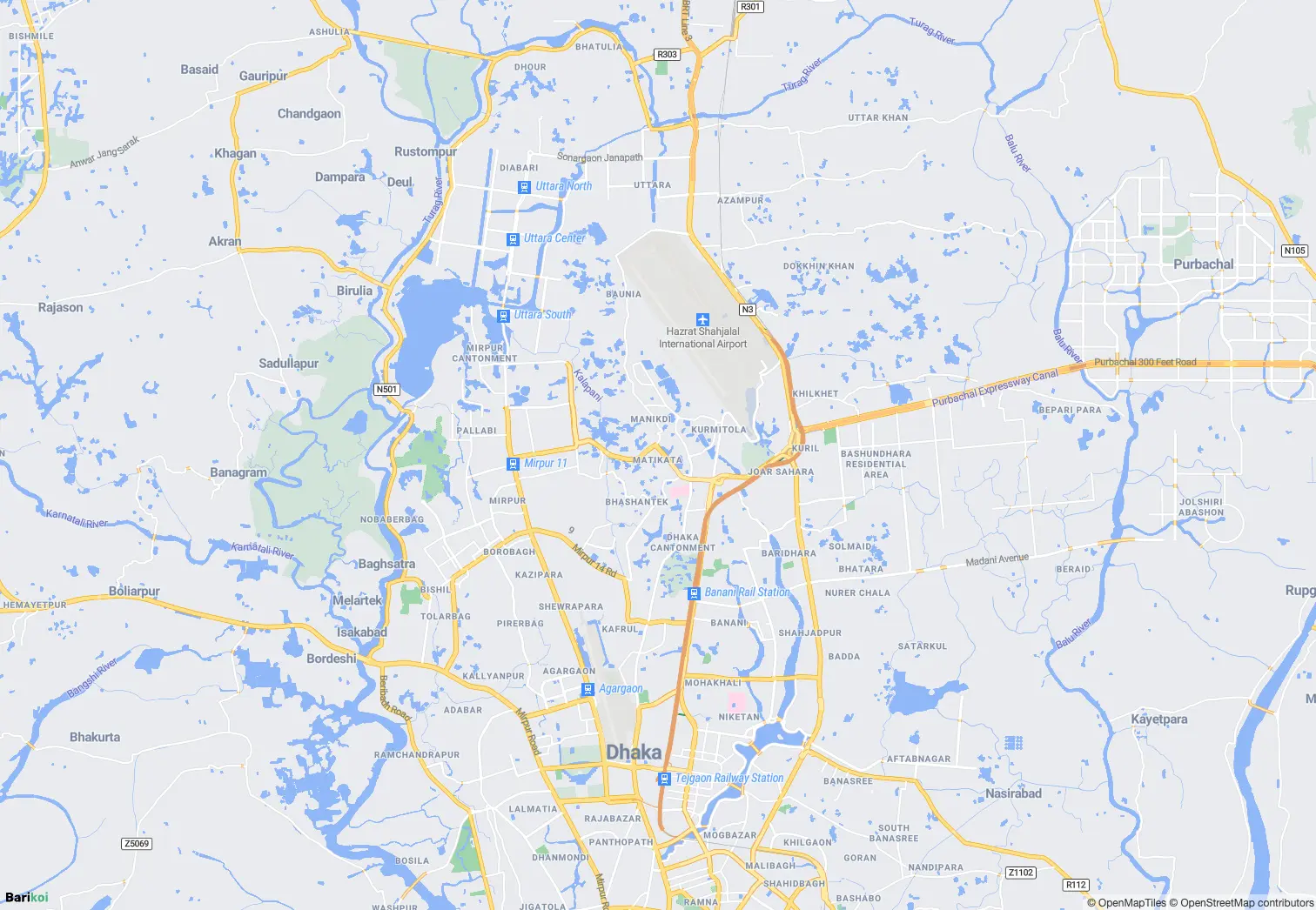
` element that will be styled by the CSS `#marker` rule. You can add classes, data attributes, or event listeners to this element. --- ### 5. Attach Popup to Marker ```js new bkoigl.Marker({ element: el }) .setLngLat(monument) // Position the marker .setPopup(popup) // Attach the popup .addTo(map); // Add to map ``` #### Marker Methods Explained | Method | Description | | -------------- | ---------------------------------------------------- | | `.setLngLat()` | Set marker position `[longitude, latitude]` | | `.setPopup()` | Attach a popup that opens when the marker is clicked | | `.addTo()` | Add the marker to the map | Popup Behavior By default, popups open when you **click** the marker. Use `popup.options.closeButton = false` to remove the close button, or `popup.options.closeOnClick = false` to prevent closing when clicking the map. ::: --- ## Advanced Popup Examples ### HTML Content with Formatting ```js const popup = new bkoigl.Popup({ offset: 25 }).setHTML(`

Jatiya Sangsad Bhaban

Designed by Louis Kahn

Learn More →
`); ``` ### Multiple Popups on Different Markers ```js const locations = [ { coords: [90.378554, 23.762607], name: "Parliament" }, { coords: [90.406085, 23.810332], name: "Shaheed Minar" }, { coords: [90.398575, 23.750874], name: "Lalbagh Fort" }, ]; locations.forEach((loc) => { const popup = new bkoigl.Popup({ offset: 25 }).setText(loc.name); new bkoigl.Marker().setLngLat(loc.coords).setPopup(popup).addTo(map); }); ``` --- ## Popup Configuration Options | Option | Type | Default | Description | | -------------- | --------- | --------- | -------------------------------------------------- | | `closeButton` | `boolean` | `true` | Show/hide the close button | | `closeOnClick` | `boolean` | `true` | Close popup when clicking elsewhere on the map | | `closeOnMove` | `boolean` | `false` | Close popup when the map moves | | `offset` | `number` | `0` | Distance between popup and anchor point | | `anchor` | `string` | auto | Position relative to marker: `top`, `bottom`, etc. | | `maxWidth` | `string` | `"240px"` | Maximum popup width | Example with custom options: ```js const popup = new bkoigl.Popup({ offset: 30, closeButton: false, closeOnClick: true, maxWidth: "300px", anchor: "bottom", }); ``` --- --- ## Add Vector Tile Layer # Add Vector Tile Layer Load **blazing-fast vector tiles** (Mapbox Vector Tiles / MVT format) and style them dynamically. Perfect for rendering millions of features like buildings, village boundaries, land parcels, flood zones, or custom geospatial data. --- ## Quick Usage ```js map.addSource("my-tiles", { type: "vector", url: "https://tiles.example.com/data/{z}/{x}/{y}", // OR use url: "https://tiles.example.com/data/{z}/{x}/{y}.pbf", // OR use tiles: ["https://a.tiles.example.com/{z}/{x}/{y}.pbf", ...] }); map.addLayer({ id: "villages", type: "fill", source: "my-tiles", "source-layer": "villages", paint: { "fill-color": "#3b82f6", "fill-opacity": 0.3, }, }); ``` --- ## Full Working Example ```html

Vector Tile Layer

Source: Barikoi building Grid
Format: Vector Tiles (.pbf)
``` --- ## Key Concepts | Term | Meaning | | ---------------- | ------------------------------------------ | | `type: "vector"` | Source type for .pbf tiles | | `tiles: [...]` | Direct tile URLs (no TileJSON needed) | | `source-layer` | Name of layer inside the .pbf file | | `filter` | Optional: filter by geometry type or props | --- ## Performance Advantages | Feature | Vector Tiles | GeoJSON | | ---------------------- | ------------------------- | ----------------------- | | File Size | Tiny (~10–50 KB per tile) | Large (MBs) | | Rendering Speed | Extremely fast | Slow with 10k+ features | | Zoom-dependent Styling | Yes | Limited | | Interactivity | Full (hover, click) | Possible but heavy | **Use vector tiles for anything over 5,000 features.** --- ## Animate Map Camera # Animate Map Camera Bring your map to life with **smooth, cinematic camera animations** — rotate, fly, zoom, and pitch dynamically using `flyTo`, `easeTo`, or `requestAnimationFrame`. Perfect for: - App intros & onboarding - Property tours - City flyovers - Storytelling & presentations - 3D building showcases --- ## Full Working Example ```html
``` --- ## Camera Animation Methods | Method | Best For | Smoothness | | ------------------------------------------ | ---------------------- | ------------ | | `map.flyTo()` | Cinematic jumps, tours | Highest | | `map.easeTo()` | Gentle transitions | Very High | | `map.jumpTo()` | Instant (no animation) | None | | `setBearing()` + `requestAnimationFrame()` | Continuous rotation | Ultra-smooth | **Pro Tip**: Always use `duration: 0` with `requestAnimationFrame` for 60fps rotation. --- ## Advanced: Orbital + Tilt Animation ```js let time = 0; function animate() { time += 0.01; map.setBearing(time * 20); map.setPitch(45 + Math.sin(time) * 20); requestAnimationFrame(animate); } ``` Creates a **breathing orbital effect** — mesmerizing! --- Make your map **breathtaking** — literally. --- ## Animate Point Along Line # Animate Point Along Line Create a **beautiful, smooth animation** of a moving icon (car, plane, ship, person) traveling along any route — with automatic rotation to follow the path. --- ## Features - Smooth 60fps animation using `requestAnimationFrame` - Automatic bearing rotation (icon faces direction of travel) - Replay button - Works with any route (curved or straight) - Powered by **Turf.js** for precise geodesic calculations --- ## Full Working Example ```html
``` --- ## Popular Use Cases | Icon | Use Case | | ------ | ---------------------------- | | Car | Live delivery tracking | | Plane | Flight path animation | | Ship | Maritime route visualization | | Person | Walking tour / pilgrimage | | Bus | Public transit simulation | --- ## Customization Tips | Want to change... | How to do it | | ----------------- | -------------------------------------------- | | Speed | Reduce `steps` (e.g., 300 = faster) | | Smoothness | Increase `steps` (e.g., 1000 = ultra smooth) | | Icon | Replace image URL with your own | | Route | Use real GPS track or routing API | | Auto-loop | Reset `counter = 0` when animation ends | --- ## Advanced: Real-time Vehicle Tracking ```js // Simulate live GPS updates setInterval(() => { const newCoord = getLiveGPS(); // your API arc.push(newCoord); route.geometry.coordinates = arc; map.getSource("route").setData(route); }, 5000); ``` --- Bring your routes to **life** — beautifully. --- ## Click Marker to Center Map # Click Marker to Center Map Enable users to click any marker and have the map elegantly fly to that location. Perfect for directories, store locators, or exploring multiple points of interest. --- ## Quick Usage ```js map.on("click", "your-layer-id", (e) => { map.flyTo({ center: e.features[0].geometry.coordinates, zoom: 15, duration: 2000, }); }); ``` --- ## Full Working Example ```html
``` --- ## Code Breakdown ### 1. Load Custom Icon ```js const image = await map.loadImage("url-to-icon.png"); map.addImage("custom-marker", image.data); ``` Use any PNG with transparency for beautiful custom markers. ### 2. Add Points via GeoJSON ```js map.addSource("points", { type: "geojson", data: { ... } }); ``` Best practice: Use GeoJSON for dynamic, scalable point data. ### 3. Create Clickable Symbol Layer ```js map.addLayer({ id: "poi-markers", type: "symbol", source: "points", layout: { "icon-image": "custom-marker" }, }); ``` Only `symbol` layers with `icon-image` are clickable by default. ### 4. Fly to Location on Click ```js map.on("click", "poi-markers", (e) => { map.flyTo({ center: e.features[0].geometry.coordinates, zoom: 15, duration: 2000, }); }); ``` `flyTo` gives a smooth cinematic animation. Use `easeTo` or `jumpTo` for alternatives. --- ## flyTo Options | Option | Description | Recommended Value | | ---------- | ------------------------ | -------------------- | | `zoom` | Target zoom level | `14–17` | | `duration` | Animation time (ms) | `1500–2500` | | `speed` | Speed of camera movement | `1.2` (default) | | `curve` | How sharp the turn is | `1.42` (smooth) | | `easing` | Timing function | Cubic Bézier (above) | --- ## Advanced: Highlight Clicked Marker ```js let activeMarker = null; map.on("click", "poi-markers", (e) => { const coords = e.features[0].geometry.coordinates; // Change icon size on click map.setLayoutProperty("poi-markers", "icon-size", 0.04); if (activeMarker) { map.setLayoutProperty("poi-markers", "icon-size", 0.04); } // Enlarge clicked one map.setLayoutProperty("poi-markers", "icon-size", [ "match", ["get", "name"], e.features[0].properties.name, 0.12, 0.04, ]); map.flyTo({ center: coords, zoom: 16 }); }); ``` --- ## Bonus: Fit Bounds for Multiple Points ```js map.fitBounds( [ [90.34, 23.7], [90.44, 23.84], ], { padding: 80, duration: 2000 } ); ``` Great for "Show all locations" button. --- Happy mapping! --- ## Display Custom Map Style # Display Custom Map Style Pick your vibe. One line of code changes everything. --- ## Official & Community Styles | Style Name | Preview Mood | Style URL | Best For | | --------------------- | ----------------------------- | ------------------------------------------------------------- | ---------------------------------- | | **Barikoi Light** | Clean, professional | `https://map.barikoi.com/styles/barikoi-light/style.json` | Default, dashboards, web apps | | **Barikoi Dark Mode** | Sleek, modern, night-friendly | `https://map.barikoi.com/styles/barikoi-dark-mode/style.json` | Admin panels, logistics, dark UIs | | **Barikoi Green** | Fresh, nature-inspired | `https://map.barikoi.com/styles/barkoi_green/style.json` | Eco apps, agriculture, tourism | | **Planet Map** | Common, realistic | `https://map.barikoi.com/styles/planet_map/style.json` | Real estate, urban planning | | **OSM Liberty** | OpenStreetMap elegant fork | `https://map.barikoi.com/styles/osm-liberty/style.json` | Open-data lovers, clean minimalism | Authentication All styles require your API key via `?key=YOUR_KEY` in production (or pass `accessToken` in JS). ::: --- ## Full Working Example ```html
``` --- ## Code Breakdown ### 1. Required Dependencies ```html ``` These are the same dependencies used in every Barikoi map. The CSS ensures UI elements render correctly regardless of which style you choose. --- ### 2. Full-Screen Map Container ```css body, html, #map { margin: 0; padding: 0; height: 100%; width: 100%; } ``` This makes the map fill the entire browser window. You can also use fixed dimensions: ```css #map { width: 800px; height: 500px; } ``` --- ### 3. Map Initialization with Custom Style ```js const map = new bkoigl.Map({ container: "map", // HTML element ID to render the map center: [90.4071, 23.7925], // Starting position [longitude, latitude] zoom: 10, // Initial zoom level accessToken: "YOUR_BARIKOI_API_KEY", // Required for authentication // 👇 THIS IS THE KEY LINE — change the style URL to switch themes! style: "https://map.barikoi.com/styles/barikoi-dark-mode/style.json", }); ``` #### The `style` Property Explained | Property | Description | | -------------------- | ------------------------------------------------------------------------- | | **What it is** | A URL pointing to a JSON file that defines every visual aspect of the map | | **What it controls** | Colors, fonts, layer visibility, road widths, label placement, icons | | **How to change** | Simply swap the URL to a different style | --- ## Switching Styles Dynamically You can change the map style **after initialization** using the `setStyle()` method: ```js // Switch to dark mode on button click document.getElementById("darkBtn").addEventListener("click", () => { map.setStyle( "https://map.barikoi.com/styles/barikoi-dark-mode/style.json?key=YOUR_BARIKOI_API_KEY" ); }); document.getElementById("lightBtn").addEventListener("click", () => { map.setStyle( "https://map.barikoi.com/styles/barikoi-light/style.json?key=YOUR_BARIKOI_API_KEY" ); }); ``` Note Calling `setStyle()` will remove any custom layers, markers, or sources you've added. You'll need to re-add them after the style loads using the `style.load` event. ::: --- ## Style Comparison ### When to Use Each Style | Style | ✅ Best For | | --------------------- | ------------------------------------ | | **Barikoi Light** | General purpose, public-facing apps | | **Barikoi Dark Mode** | Night mode, dashboards, admin panels | | **Barikoi Green** | Environmental apps, parks, tourism | | **Planet Map** | Detailed city exploration | | **OSM Liberty** | Open-source projects, minimal look | --- --- ## Fit Bounds # Fit Bounds Use `map.fitBounds()` to instantly frame any geographic data — whether it's a route, a group of stores, or a delivery zone — with perfect padding and smooth animation. --- ## Quick Usage ```js const bounds = new bkoigl.LngLatBounds( [90.35, 23.7], // southwest [90.44, 23.84] // northeast ); map.fitBounds(bounds, { padding: 80, duration: 2000, }); ``` --- ## Full Working Example ```html
``` --- ## How to Calculate Bounds ### Method 1: From Array of Coordinates (Recommended) ```js const bounds = coordinates.reduce( (b, coord) => b.extend(coord), new bkoigl.LngLatBounds(coordinates[0], coordinates[0]) ); ``` ### Method 2: Manual Southwest & Northeast ```js const bounds = new bkoigl.LngLatBounds( [90.35, 23.7], // SW corner [90.44, 23.84] // NE corner ); ``` ### Method 3: From GeoJSON Feature ```js const bounds = new bkoigl.LngLatBounds(); geojson.features.forEach((feature) => { bkoigl.LngLatBounds.convert(feature.bbox || feature.geometry).extend(bounds); }); ``` --- ## fitBounds Options | Option | Type | Description | Recommended | | ---------- | ------------- | ----------------------------------- | ---------------------------------- | | `padding` | Number/Object | Pixels from edge | `80` or `{top:100, left:120, ...}` | | `duration` | Number | Animation time (ms) | `1500–2500` | | `maxZoom` | Number | Prevent zooming in too far | `16–17` | | `bearing` | Number | Rotate map during fit | `0–360` | | `pitch` | Number | 3D tilt | `0–60` | | `linear` | Boolean | Disable easing (straight animation) | `false` (default) | --- ## Advanced: Fit Bounds with Custom Padding Object ```js map.fitBounds(bounds, { padding: { top: 120, bottom: 180, // Extra space for bottom UI left: 100, right: 100, }, duration: 2000, }); ``` Perfect when you have a bottom sheet, sidebar, or floating controls. --- ## Pro Tip: Auto-fit on Data Load ```js map.on("load", () => { // Automatically fit bounds after adding data map.fitBounds(bounds, { padding: 100, duration: 1800 }); }); ``` --- Perfect framing, every time! --- ## Fly to Location # Fly to Location Use `map.flyTo()` to create smooth, cinematic transitions to any coordinate. Ideal for navigation buttons, "Locate HQ", or guiding users to important places. --- ## Quick Usage ```js map.flyTo({ center: [90.4071, 23.7925], // Dhaka coordinates zoom: 15, speed: 1.2, curve: 1.42, easing: (t) => (t < 0.5 ? 4 * t * t * t : 1 - Math.pow(-2 * t + 2, 3) / 2), }); ``` --- ## Full Working Example ```html
``` --- ## Code Breakdown ### 1. Basic `flyTo` ```js map.flyTo({ center: [lng, lat], zoom: 15, duration: 2000, // milliseconds }); ``` ### 2. Advanced Animation Options | Option | Type | Description | Best For | | ---------- | -------- | ------------------------ | ------------------------- | | `zoom` | Number | Target zoom level | `14–18` | | `center` | Array | `[lng, lat]` coordinates | Required | | `duration` | Number | Animation time (ms) | `1500–3000` | | `speed` | Number | Speed multiplier | `0.6` (slow) – `2` (fast) | | `curve` | Number | How sharp the turn is | `1.42` (smooth) | | `bearing` | Number | Map rotation in degrees | `0–360` | | `pitch` | Number | Tilt angle (3D effect) | `0–60` | | `easing` | Function | Custom timing function | Smooth cinematic feel | --- ## Pro Tip: Smooth Easing Function ```js easing: (t) => (t < 0.5 ? 4 * t * t * t : 1 - Math.pow(-2 * t + 2, 3) / 2); ``` --- ## Advanced: Fly with Marker + Popup ```js map.flyTo({ center: coords, zoom: 16, duration: 2500 }); setTimeout(() => { new bkoigl.Marker() .setLngLat(coords) .setPopup(new bkoigl.Popup({ offset: 25 }).setHTML("

Welcome!

")) .addTo(map) .togglePopup(); }, 2600); ``` --- ## Alternative Methods | Method | Use Case | | ----------------- | ---------------------------------------- | | `map.flyTo()` | Smooth cinematic animation (recommended) | | `map.easeTo()` | Slightly faster, still smooth | | `map.jumpTo()` | Instant jump (no animation) | | `map.fitBounds()` | Show multiple locations at once | --- --- ## Get Mouse Position # Get Mouse Position Track the exact geographic coordinates (`lng`, `lat`) of the mouse as it moves or clicks on the map. Perfect for debugging, reverse geocoding, coordinate pickers, or advanced interactions. --- ## Quick Usage ```js map.on("mousemove", (e) => { console.log("LngLat:", e.lngLat.lng.toFixed(6), e.lngLat.lat.toFixed(6)); }); map.on("click", (e) => { console.log("Clicked at:", e.lngLat.toArray()); }); ``` `e.lngLat` → `{ lng: 90.123456, lat: 23.123456 }` `e.point` → `{ x: 512, y: 384 }` (pixel coordinates) --- ## Full Working Example ```html

Mouse Hover Position

Move mouse over map...

Mouse Click Position

Click on map...
``` --- ## Event Object Properties | Property | Type | Description | | ----------------- | ------------ | ------------------------------- | | `e.lngLat` | `LngLat` | Geographic coordinates | | `e.point` | `Point` | Pixel coordinates on map canvas | | `e.originalEvent` | `MouseEvent` | Raw DOM mouse event | ```js map.on("mousemove", (e) => { console.log("Geo:", e.lngLat.toArray()); console.log("Pixel:", e.point); }); ``` --- ## Common Use Cases | Use Case | Code Snippet | | -------------------------- | --------------------------------------------- | | Reverse geocoding on click | `fetch('/api/reverse?lng=${lng}&lat=${lat}')` | | Coordinate picker tool | Save `e.lngLat` to form input | | Debug map interactions | Log `e.point` for UI testing | | Draw on click | Use `e.lngLat` to add markers/lines | --- ## Advanced: Copy to Clipboard on Click ```js map.on("click", (e) => { const coords = `${e.lngLat.lng.toFixed(6)}, ${e.lngLat.lat.toFixed(6)}`; navigator.clipboard.writeText(coords); alert("Coordinates copied: " + coords); }); ``` --- Know exactly where your users are pointing — always! --- ## Icon Layer # Icon Layer Use **`symbol` layers** with custom icons to display **thousands of branded markers** efficiently — far more performant than individual `Marker` objects. Ideal for store locators, vehicle tracking, custom POIs, or any branded point data. --- ## Quick Usage ```js map.loadImage("https://your-icon.png").then((image) => { map.addImage("my-icon", image.data); map.addLayer({ id: "stores", type: "symbol", source: "stores-source", layout: { "icon-image": "my-icon", "icon-size": 0.12, }, }); }); ``` --- ## Full Working Example ```html
``` --- ## Key Layout Properties | Property | Value Example | Purpose | | ---------------------- | -------------------------------- | ---------------------------- | | `"icon-image"` | `"my-icon"` or `["get", "icon"]` | Static or dynamic icon | | `"icon-size"` | `0.08 – 0.15` | Scale factor (0.1 = normal) | | `"icon-allow-overlap"` | `true` / `false` | Show even when overlapping | | `"icon-anchor"` | `"bottom"` | Align icon tip to coordinate | --- ## Performance Comparison | Method | Max Markers | Best For | | ----------------------- | ----------- | ------------------------------------- | | `new bkoigl.Marker()` | ~100 | Few interactive markers | | **Symbol Layer (this)** | 10,000+ | Large datasets, clustering, filtering | **Symbol layers are 50x+ faster** than DOM markers. --- ## Advanced: Dynamic Icon from Property ```js "icon-image": ["concat", ["get", "category"], "-icon"] ``` Works perfectly with data like `{ category: "restaurant" }` --- --- ## Interactive Code Examples # Interactive Code Examples Looking for hands-on examples? We've moved all our interactive code examples to a dedicated **Examples** section for better organization and discoverability. ## [View All Examples →](/examples) ### What You'll Find: #### **Getting Started** Perfect for your first Barikoi map integration. - [Display a Basic Map](/examples/getting-started/display-basic-map) - [Custom Map Styles](/examples/getting-started/display-custom-map-style) - [Map Controls](/examples/getting-started/add-maps-control) #### **Markers & Popups** Add interactive markers and information windows. - [Add a Marker](/examples/markers-and-popups/add-marker) - [Draggable Markers](/examples/markers-and-popups/add-draggable-marker) - [Click to Add Marker](/examples/markers-and-popups/add-marker-map-click) - [Popups & Info Windows](/examples/markers-and-popups/add-popup) - [Multiple Markers](/examples/markers-and-popups/multiple-marker-as-layer) - [Animated Markers](/examples/markers-and-popups/soft-pulsing-marker) #### **Layers & Styling** Work with GeoJSON, lines, polygons, and custom layers. - [GeoJSON Lines](/examples/layers-and-styling/add-geojson-line) - [Polygons & Areas](/examples/layers-and-styling/add-polygon) - [Multiple GeoJSON Layers](/examples/layers-and-styling/multiple-geojson) - [Custom Icon Layer](/examples/layers-and-styling/icon-layer) - [Vector Tiles](/examples/layers-and-styling/vector-tile-layer) #### **Advanced Features** Real-time tracking, animations, and interactive tools. - [Live Real-Time Data](/examples/advanced-features/live-real-time-data) - [Animate Along Path](/examples/advanced-features/animate-point-along-line) - [Camera Animation](/examples/advanced-features/animate-map-camera) - [Measure Distance](/examples/advanced-features/measure-distance) - [Measure Area](/examples/advanced-features/measure-polygon-area) - [Click to Center](/examples/advanced-features/click-to-center) - [Fly to Location](/examples/advanced-features/fly-location) - [Fit Bounds](/examples/advanced-features/fit-bound) - [Mouse Position](/examples/advanced-features/mouse-position) --- ## 💡 Quick Links - 📚 [Browse All Examples](/examples) - Interactive examples with live demos - 🗺️ [Maps API Documentation](/docs/maps-api) - Complete API reference - 🔑 [Get Your API Key](https://developer.barikoi.com) - Start building today - 💬 [Get Support](https://barikoi.com/contact) - Need help? Contact us Looking for something specific? Visit the [Examples section](/examples) to see all examples organized by category with live demos and full source code. ::: --- ## Interactive Examples # Interactive Examples Copy-paste ready code examples to build powerful mapping applications. Each example includes a live demo, full source code, and detailed explanations. ## Getting Started Perfect for your first Barikoi map integration. --- ## Markers & Popups Add interactive markers and information windows. --- ## Layers & Styling Work with GeoJSON, lines, polygons, and custom layers. --- ## Advanced Features Real-time tracking, animations, and interactive tools. --- ## Need Help? - [Full API Documentation](/docs/maps-api) - [Get Your API Key](https://developer.barikoi.com) - [Community Support](https://barikoi.com/contact) --- ## Live Real-Time Data # Live Real-Time Data Display **live-updating markers** that move smoothly across the map — powered by real-time data sources (WebSocket, API polling, MQTT, etc.). Perfect for: - Live vehicle/fleet tracking - Flight radar - Delivery status - IoT sensor locations - Ride-hailing apps --- ## Full Working Example ```html

Live Tracking Active

Vehicle ID: DHK-247
Waiting for update...
``` --- ## Real-World Integration (Replace Simulation) ```js // Example: Fetch from your backend API setInterval(async () => { const res = await fetch("/api/vehicles/live"); const vehicles = await res.json(); map.getSource("live-vehicles").setData({ type: "FeatureCollection", features: vehicles.map((v) => ({ type: "Feature", geometry: { type: "Point", coordinates: [v.lng, v.lat] }, properties: { bearing: v.heading, id: v.id }, })), }); }, 3000); ``` Or use **WebSocket** for true real-time: ```js const ws = new WebSocket("wss://your-api.com/live"); ws.onmessage = (event) => { const data = JSON.parse(event.data); map.getSource("live-vehicle").setData(data); }; ``` --- ## Pro Tips | Feature | How to Add | | ---------------- | ------------------------------------------ | | Smooth movement | Use `map.easeTo()` or `flyTo()` | | Auto-follow | `map.easeTo({ center: coords, zoom: 16 })` | | Bearing rotation | `"icon-rotate": ["get", "bearing"]` | | Trail history | Add previous points to a `line` layer | | Offline fallback | Cache last known position | --- Real-time location — **beautifully alive**. --- ## Measure Distance on Map # Measure Distance on Map Let users **measure distances** by clicking on the map. Draws a polyline, shows live distance in **kilometers & meters**, and allows removing points by clicking them again. ### Features - Click to add points - Click an existing point to remove it - Real-time distance calculation (Turf.js) - Clean visual feedback with red markers & line - Double-click zoom disabled for smooth experience --- ## Full Working Example ```html
Distance Measurement
Click map to start measuring
``` --- ## How It Works | Action | Result | | ---------------- | -------------------------------- | | Click empty area | Adds a red marker | | Click a marker | Removes that point | | 2+ points | Draws line & shows live distance | | New click | Rebuilds entire measurement | --- Measure anything — **instantly and beautifully**. --- ## Measure Polygon Area # Measure Polygon Area Let users **draw and edit polygons** directly on the map and instantly see the **real-time area** in **square meters**, **hectares**, and **square kilometers** — ideal for land measurement, property boundaries, construction planning, or agriculture. ### Features - Draw, edit, and delete polygons freely - Real-time area calculation using **Turf.js** --- ## Full Working Example ```html
Polygon Area
Draw a polygon to measure
``` --- ## Area Units Explained | Unit | Conversion | Best For | | ------------ | -------------------- | ----------------------------- | | **m²** | Base unit | Small plots, buildings | | **Hectares** | 1 ha = 10,000 m² | Agriculture, large land | | **km²** | 1 km² = 1,000,000 m² | City blocks, industrial zones | --- ## Pro Tips - Use `turf.area()` — most accurate for spherical Earth - Combine with **snap-to-roads** or **ortho imagery** for surveying - Export drawn polygon with `draw.getAll()` → send to backend --- --- ## Multiple GeoJSON Layers # Multiple GeoJSON Layers Add and style multiple geometry types (points, lines, polygons) from a single GeoJSON source with independent layer controls. ## Complete Working Example ```html
``` --- ## How It Works ### 1. GeoJSON Source Structure The example uses a **FeatureCollection** containing multiple features with different geometry types: ```javascript { type: "FeatureCollection", features: [ { type: "Feature", geometry: { type: "Polygon", coordinates: [...] } // Park boundary }, { type: "Feature", geometry: { type: "Point", coordinates: [...] } // Entrance 1 }, { type: "Feature", geometry: { type: "Point", coordinates: [...] } // Entrance 2 } ] } ``` ### 2. Adding the GeoJSON Source ```javascript map.addSource("national-park", { type: "geojson", data: { /* GeoJSON data here */ }, }); ``` | Parameter | Value | Description | | --------- | ---------------- | ----------------------------------------------- | | `type` | `"geojson"` | Specifies this is a GeoJSON source | | `data` | `GeoJSON object` | Contains all features (polygons, points, lines) | ### 3. Creating Separate Layers with Filters Each layer uses a **filter** to display only specific geometry types: **Polygon Layer (Park Boundary):** ```javascript filter: ["==", "$type", "Polygon"]; ``` - `$type` is a special expression that checks the geometry type - Only shows features where geometry type equals "Polygon" **Circle Layer (Points of Interest):** ```javascript filter: ["==", "$type", "Point"]; ``` - Only shows features where geometry type equals "Point" --- ## Layer Configuration Details ### Polygon Fill Layer ```javascript { id: "park-boundary", type: "fill", source: "national-park", paint: { "fill-color": "#4CAF50", // Solid fill color "fill-opacity": 0.3, // 30% opacity (semi-transparent) "fill-outline-color": "#2E7D32" // Border color }, filter: ["==", "$type", "Polygon"] } ``` ### Circle Layer (Points) ```javascript { id: "park-points", type: "circle", source: "national-park", paint: { "circle-radius": 8, // Size of the circle "circle-color": "#FF5722", // Fill color "circle-stroke-width": 2, // Border thickness "circle-stroke-color": "#FFFFFF" // Border color }, filter: ["==", "$type", "Point"] } ``` --- ## Advanced Examples ### Add LineString Features (Trails/Roads) ```javascript // Add line features to your GeoJSON { type: "Feature", geometry: { type: "LineString", coordinates: [ [90.399452, 23.780573], [90.4022, 23.70109], [90.31403, 23.7279] ] } } // Create a line layer map.addLayer({ id: "park-trails", type: "line", source: "national-park", paint: { "line-color": "#2196F3", "line-width": 3, "line-dasharray": [2, 2] // Dashed line }, filter: ["==", "$type", "LineString"] }); ``` ### Add Properties for Dynamic Styling ```javascript { type: "Feature", geometry: { type: "Point", coordinates: [...] }, properties: { "name": "Main Entrance", "type": "entrance", "status": "open" } } // Style based on properties map.addLayer({ id: "smart-points", type: "circle", source: "national-park", paint: { "circle-color": [ "case", ["==", ["get", "status"], "open"], "#4CAF50", ["==", ["get", "status"], "closed"], "#F44336", "#9E9E9E" // default color ], "circle-radius": [ "case", ["==", ["get", "type"], "entrance"], 10, ["==", ["get", "type"], "viewpoint"], 8, 6 // default size ] } }); ``` --- ## Common Use Cases | Use Case | Geometry Types | Example Applications | | ------------------------ | ------------------- | ---------------------------------- | | **Park/Reserve Mapping** | Polygon + Points | Park boundary with entrance points | | **Transport Networks** | LineString + Points | Roads with bus stops | | **Building Complexes** | Polygon + Points | Building outlines with amenities | | **Survey Data** | Points + Polygons | Sample points with area boundaries | --- ## Performance Tips 1. **Single Source vs Multiple Sources** - ✅ Use single source when features are related (same dataset) - ✅ Use multiple sources when data comes from different APIs or updates independently 2. **Filter Efficiency** - Filters are applied during rendering, so all data is still loaded - For very large datasets, consider splitting into separate sources 3. **Layer Order** - Layers are drawn in the order they're added - Add point layers last so they appear on top of polygons/lines --- ## Multiple Markers as Layer # Multiple Markers as Layer Render **hundreds or thousands** of markers efficiently using a `symbol` layer with dynamic icons based on categories — far more performant than individual `Marker` objects. --- ## Quick Usage ```js map.addLayer({ id: "poi-layer", type: "symbol", source: "pois", layout: { "icon-image": ["get", "icon"], // Dynamic icon from properties "icon-size": 0.09, }, }); ``` --- ## Full Working Example ```html

Location Types

Restaurant
Hotel
Shop
Office
Hospital
``` --- ## Why Use Symbol Layers? | Method | Performance | Best For | | ----------------------- | ------------------ | ------------------------------------- | | `new bkoigl.Marker()` | Slow (1–100) | Few markers with rich popups | | **Symbol Layer (this)** | Fast (100–10,000+) | Large datasets, clustering, filtering | **Symbol layers are 10–50x faster** than individual markers. --- ## Key Layout Properties | Property | Value Example | Purpose | | ---------------------- | ----------------- | ------------------------------------ | | `"icon-image"` | `["get", "icon"]` | Dynamic icon from feature properties | | `"icon-size"` | `0.09` | Scale (0.05 = small, 0.15 = large) | | `"icon-allow-overlap"` | `false` | Prevent stacking | | `"icon-anchor"` | `"bottom"` | Align pin tip to coordinate | --- ## Advanced: Filter by Category ```js // Show only restaurants map.setFilter("pois-layer", ["==", ["get", "category"], "restaurant"]); // Clear filter map.setFilter("pois-layer", null); ``` --- ## Advanced: Dynamic Icon Size by Zoom ```js "icon-size": [ "interpolate", ["linear"], ["zoom"], 10, 0.06, 15, 0.12 ] ``` --- Scale to thousands — effortlessly! --- ## Soft Pulsing Marker # Soft Pulsing Marker Add a **smooth, animated pulsing dot** that gently breathes and glows — ideal for showing live user location, real-time tracking, alerts, or emphasizing important points. --- ## Quick Usage ```js map.addImage("pulsing-dot", pulsingDot, { pixelRatio: 2 }); map.addLayer({ id: "pulse-layer", type: "symbol", source: "user-location", layout: { "icon-image": "pulsing-dot" }, }); ``` Uses a **dynamic canvas-based image** that animates in real-time. --- ## Full Working Example ```html
``` --- ## Customize the Pulse | Property | Change To | Effect | | --------------- | -------------------------- | ------------------- | | Pulse color | `rgba(255, 100, 100, ...)` | Red pulse (alert) | | Speed | `duration = 800` | Faster pulse | | Size | `size = 240` | Larger dot | | Outer radius | `0.9 * t` | Stronger pulse wave | | Inner dot color | `rgba(255, 100, 100, 1)` | red (Emergency/SOS) | **Popular Variants**: - Green pulse → Live user location - Red pulse → Emergency/SOS --- ## Advanced: Multiple Pulsing Markers ```js // ...existing code... features: [ { type: "Feature", geometry: { type: "Point", coordinates: [90.39, 23.79], }, }, { type: "Feature", geometry: { type: "Point", coordinates: [90.41, 23.81], }, }, { type: "Feature", geometry: { type: "Point", coordinates: [90.37, 23.77], }, }, ], // ...existing code... ``` All will pulse in perfect sync! --- ## Pro Tip: Combine with Geolocation ```js // Add a separate source for the live geolocation marker map.addSource("pulse-point", { type: "geojson", data: { type: "Feature", geometry: { type: "Point", coordinates: [90.36402004477634, 23.823730671721], // default center }, }, }); // Add layer for live geolocation marker map.addLayer({ id: "pulse-point", type: "symbol", source: "pulse-point", layout: { "icon-image": "pulsing-dot", }, }); // Watch user's position and update marker navigator.geolocation.watchPosition( (pos) => { map.getSource("pulse-point").setData({ type: "Feature", geometry: { type: "Point", coordinates: [pos.coords.longitude, pos.coords.latitude], }, }); // Optional: center map on user's location // map.setCenter([pos.coords.longitude, pos.coords.latitude]); }, (error) => { console.error("Geolocation error:", error); }, { enableHighAccuracy: true, maximumAge: 0, } ); ``` Real-time live location with pulsing effect --- Make your map **breathe** — beautifully. --- ## Your First Barikoi Map # Your First Barikoi Map The fastest way to get a beautiful, interactive map on any website or app. ## Full Working Example ```html
``` --- ## Code Breakdown ### 1. Required Dependencies ```html ``` | Resource | Purpose | | ------------- | --------------------------------------------------------------------- | | `bkoi-gl.css` | Styles for map UI elements (zoom buttons, attribution, popups, etc.) | | `bkoi-gl.js` | Core JavaScript library that renders the map and handles interactions | Use a specific version in production Replace `@latest` with a fixed version like `@2.0.4` to avoid unexpected breaking changes. ::: --- ### 2. CSS Setup for Full-Screen Map ```css body { margin: 0; /* Remove default browser margins */ padding: 0; /* Remove default browser padding */ } html, body, #map { height: 100%; /* Map container takes full viewport height */ width: 100%; /* Map container takes full viewport width */ } ``` Why is this necessary? Without these styles, the map container would have **zero height** and nothing would be visible. The map needs explicit dimensions to render. ::: --- ### 3. Map Container Element ```html
``` This empty `
` is where Barikoi GL injects the interactive map canvas. The `id="map"` must match the `container` property in the JavaScript initialization. --- ### 4. Initialize the Map ```js const map = new bkoigl.Map({ container: "map", // Target element ID style: "https://map.barikoi.com/styles/barikoi-light/style.json", // Map style URL center: [90.4071, 23.7925], // [longitude, latitude] zoom: 11, // Zoom level (0-22) accessToken: "YOUR_BARIKOI_API_KEY", // Your API key }); ``` #### Configuration Options Explained | Option | Type | Description | | ------------- | ------------ | -------------------------------------------------------------------------------- | | `container` | `string` | The `id` of the HTML element where the map will render | | `style` | `string` | URL to a Barikoi map style JSON (defines colors, fonts, layers, etc.) | | `center` | `[lng, lat]` | Initial map center coordinates — **longitude first!** | | `zoom` | `number` | Initial zoom level: `0` = world view, `22` = building level | | `accessToken` | `string` | Your Barikoi API key from [developer.barikoi.com](https://developer.barikoi.com) | Common Mistake: Coordinate Order Barikoi GL uses **`[longitude, latitude]`** (like GeoJSON), not `[latitude, longitude]` (like Google Maps). Dhaka is `[90.4071, 23.7925]`, not `[23.7925, 90.4071]`. ::: --- ## Quick Reference: Zoom Levels | Zoom Level | What You See | | ---------- | ---------------------- | | `0-3` | Continents / Countries | | `4-6` | Large regions | | `7-10` | Cities | | `11-14` | Neighborhoods | | `15-18` | Streets | | `19-22` | Buildings | --- --- ============================================================================== 11. BEST PRACTICES ============================================================================== ## API Key Security - Use environment variables for API keys - Never expose keys in client-side code in production - Consider using a backend proxy for API calls ## Error Handling - Always implement try-catch for API calls - Provide fallback UI for failed map loads - Handle network errors gracefully - Use proper loading indicators for async operations ## Performance Optimization - Use debouncing for autocomplete (300-500ms delay) - Implement lazy loading for map SDKs - Cache frequently accessed data like district information - Remove map instances properly on component unmount ## Coordinate Format - Remember: Barikoi uses [longitude, latitude] format - Google Maps uses {lat, lng} objects - Create utility functions for conversion if needed ## Cleanup - Always remove map instance on component unmount - Remove markers and popups when replacing them - Cancel pending API requests on cleanup ## Bangladesh-Specific Considerations - All coordinates use [longitude, latitude] format - Default view focuses on Bangladesh (Dhaka: [90.4125, 23.8103]) - Administrative divisions: Division, District, Thana/Upazila, Union - Support for both English and Bangla interfaces - Detailed administrative boundary data for Bangladesh =============================================================================== RESOURCES =============================================================================== Documentation: https://docs.barikoi.com/ Developer Portal: https://developer.barikoi.com/ API Reference: https://docs.barikoi.com/api Copyright © 2026 Barikoi Technologies Limited